Forminator
You can easily integrate the Forminator Form plugin into many other popular platforms using Advanced Form Integration. Both free and paid versions of the Forminator (form only) are supported.
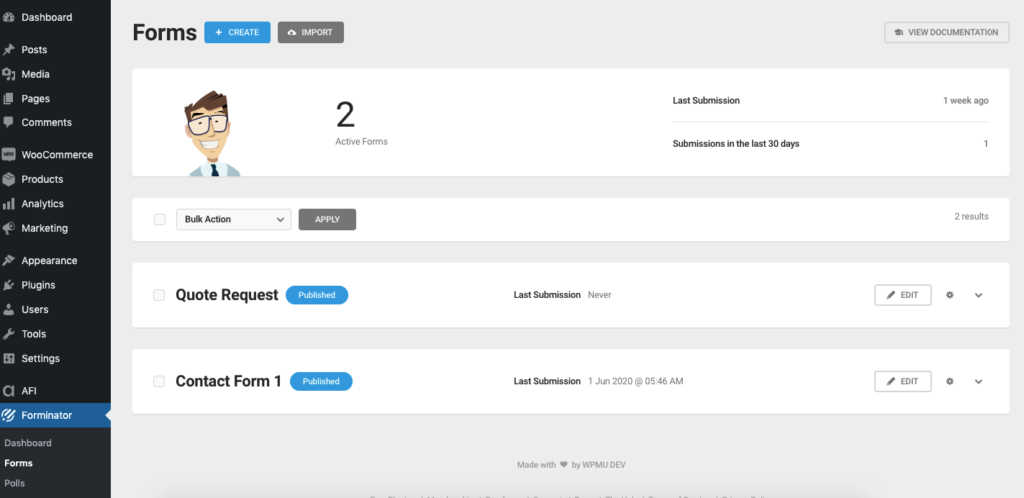
To start integrating Forminator, go to the Advanced Form Integration plugin menu and start new integration.
Title: A default title will be auto-added but you can rename it to a meaningful one. That can help you to quickly recognize the correct one when you have several integrations.
Form Provider: Select Forminator from the dropdown. Please remember that the Forminator plugin must be installed and activated otherwise you won’t find it in the dropdown.
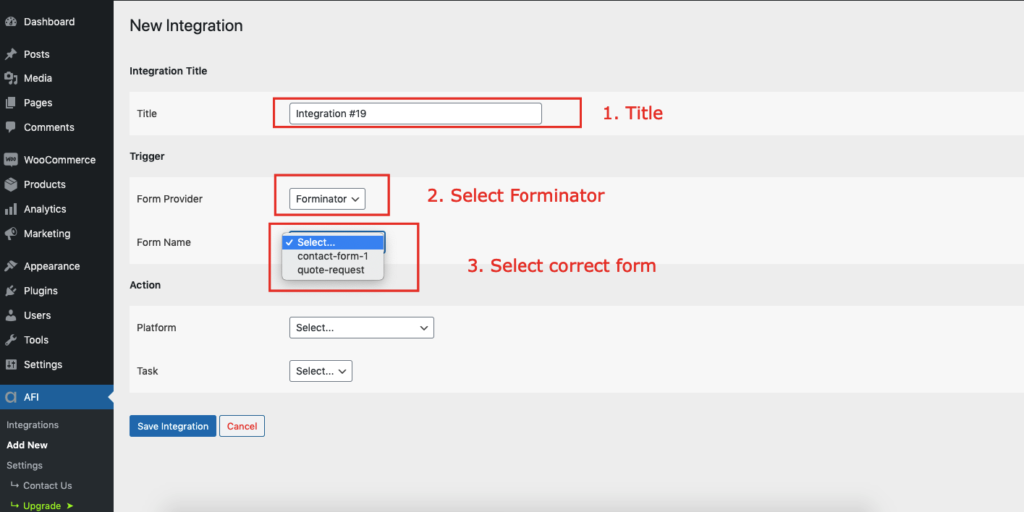
Form Name: A list of all forms created in Forminator will be populated here. Select the one that you want to connect with.
| Field | Supported | Output |
|---|---|---|
| Name | Yes | First name, middle name, last name separately |
| Yes | Same as input | |
| Phone | Yes | Same as input |
| Address | Yes | Street Address, apartment, city, state, zip, country separately |
| Website | Yes | Same as input |
| Input | Yes | Same as input |
| Textarea | Yes | Same as input |
| Number | Yes | Numeric value |
| Radio | Yes | Selected item value |
| Checkbox | Yes | Comma-separated selected items value |
| Calculations | Yes | Calculated value |
| Select | Yes | Selected item value |
| Datepicker | Yes | As input format |
| Timepicker | Yes | Hours & minutes separately |
| File Upload | Yes | Uploaded file link, comma-separated for multiple |
| Hidden Field | Yes | Value |
| Consent | Yes | checked |
| Currency | Yes | Value |
Platform: Now select the platform you want to connect to and finish the setup. Please check Receiver Platforms documentation to know more about that specific receiver platform.
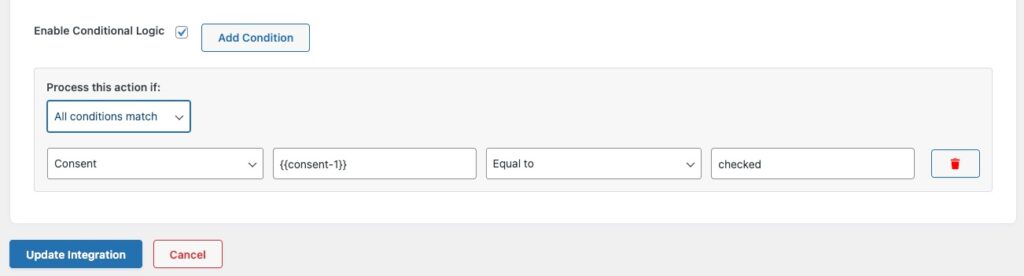
Consent – Conditional Logic
When a user clicks a consent box, the system records it as the word ‘checked’.
To use this for conditional logic in Forminator, follow these steps:
Select the consent field in your settings.
Set the condition to ‘Is’ or ‘Equal to’.
Type the word checked in the value box.
By doing this, your integration will only run if the box is ticked. If it’s left blank, nothing will happen.