 AFI
AFI
Ragic
Ragic is a spreadsheet-style database builder for custom business apps. Advanced Form Integration adds form submissions as new records in a chosen Ragic sheet.
What you’ll need
- An active Ragic account.
- A Ragic API Key (Menu → Profile → API Key).
- Your Ragic Base URL (e.g.,
sea2.ragic.com). - The Advanced Form Integration plugin installed and activated.
Get your Ragic credentials
- Log in to your Ragic account.
- Go to Menu → Profile → API Key.
- Generate a new API Key and copy it.
- Note your Base URL from the browser address bar (e.g.,
sea2.ragic.com).
Connect Ragic to AFI
- In WordPress, go to AFI → Settings.
- Enable Ragic and click Save Changes.
- Open the Ragic tab.
- Enter the API Key and Base URL.
- Click Save Settings.
Create the integration
- Go to AFI → Add New.
- Configure the trigger.
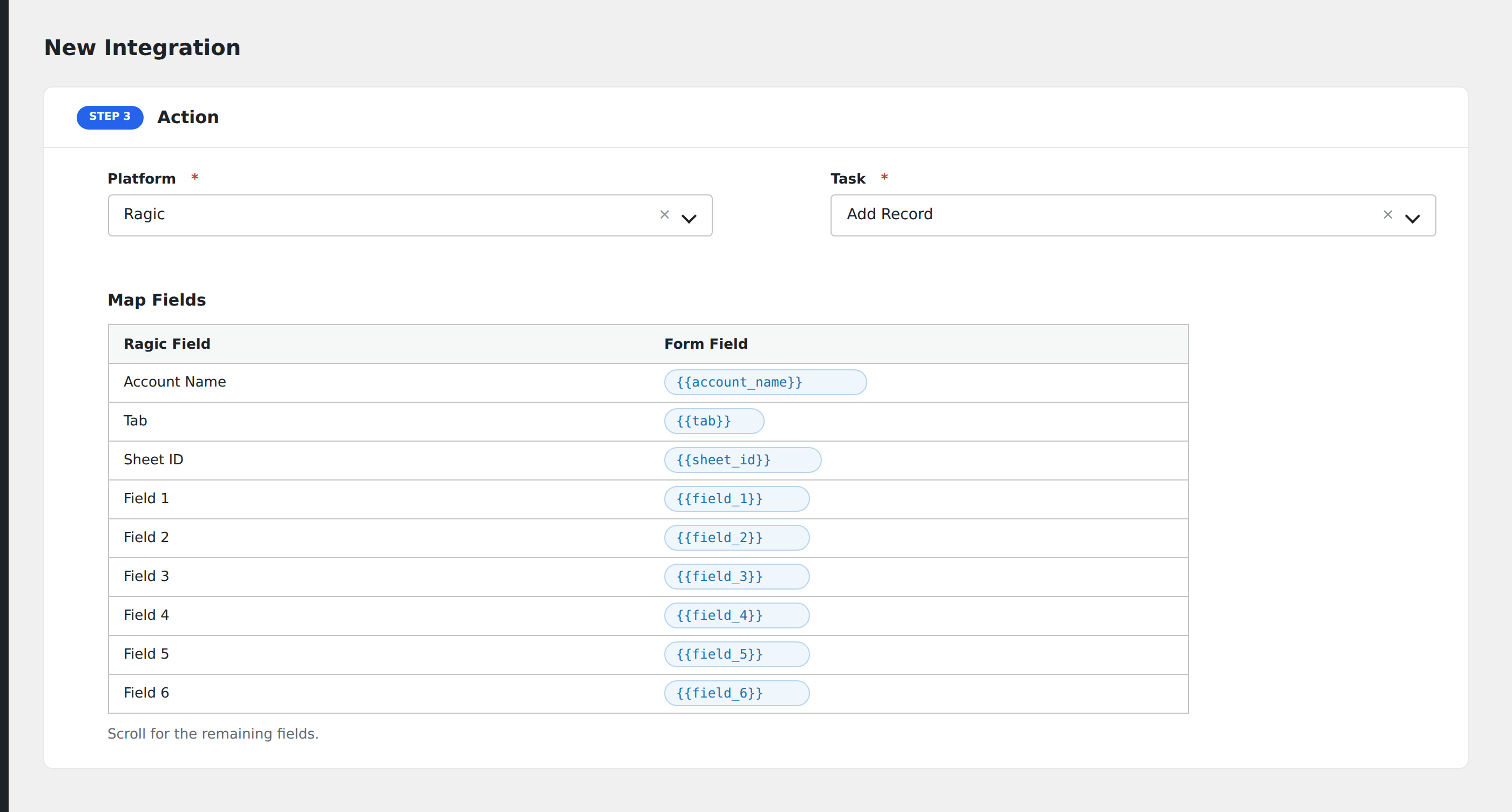
- In Action → Platform, select Ragic.
- In Task, choose Add Record.
- Configure the sheet location:
- Account Name: your Ragic account name (the prefix in the Base URL).
- Tab Name: the folder/tab containing your sheet (e.g.,
a,b). - Sheet ID: the sheet’s unique identifier (found in the URL or Ragic’s API docs).
- Map fields using the format
ragic_field_key=value, separated by||. For example:
100001=Full Name||100002=Email||100003=Company You can use form-tag merge syntax inside values: 100001=Dear {{first_name}} {{last_name}}.
- Optional: configure Conditional Logic.
- Click Save Integration.
Tasks supported
Add Record
Creates a new record in the chosen Ragic sheet. Field mapping uses Ragic’s numeric field IDs. These are stable identifiers Ragic assigns to each column. Find IDs via Ragic’s field inspector or API guide.
Conditional logic example
Append to the “VIP customers” sheet only when the form’s customer_tier field equals “premium”. Standard customers go to a different sheet via a separate integration.
Troubleshooting
Integration doesn’t fire
Open AFI → Log and find the most recent entry. The log shows the request payload sent to Ragic and the response received, usually pointing straight at the cause.
Records not appearing in Ragic
- API Key: Confirm the key is correct and active. Regenerate from your Ragic profile if needed.
- Base URL: Make sure the Base URL matches your Ragic account region (e.g.,
sea2.ragic.com,na2.ragic.com). - Field Mapping: Ensure each Ragic field ID is valid and exists in the destination sheet. Incorrect IDs cause silent failures.
- Sheet/Tab ID: Verify the sheet ID and tab name match the structure in your Ragic URL.
Failed API responses
Failed responses appear in red in AFI → Logs and usually indicate what went wrong inside the response data.