 AFI
AFI
Timetable and Event Schedule
Timetable and Event Schedule by MotoPress helps you publish class schedules, gym timetables, and event calendars. Connect it to Advanced Form Integration (AFI) and AFI can act every time an event is created or updated. You can log every schedule change in Google Sheets, notify your team through a webhook or Slack, or sync event details into a CRM.
What You’ll Need
- The Timetable and Event Schedule plugin installed and active.
- Advanced Form Integration, free or Pro. This trigger works fully in the free version.
- An account on the receiving platform, such as Google Sheets or Slack.
How to Create the Integration
- Go to AFI > Add New in your WordPress dashboard.
- AFI fills in a default Integration Title. Rename it to something clear, like “Timetable Events to Google Sheets”.
- In the Trigger section, select Timetable and Event Schedule from the Form Provider dropdown. The Timetable plugin must be active or the option will not appear.
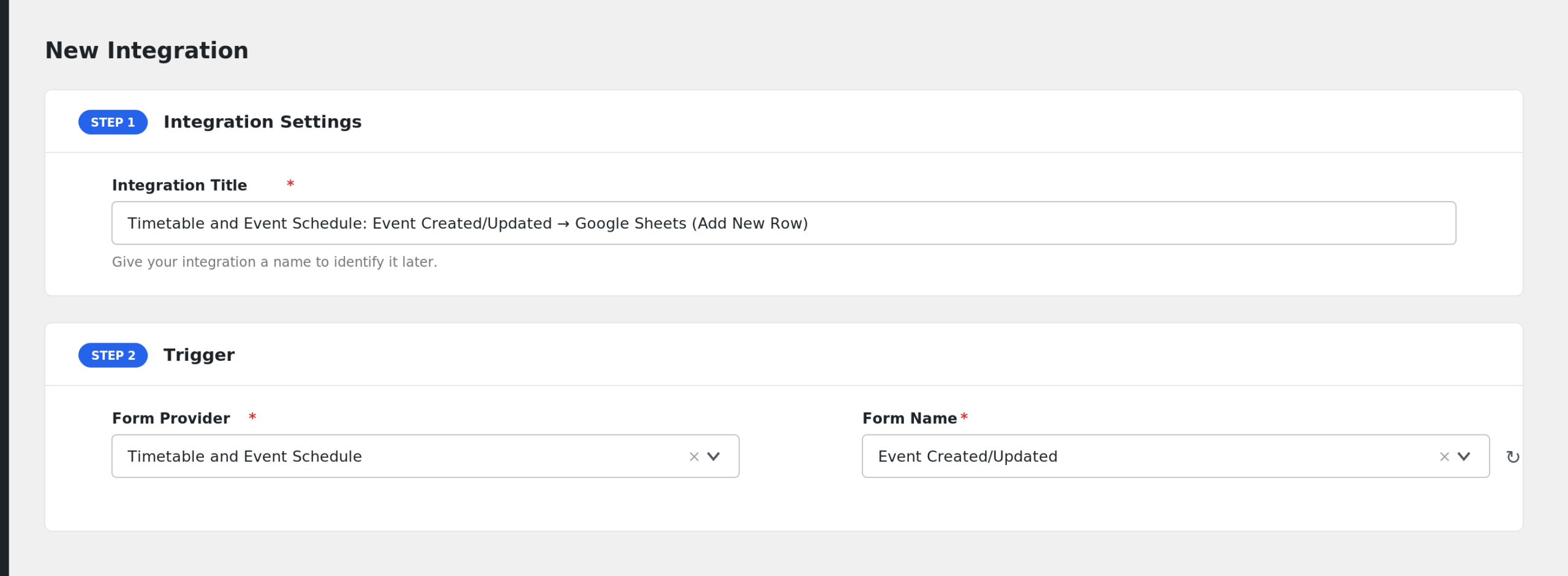
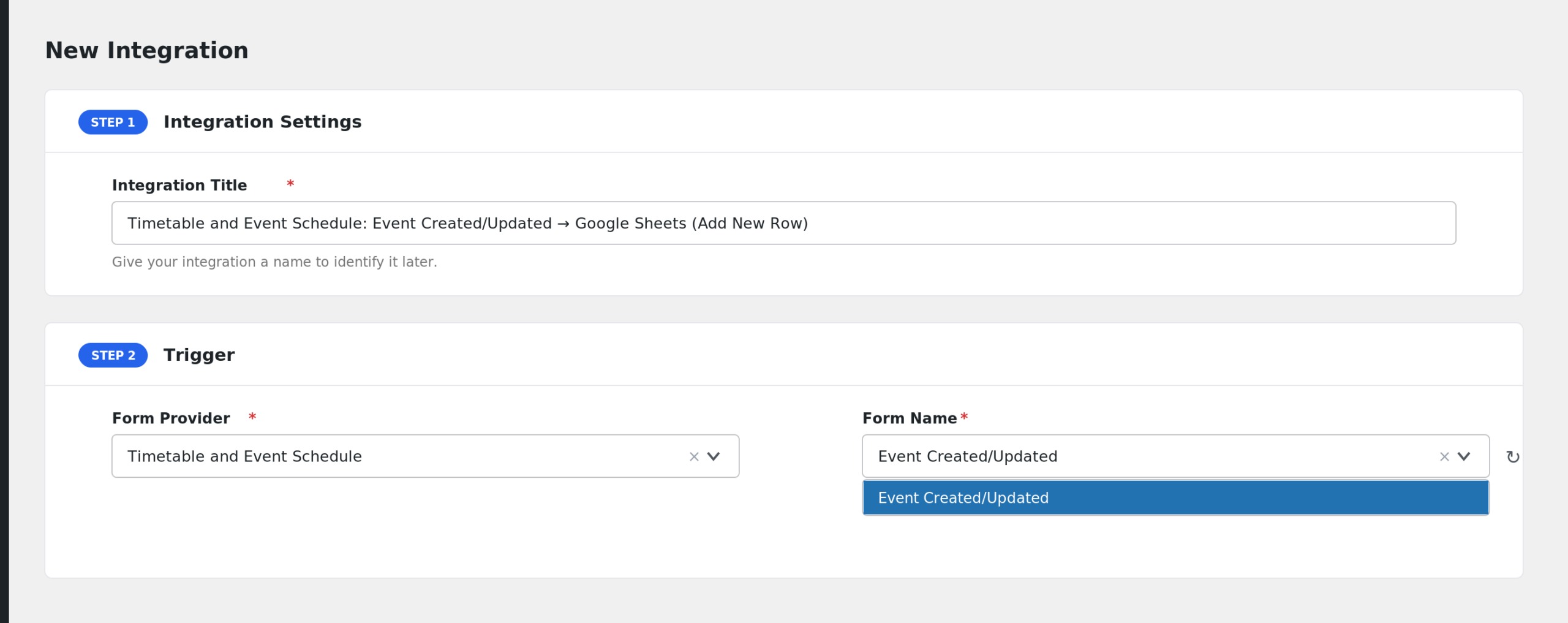
- In the Form/Task Name dropdown, choose Event Created/Updated. This is the only event for this provider.
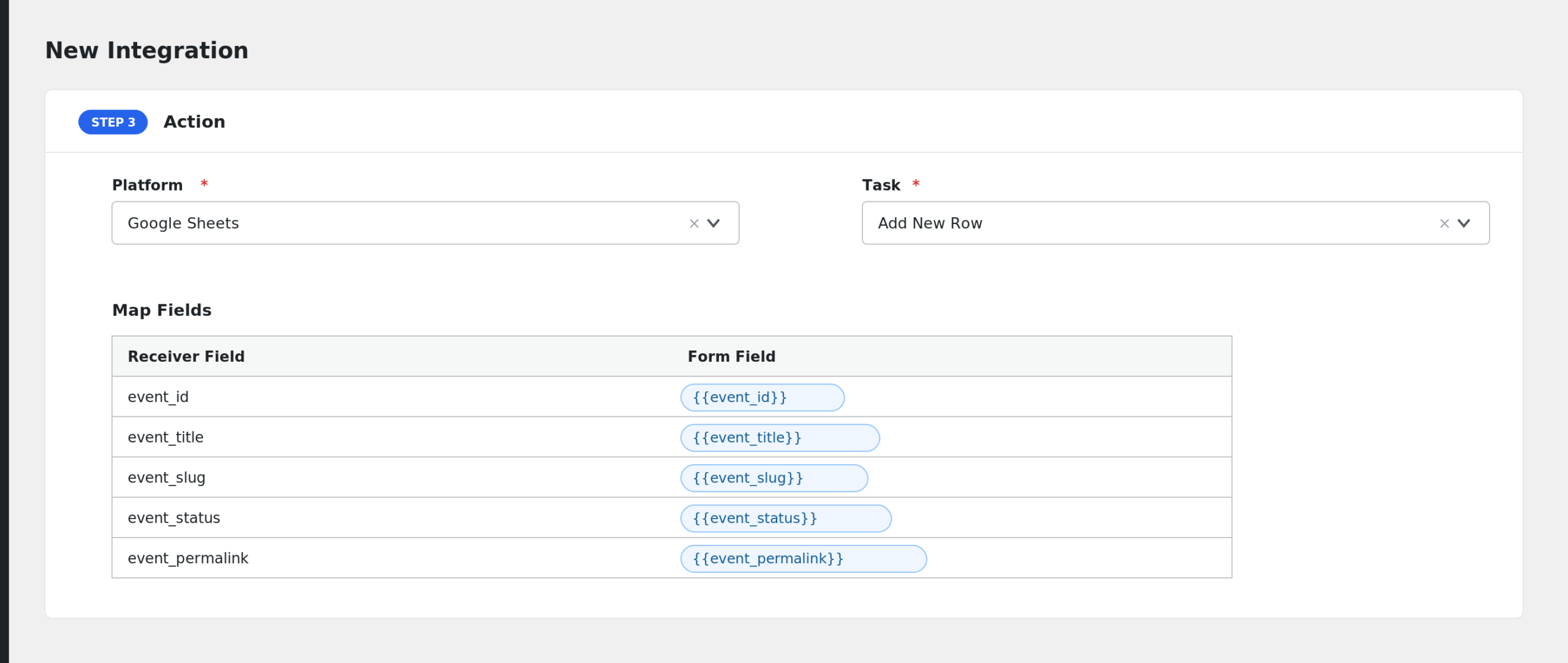
- Under Action, select your receiver platform and connect the account.
- Map the event fields to the receiver fields with the tag picker.
- Click Save Integration. Publish or update an event to test it.
Available Events
- Event Created/Updated: fires when a Timetable event is published or an already published event is saved again. Autosaves, revisions, and drafts are ignored.
Fields You Can Send
| Field | Description |
|---|---|
| event_id | The ID of the event. |
| event_title | The event title. |
| event_slug | The event slug. |
| event_status | The post status of the event. |
| event_permalink | The public URL of the event. |
| event_excerpt | The event excerpt. |
| event_content | The full event description. |
| event_subtitle | The event subtitle. |
| event_color | The event background color. |
| event_hover_color | The event hover color. |
| event_text_color | The event text color. |
| event_hover_text_color | The event hover text color. |
| event_custom_url | A custom URL set for the event. |
| event_disable_url | Whether the event link is disabled, yes or no. |
| event_categories | Event category names, comma separated. |
| event_category_ids | Event category IDs, comma separated. |
| event_tags | Event tag names, comma separated. |
| event_tag_ids | Event tag IDs, comma separated. |
| event_featured_image | The featured image URL. |
| event_created_at | When the event was created. |
| event_modified_at | When the event was last modified. |
| author_id | The ID of the event author. |
| author_name | The display name of the author. |
| author_email | The email address of the author. |
| timeslot_count | How many timeslots the event has. |
| instructor_ids | Instructor user IDs, comma separated. |
| instructor_names | Instructor display names, comma separated. |
| first_start_time | The earliest start time across all timeslots. |
| last_end_time | The latest end time across all timeslots. |
| timeslots_json | All timeslots as a JSON string. |
| timeslots_plain | All timeslots as readable text lines. |
| columns_json | The timetable columns as a JSON string. |
| columns_plain | The timetable columns as readable text lines. |
| post_id | The underlying post ID, same as the event ID. |
Conditional Logic Example
You can add a condition on event_categories so the integration runs only for events in the Yoga category. Yoga class updates reach your studio spreadsheet while other events are skipped. Conditional logic requires AFI Pro.
Troubleshooting
Timetable and Event Schedule is not in the Form Provider list
Confirm the Timetable and Event Schedule plugin is active. AFI detects the plugin before showing the provider.
The integration is not firing
The trigger only runs for published events. Drafts, pending events, autosaves, and revisions are skipped. Publish the event, or click Update on a published event, then check AFI > Log for the trigger record and the receiver response.
Timeslot fields arrive empty
Timeslot data comes from the slots you add on the event edit screen. If an event has no timeslots, fields like timeslot_count, first_start_time, and timeslots_plain will be empty. Add at least one timeslot and update the event.