 AFI
AFI
User Registration
User Registration is a popular free WordPress plugin from WPEverest for adding custom user registration forms with role assignment and email verification. Advanced Form Integration captures every User Registration submission and routes the data to any of 200+ destinations.
What you’ll need
- The User Registration plugin installed and activated.
- At least one registration form built.
- The Advanced Form Integration plugin installed and activated.
Supported registration data
| Field | Format |
|---|---|
| Username | Same as input |
| Same as input | |
| Password | Not sent (security) |
| First name | Same as input |
| Last name | Same as input |
| Display name | Same as input |
| User role | The assigned WordPress role |
| Profile fields | Each custom field separately |
All custom registration form fields you’ve added in User Registration also appear in the field-mapping dropdown.
Create the integration
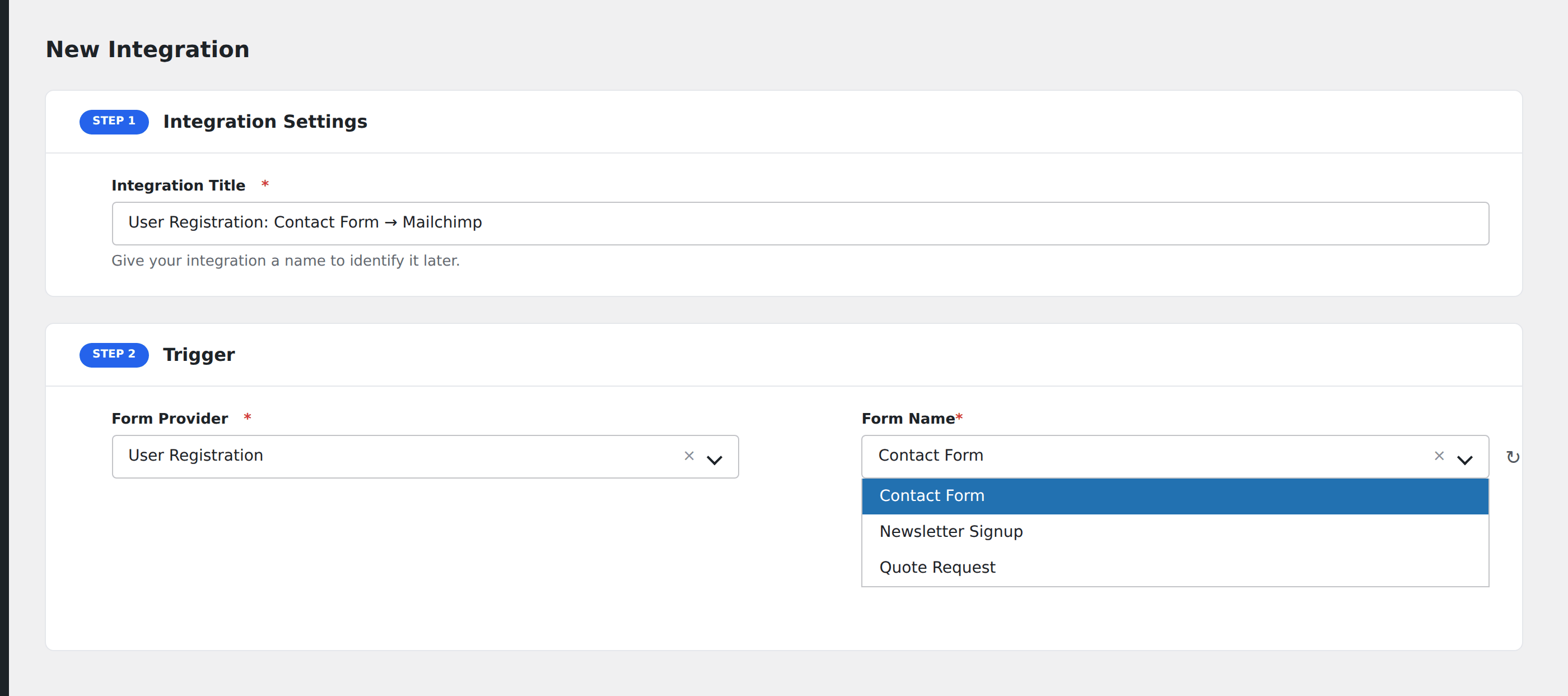
- Go to WP Admin → AFI → Add New.
- Enter an Integration Title, e.g.
New user → Mailchimp welcome. - In Trigger → Form/Data Provider, select User Registration.
- In Form/Task Name, choose the registration form to listen on.
- In Action → Platform, pick the destination and complete the field mapping.
- Optional: configure Conditional Logic.
- Click Save Integration.
Conditional logic example
Goal: when a registration form’s Account Type dropdown is Vendor, also notify the vendor-onboarding team’s Slack channel.
Create a Slack integration on the registration form. Open the Conditional Logic panel, add a condition with the account type field, Equal To, value Vendor.
Troubleshooting
Registration with email verification
If your registration form requires email verification before activation, AFI fires when the user submits the form (not when they verify). To fire after verification, listen for the user_registration_after_email_confirmation action via a custom add-on, or use a separate trigger like FluentAuth.
Custom field not visible
Custom fields appear in the mapping dropdown only after at least one registration with that field populated. Submit a test registration to surface them.