 AFI
AFI
SalesHandy
SalesHandy is a cold-email outreach and sales-engagement platform. Advanced Form Integration sends form submissions to SalesHandy as new prospects assigned to a chosen sequence step.
What you’ll need
- An active SalesHandy account.
- A SalesHandy API Key (Settings → API Key → Create API Key).
- The Advanced Form Integration plugin installed and activated.
Get your SalesHandy API key
- Log in to your SalesHandy account.
- Go to Settings → API Key.
- Click Create API Key and copy the generated token.
Connect SalesHandy to AFI
- In WordPress, go to AFI → Settings.
- Enable SalesHandy and click Save Changes.
- Open the SalesHandy tab.
- Paste the Bearer Token (API Key) and click Save Changes.
Create the integration
- Go to AFI → Add New.
- Configure the trigger.
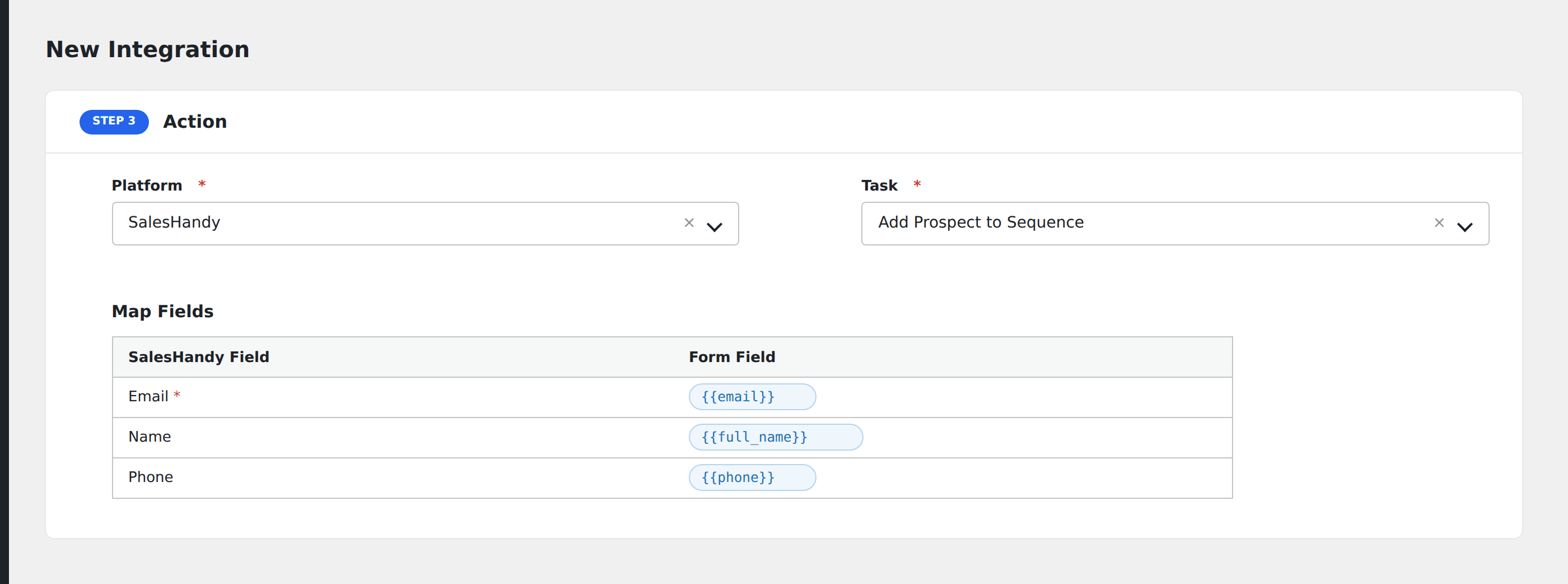
- In Action → Platform, select SalesHandy.
- In Task, choose Add Prospect to Sequence.
- Click Get Fields to load fields from SalesHandy.
- Pick the Sequence and the specific Step within that sequence to assign the prospect.
- Map the form fields:
- Email (required), Name, Phone.
- Other fields exposed by your SalesHandy account schema.
- Optional: configure Conditional Logic.
- Click Save Integration.
Tasks supported
Add Prospect to Sequence
Adds the form submitter as a new prospect into the chosen SalesHandy sequence at the specific step you select. Useful for routing form-based leads directly into automated outreach campaigns.
Conditional logic example
Add to your “Enterprise outreach” SalesHandy sequence only when the form’s company_size field is greater than 500. Smaller leads go to the SMB sequence via a separate integration.
Troubleshooting
Integration doesn’t fire
Open AFI → Log and find the most recent entry. The log shows the request payload sent to SalesHandy and the response received, usually pointing straight at the cause.
Sequences not showing
Confirm that the connected account has at least one active sequence with valid steps. If sequences exist but the dropdown is empty, click Get Fields again to refresh.
Fields not loading
Click Get Fields again after selecting an account. If fields still don’t appear, ensure your SalesHandy API key has permission to access sequence fields.
Prospect not added
Validate that the selected sequence step is active and that required fields like Email are mapped properly.