 AFI
AFI
Maileon
Maileon is a German enterprise email-marketing platform with strong B2C and DACH-region presence. Advanced Form Integration creates or updates Maileon contacts from form submissions, with full support for Maileon’s permission and consent flows.
What you’ll need
- An active Maileon account.
- A Maileon API Key v1 (Settings → API KEYS).
- The Advanced Form Integration plugin installed and activated.
Get your Maileon API key
- Log in to your Maileon account.
- Navigate to Settings → API KEYS.
- Create a new API Key v1 (or copy an existing one).
Connect Maileon to AFI
- In WordPress, go to AFI → Settings.
- Enable Maileon and click Save Changes.
- Open the Maileon tab.
- Paste the API Key and click Save Changes.
Create the integration
- Go to AFI → Add New.
- Configure the trigger.
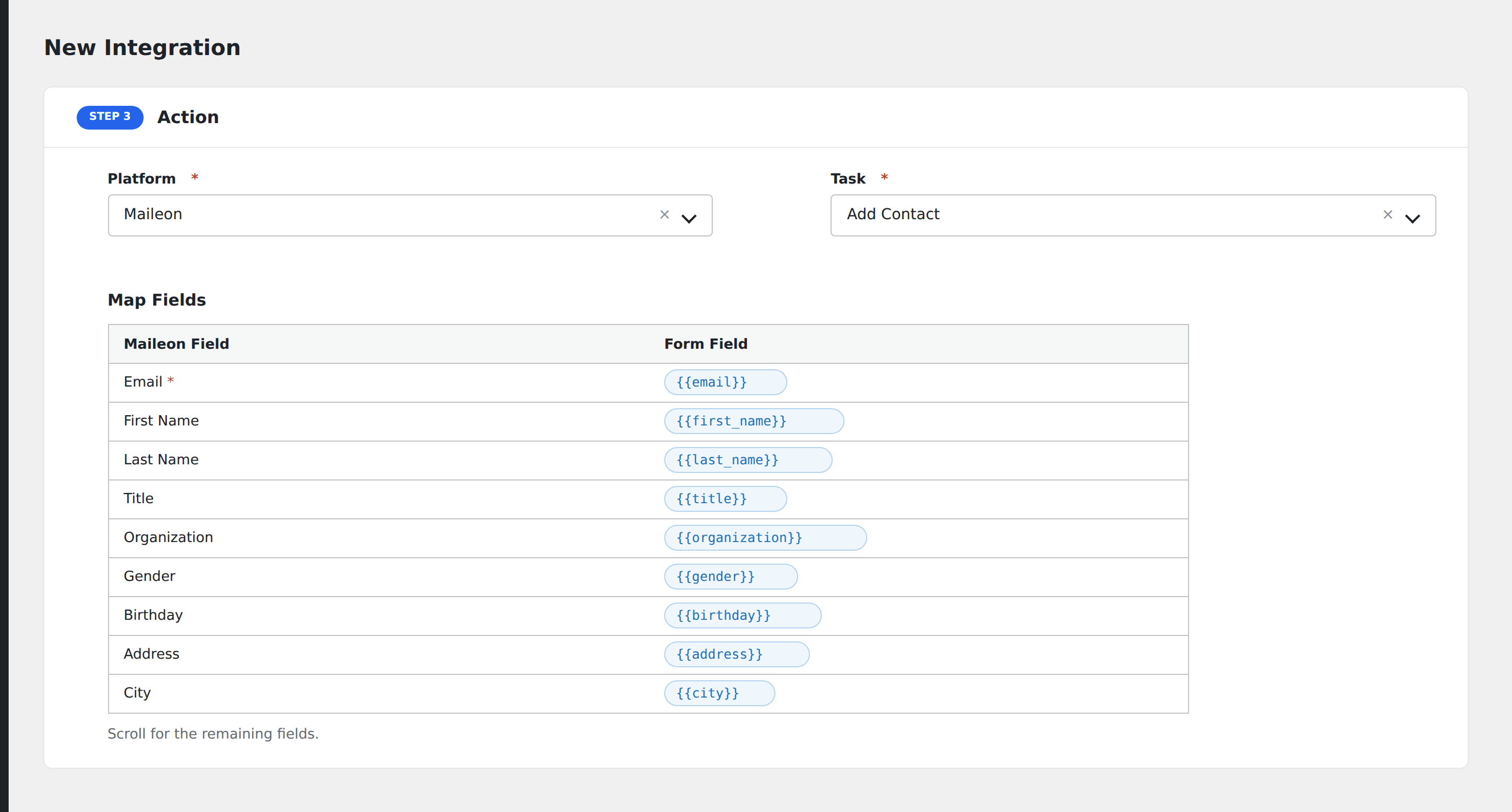
- In Action → Platform, select Maileon.
- In Task, choose Add Contact.
- Map the form fields:
- Email (required), First Name, Last Name, Title.
- Organization, Gender, Birthday.
- Address, City, Zip, Region, State, Country.
- Custom Maileon fields (auto-loaded from your account).
- Configure consent options:
- Permission: set the contact’s marketing-permission level (No Permission, Single Opt-In, Double Opt-In, etc.).
- Double Opt-In: toggle to send a confirmation email before subscribing.
- Double Opt-In Plus: Maileon’s enhanced confirmation flow.
- Update Existing Contact: if enabled, an existing contact with the same email is updated rather than rejected.
- Optional: configure Conditional Logic.
- Click Save Integration.
Tasks supported
Add Contact
Creates or updates a Maileon contact, applying the chosen permission level. Permission tracking is critical for Maileon’s compliance with German and EU email regulations. Pick the level that matches the consent collected on your form.
Conditional logic example
Apply Double Opt-In Plus only when the form’s consent_method field is “single-click”. Explicit-consent submissions can use Single Opt-In via a separate integration.
Troubleshooting
Integration doesn’t fire
Open AFI → Log and find the most recent entry. The log shows the request payload sent to Maileon and the response received, usually pointing straight at the cause.
Permission level rejected
Maileon requires Permission to be one of its predefined values. Spelling and capitalization matter. Pick from the dropdown rather than typing.
Custom field not visible
Custom Maileon fields appear after AFI fetches your account schema. If a freshly created field doesn’t appear, re-save the AFI Maileon settings to refresh the cache.