 AFI
AFI
Ends With
Use Ends With in AFI conditional logic to fire an integration only when a submitted form value ends with the suffix you configure. Most useful for matching email TLDs (.edu, .gov), file extensions, or product SKU suffixes.
How it works
When a form is submitted, AFI checks whether the field value ends with the string you enter. If it does, the rule passes and the integration runs. If not, AFI skips this destination for that submission.
The check is case-sensitive and matches the literal end of the value.
Example
Goal: automatically tag .edu signups with the Education segment in Mailchimp so the marketing team can target them with academic-pricing campaigns.
Setup:
- Open your Mailchimp integration in WP Admin → AFI → All Integrations and click Edit.
- Open the Conditional Logic panel.
- Click Add Condition.
- In the field dropdown, pick the email field.
- Set the operator to Ends With.
- In the value box, type
.edu. - Click Save Integration.
- In the Mailchimp action panel, set the Tag field to
Education.
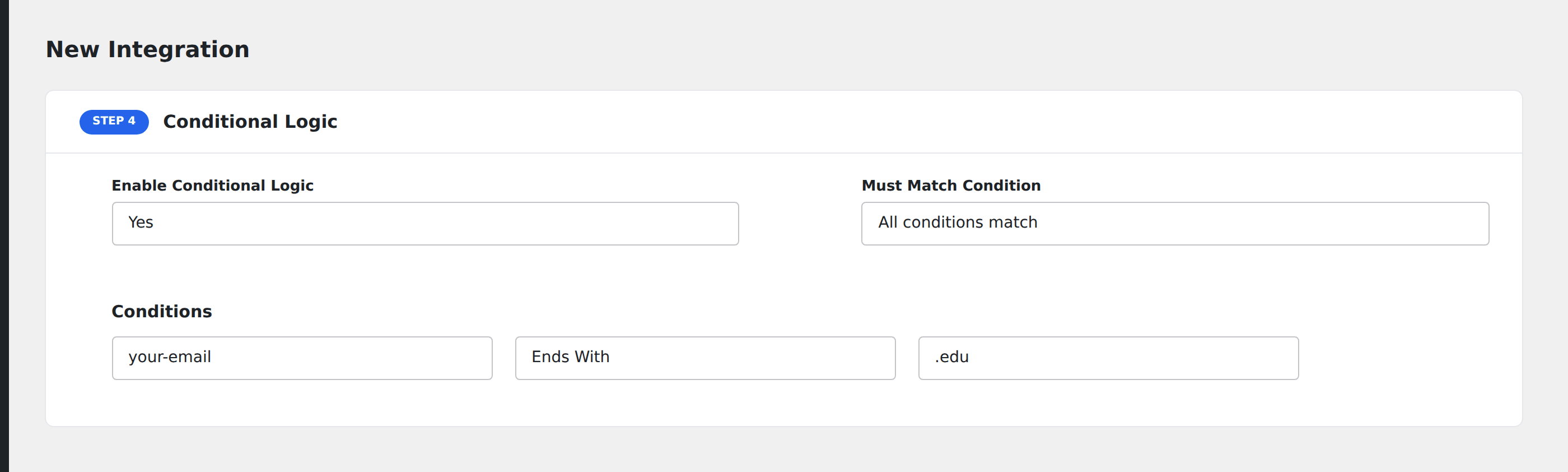
Now .edu signups land in Mailchimp with the Education tag attached, while everyone else flows to the same list without the tag (via a second integration without the condition).
Notes
- Case-sensitive.
.EDUwon’t match.edu. If you need any casing, add multiple Ends With rules joined with Any semantics. - Punctuation matters. Match
.comnotcom: the dot is part of the suffix. - Trailing whitespace. A value of
jo**@****ol.edu(with a trailing space) won’t match.edu. Either trim the input on your form or set the value to.eduwith the same trailing space. - File extensions in URLs. Use Ends With on a file-URL field to route by type:
.pdffor documents,.jpgor.pngfor images.