 AFI
AFI
Attio
Attio is a modern, flexible CRM with a database-style data model that lets you define custom objects, lists, and attributes. Advanced Form Integration creates or updates records in Attio from your WordPress form submissions, so every lead capture, sign-up, or enquiry lands directly in your CRM with full attribute mapping.
What you’ll need
- An active Attio workspace.
- An Attio access token with read-write permissions (see below).
- The Advanced Form Integration plugin installed and activated.
Get your Attio access token
Attio authenticates API requests with a bearer token.
- Sign in to your Attio workspace.
- Go to Workspace Settings → Developers.
- Create a new access token and give it a name.
- Under scopes, select Read-write for all objects, or at least the ones you plan to use (people, companies, deals).
- Click Save Changes and copy the Access Token.
- In WordPress, go to AFI → Settings → Attio CRM.
- Click Add Account, paste the token, and give the account a name.
- Click Save.
Create the integration
- Go to AFI → Add New.
- Give the integration a name, for example
Contact form to Attio. - Under Trigger, pick the form plugin and the specific form you want to listen on.
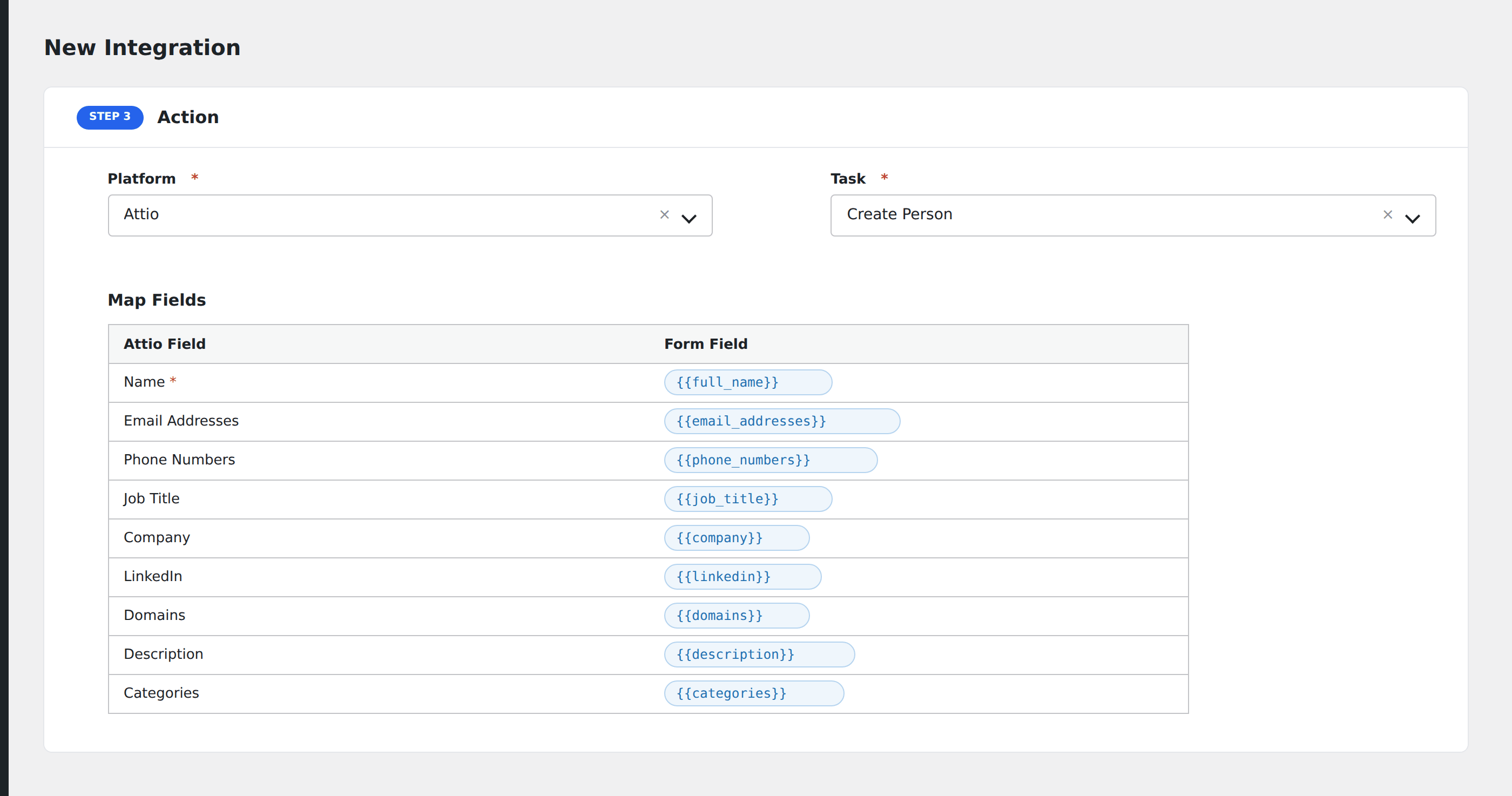
- Under Action → Platform, select Attio CRM.
- In Task, choose Create or Update Record.
- Pick the saved account in the Attio Account dropdown.
- Select an Object (People, Companies, or Deals). AFI loads your Attio objects from the API.
- Map your form fields onto the Attio attributes. AFI auto-loads all writable attributes for the selected object.
- Optional: check Update Existing Record to upsert instead of always creating a new record.
- Optional: set a Matching Attribute for the upsert (e.g.
email_addressesfor people,domainsfor companies). - Optional: open Conditional Logic to limit which submissions are sent.
- Click Save Integration.
Tasks supported
Create or Update Record
Creates a new record in the selected Attio object via POST /objects/{object}/records, or updates an existing record via PUT /objects/{object}/records?matching_attribute={attribute} when Update Existing Record is checked. AFI auto-loads all writable attributes for the selected object from the Attio API, so every field you defined in Attio appears in the mapper.
How attribute mapping works
Each mapped field is prefixed with its Attio type and cardinality. AFI handles type conversion automatically:
- Single-value fields (e.g.
job_title): the form value is sent as a string. - Multi-value fields (e.g.
email_addresses): comma-separated form values are split into an array. - Date / timestamp fields: values are normalized to ISO 8601 format (
YYYY-MM-DDfor dates, full ISO for timestamps). - Personal name fields: you can map a full name (auto-split into first and last) or map First Name and Last Name separately for precise control.
- Record reference fields (company, people): AFI searches Attio for the matching record by name or email and links the record ID.
Update behavior
When Update Existing Record is checked, AFI sends a PUT request with the matching attribute you specify. If you leave the matching attribute blank, AFI uses sensible defaults: email_addresses for people, domains for companies, and name for deals. If no match is found, Attio creates a new record.
Free version object limits
The free version supports three built-in objects: People, Companies, and Deals. Pro unlocks all custom objects in your workspace.
Pro features
The Pro integration extends the free version with three additional tasks, support for all custom objects, and list-based record creation. Pro uses the same Attio account connection.
Create Note
Attaches a note to an existing record. AFI finds the record by a matching attribute and value (e.g. email address), then creates the note via POST /notes with a title and plaintext content.
Create Task
Creates a task in Attio via POST /tasks. Supports task content, deadline, linked record IDs (comma-separated), and assignee email addresses (comma-separated).
Add Record to List
Finds an existing record by matching attribute, then adds it to a specific Attio list via PUT /lists/{list}/entries. Useful for adding contacts to segments, pipelines, or views.
All custom objects
The Pro version loads every object in your Attio workspace, including custom objects you created beyond the default people, companies, and deals. The free version is limited to the three built-in objects.
List-based record creation
In Pro, when you select both an object and a list, AFI creates the record in the object and adds it to the list in a single integration. List-specific attributes (prefixed with [List]) are populated alongside the object attributes.
Feature comparison
| Feature | Free | Pro |
|---|---|---|
| Create or update records (people, companies, deals) | ✅ | ✅ |
| Auto-loaded writable attributes | ✅ | ✅ |
| Upsert with matching attribute | ✅ | ✅ |
| Name auto-split (full name into first/last) | ✅ | ✅ |
| Date / timestamp normalization | ✅ | ✅ |
| Record reference auto-linking | ✅ | ✅ |
| Custom objects | No (people, companies, deals only) | ✅ |
| Create Note | No | ✅ |
| Create Task | No | ✅ |
| Add Record to List | No | ✅ |
| List-based record creation | No | ✅ |
Conditional logic example
Only create people records for qualified leads. Add a condition: Lead Status is qualified. Unqualified submissions are skipped, keeping your Attio workspace clean.
Troubleshooting
Nothing arrives in Attio
Open AFI → Log and find the most recent entry for this integration. AFI stores the request it sent and the raw response it got back, so the Attio error message is right there. If there is no log entry at all, the trigger never fired: re-check the form selection and submit a real test entry from the front end rather than the form builder preview.
Rate limited (HTTP 429)
Attio limits write requests to 25 per second. AFI automatically retries once on HTTP 429, honouring the Retry-After header (clamped to 30 seconds max). If the retry also fails, the error is logged.
Duplicate records created
AFI includes a built-in deduplication guard that prevents identical submissions from creating duplicate records within a 2-minute window. If you still see duplicates, check that Update Existing Record is checked and a matching attribute is configured.
“Unknown attribute” or field not appearing
AFI only shows writable attributes for the selected object. If an attribute is missing, verify it is marked as writable in Attio under the object’s attribute settings. A few system attributes (team, categories, associated_deals) are excluded from mapping.
Multi-value fields
Attio attributes like email addresses and phone numbers are arrays. For single values, map normally. For multiple values, separate them with commas in the form field, and AFI splits them into an array automatically.