Fluent CRM

Estimated reading: 6 minutes

Overview

Fluent CRM is a self-hosted, WordPress-native email marketing automation plugin. Because Fluent CRM runs on the same WordPress install as AFI, the integration is wire-direct: no API keys, no OAuth, no rate limits. AFI calls Fluent CRM’s PHP APIs in-process whenever a matching form is submitted.

Supported actions

  • Add Contact to a list (Free): subscribe the form submitter to a chosen Fluent CRM list, populate email / first name / last name / phone / custom fields, and assign the contact a status.
  • Remove Contact from a list (Free): remove the matched contact (by email) from a chosen list.
  • Add Tag to a contact (Free): attach one or more tags to the matched contact.
  • Remove Tag from a contact (Free): detach one or more tags from the matched contact.

All four tasks are available on AFI Free; Fluent CRM doesn’t need a Pro upgrade in AFI because its API is local PHP. The mapping panel exposes Fluent CRM’s standard subscriber fields plus any custom fields you’ve added.

Quick reference

Need to…Do this
Subscribe a form submitterCreate integration; Fluent CRM; Add Contact to a list; pick the list and status (Subscribed/Pending/Unconfirmed).
Unsubscribe a contactUse Remove Contact from a list with the same email match.
Apply tags to a contactUse Add Tag to a contact; tag names map to existing Fluent CRM tags.
Remove a tagUse Remove Tag from a contact against the matched email.
Capture custom subscriber fieldsCustom Fluent CRM fields appear in the mapping dropdown automatically.
Trigger an automation funnelConfigure the funnel in Fluent CRM with a List Applied or Tag Applied trigger; AFI’s actions fire the matching event.

Heads up: Fluent CRM must be installed and activated on the same WordPress site as AFI. If the integration dropdown is empty, the most common cause is that Fluent CRM is deactivated or installed on a different site. Status semantics (Subscribed vs Pending) matter for double opt-in funnels: see the setup walkthrough below.

🔧 How to Setup

Step 1: Ensure Fluent CRM is Active

There’s no need to enter API credentials since Fluent CRM is a local plugin installed on the same WordPress site.

Make sure:

  • The Fluent CRM plugin is installed and activated
  • You’ve already created at least one List or Tag in Fluent CRM

No additional configuration is needed in the AFI settings tab.

Step 2: Create New Integration

  1. Go to AFI → Add New
  2. You’ll land on the New Integration setup screen

🔹 Title

Give your integration a meaningful name (e.g., “Add New Contact to Fluent CRM”)

🔹 Trigger

  • Form Provider: Select your form plugin (e.g., WPForms, Fluent Forms, Contact Form 7)
  • Form/Task Name: Choose the form you want to connect

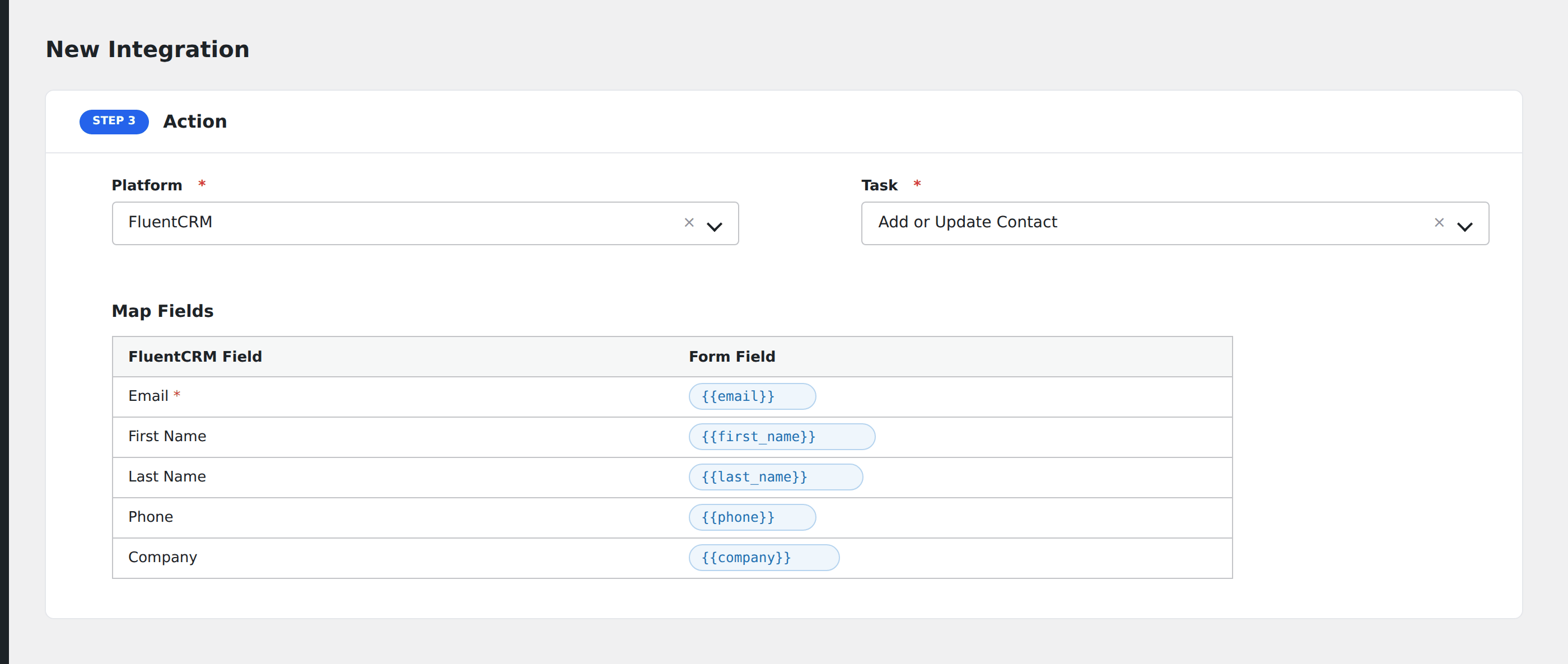
Step 3: Configure the Action

Platform

Select Fluent CRM

Task

Choose from the following options:

  • Add Contact to a list
  • Remove Contact from a list
  • Add Tag to a contact
  • Remove Tag from a contact

Each task performs a specific CRM action when the form is submitted.

Step 4: Map Fields

Based on the selected task, you’ll see different field mapping options.

🔹 For Add or Remove Contact:

  • List: Choose the Fluent CRM list to which the contact should be added or removed

🔹 For Add or Remove Tag:

  • Email: Required field for identifying the contact
  • Tags: Enter one or more Tag IDs (Tag names along with their IDs are shown for reference)

🔹 Common Fields for Add Contact:

  • Prefix, First Name, Last Name
  • Email (required)
  • Phone, Date of Birth, Address
  • City, State, ZIP, Country
  • Source, Avatar, Status
  • Custom Fields (automatically pulled from Fluent CRM)

Each left-hand field comes from Fluent CRM; map them to your form fields on the right side.

📌 Custom Fields Support:
Custom fields created in Fluent CRM will also be listed and can be mapped like regular fields.

Step 5: Save Integration

Click Save Integration at the bottom.

🎉 Done! Your form is now connected to Fluent CRM and will perform the selected action when submitted.

🔍 Troubleshooting

If your integration isn’t working as expected:

  • Go to AFI → Log
  • Look for Fluent CRM-related entries
  • Confirm the following:

    • Fluent CRM plugin is active

    • Email field is properly mapped
    • List or Tag ID is selected and exists
    • Conditional logic (if any) is valid
    • No PHP or JavaScript error occurred

    Common issues & fixes

    Fluent CRM has the simplest setup of any AFI receiver; almost every issue is one of these three:

    1. Confirm Fluent CRM is active. WP Admin; Plugins; verify Fluent CRM is installed and activated on this site. Network-activated multisite installs may need site-level activation too.
    2. Refresh AFI’s dropdowns. After creating new lists, tags, or custom fields in Fluent CRM, click the refresh icon next to each dropdown in AFI to re-pull.
    3. Set the right subscriber status. The Add Contact task lets you pick Subscribed, Pending, Unconfirmed, or Bounced. For a double-opt-in funnel, choose Pending so Fluent CRM sends the confirmation email.

    Specific symptoms

    • Lists / tags dropdown is empty. Fluent CRM isn’t active, or there are no lists/tags yet. Activate the plugin and create at least one of each.
    • Custom field not appearing in mapping. Click refresh next to the field dropdown after adding the field in Fluent CRM > Settings > Custom Contact Fields.
    • Contact added but funnel not running. Check the funnel trigger in Fluent CRM: List Applied triggers on Add Contact to a list; Tag Applied triggers on Add Tag to a contact.
    • Double opt-in confirmation not sent. The contact status must be Pending for the confirmation email to fire; set it in the mapping panel.

    Notes & caveats

    • Same-site only. Fluent CRM’s integration uses local PHP APIs; you can’t send to a Fluent CRM install on a different WordPress site this way. For cross-site flows, push via a webhook receiver from this site.
    • No API rate limits. Because the calls are in-process, you don’t need AFI’s Job Queue for Fluent CRM at any volume.
    • Contact matching is by email. The Remove Contact / Add Tag / Remove Tag tasks look up the contact by mapped email; if the email doesn’t match an existing Fluent CRM contact the action no-ops.
    • Subscriber statuses. Subscribed / Pending / Unconfirmed / Bounced; pick the one matching your funnel design. Pending triggers Fluent CRM’s double-opt-in email.

    Related