 AFI
AFI
Bookly
Bookly is a popular WordPress booking plugin from Bookly Ltd, used by service businesses to take appointments online. Advanced Form Integration captures every Bookly booking and routes the data to any of 200+ destinations, useful for syncing customer data to a CRM, archiving bookings in a spreadsheet, or alerting the team in real time.
What you’ll need
- The Bookly plugin (free or Pro) installed and activated.
- Bookly configured with at least one staff member and service.
- The Advanced Form Integration plugin installed and activated.
Booking data captured
| Field | Format |
|---|---|
| Customer name | Same as input |
| Customer email | Same as input |
| Customer phone | Same as input |
| Customer address | Same as input |
| Service | Service name |
| Staff member | Staff name |
| Date | YYYY-MM-DD |
| Time | HH:MM |
| Duration | Minutes (numeric) |
| Price | Numeric, in your default currency |
| Payment status | pending / completed / failed |
| Notes / comments | Same as input |
Custom fields you’ve added in Bookly → Settings → Customers also appear in the field-mapping dropdown.
Create the integration
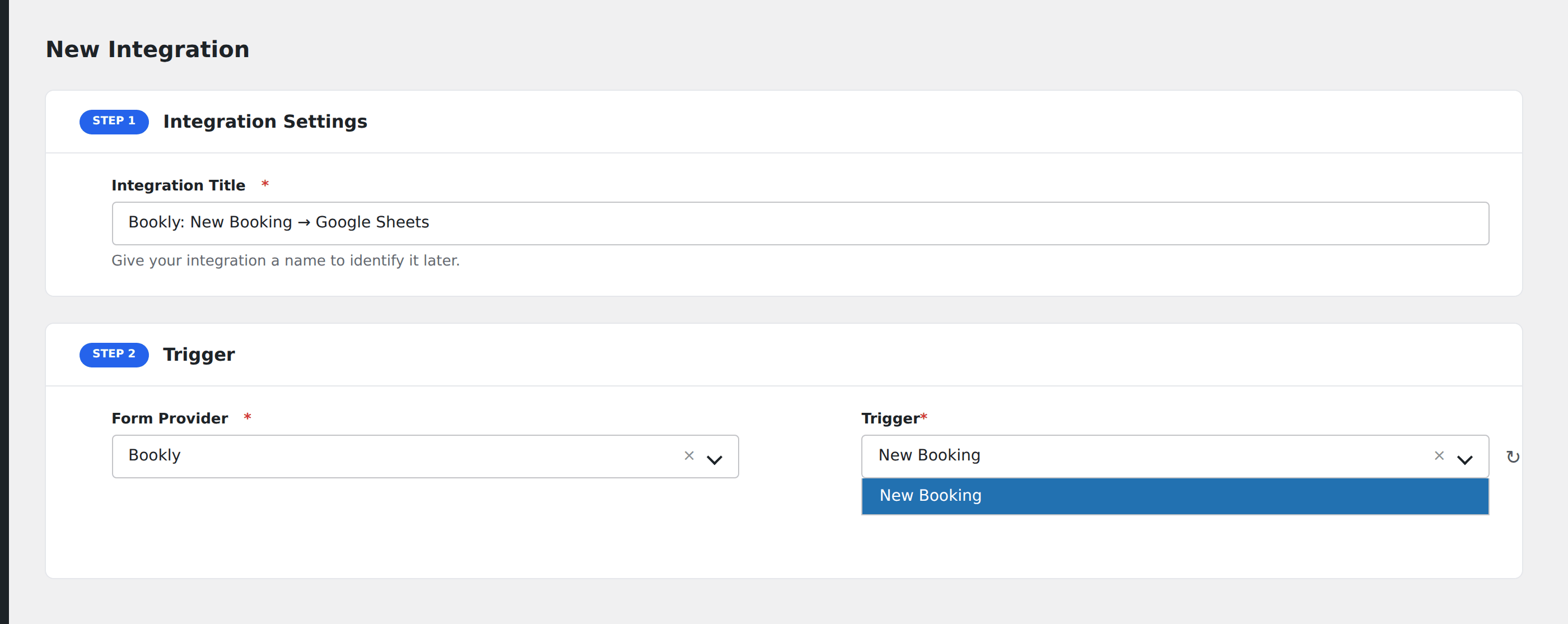
- Go to WP Admin → AFI → Add New.
- Enter an Integration Title, e.g.
Bookly → HubSpot CRM. - In Trigger → Form/Data Provider, select Bookly.
- In Form/Task Name, choose New Booking (or a more specific event if your Bookly plan exposes them).
- In Action → Platform, pick the destination and complete the field mapping.
- Optional: configure Conditional Logic.
- Click Save Integration.
Useful integrations
- Google Calendar: keep your team’s calendar in sync with bookings.
- HubSpot CRM / Pipedrive / Salesforce: every customer who books becomes a contact.
- Mailchimp / Brevo: add bookers to a “Customer” segment for follow-up campaigns.
- Slack: ping the team in real time when a booking is made.
- Twilio: send the customer an SMS reminder before the appointment.
Conditional logic example
Goal: when a booking is made for a high-value service over $200, also send a thank-you SMS via Twilio.
Create a Twilio integration on the same Bookly trigger. Open the Conditional Logic panel, add a condition with the price field, Greater Than, value 200. Smaller bookings only flow to the standard CRM destination.
Troubleshooting
Booking made but destination doesn’t fire
Open AFI → Log and check the most recent entry. Bookly’s booking event fires after the customer completes payment (when payment is enabled). If a booking was abandoned mid-payment, AFI never sees it. That’s by design.
Custom field not showing in mapping
Custom fields added after creating the AFI integration aren’t visible until at least one booking submits with that field populated. Submit a test booking and reload the AFI integration screen.
Recurring or appointment-update events don’t trigger
AFI listens for new bookings, not for updates or cancellations. To handle those, use the Inbound Webhooks integration with Bookly’s webhook add-on.