Nimble

Estimated reading: 3 minutes

Overview

Nimble is a social-relationship CRM with strong contact enrichment from public web data. AFI’s Nimble integration creates a new Contact record from each matching form submission, populating standard contact attributes plus any tags you map. Connection is via a single API Token you generate in your Nimble account; no OAuth app to register and no client credentials to manage.

Supported actions

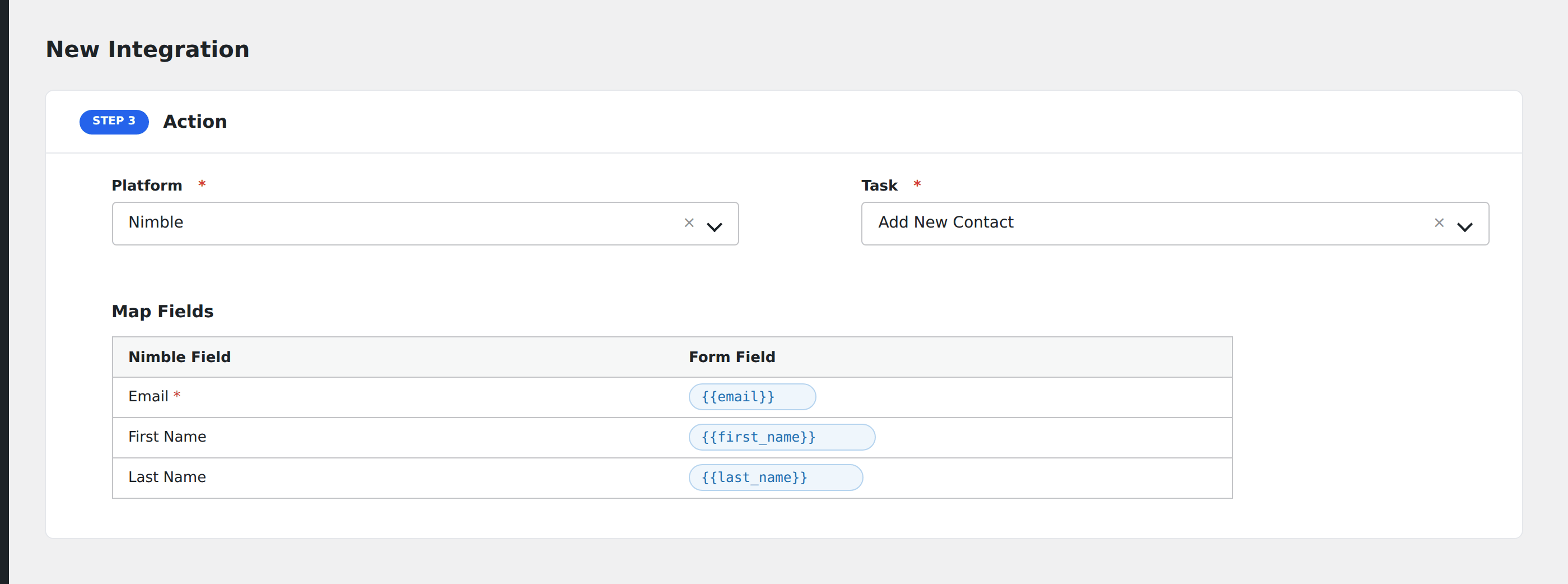
  • Add New Contact (Free): create a Contact in Nimble, populating first name / last name / email / phone / company / tags and any custom contact fields you map.

Mapping in AFI exposes Nimble’s standard contact fields plus any custom fields you’ve created.

Quick reference

Need to…Do this
Connect AFI to NimbleGenerate an API Token in Nimble > Settings > API Token; paste it into AFI > Settings > Nimble and Save.
Create a contactCreate integration; Nimble; Add New Contact; map email + first name + last name.
Tag the contactMap tag names (comma-separated) in the Tags field; tags are created in Nimble if they don’t exist.
Capture company affiliationMap the Company field; Nimble links the Contact to the matching Company record if it exists.
Capture custom contact fieldsCustom Nimble fields appear in the mapping dropdown automatically; refresh after adding new fields in Nimble.
Rotate the API TokenRegenerate the token in Nimble Settings and paste the new value into AFI > Settings > Nimble.

Heads up: the Nimble connection in AFI is a single API Token paste; there’s no Client ID or Client Secret. Treat the token as a credential: if it leaks, regenerate it in Nimble and update AFI.

Common issues & fixes

Nimble issues are usually credentials or required-field related. Work through these in order:

  1. Re-copy the API Token. If the token was rotated in Nimble, paste the new value in AFI > Settings > Nimble and Save. Strip any whitespace or newlines on paste.
  2. Map the Email field. Nimble deduplicates contacts by email; without an email map each submission creates a fresh Contact.
  3. Refresh the field dropdown after adding Nimble custom fields. Click the refresh icon next to the dropdown in AFI to re-fetch.
  4. Confirm token scope. The API Token inherits the Nimble user’s permissions; if that user can’t create contacts in a given segment, neither can AFI.

Specific symptoms

  • 401 Unauthorized. API Token invalid or revoked; regenerate in Nimble and paste it again.
  • Tags not applying. Tag names are case-sensitive in Nimble; copy them verbatim or stick to a consistent casing.
  • Custom fields not appearing in mapping dropdown. Click the refresh icon next to the field dropdown in AFI after adding new fields in Nimble.
  • Contact created but missing enriched data. Nimble’s social enrichment runs asynchronously after the record is created; it can take a few minutes to populate company / social attributes.

Notes & caveats

  • Single API Token auth. AFI doesn’t use OAuth with Nimble; you paste one API Token from Nimble Settings and that’s the whole connection.
  • Contact-level integration. AFI’s Nimble task creates a Contact record; Nimble’s built-in enrichment fills in extra attributes from public web data automatically after the record is created.
  • API rate limits. Nimble caps API calls per hour per token; enable AFI’s Job Queue (Settings > General) on high-volume forms.

Related