 AFI
AFI
Copernica
Copernica is a Dutch email-marketing and database platform popular with mid-market European brands. Advanced Form Integration sends form submissions to Copernica as new profiles in a chosen marketing database.
What you’ll need
- An active Copernica account.
- A Copernica Access Token with both SOAP and REST API access (Configuration → API Access Tokens).
- The Advanced Form Integration plugin installed and activated.
Get your Copernica access token
- Log in to the Copernica Dashboard.
- Go to Configuration → API Access Tokens.
- Generate a token with both SOAP and REST API access enabled.
- Copy the access token.
Connect Copernica to AFI
- In WordPress, go to AFI → Settings.
- Enable Copernica and click Save Changes.
- Open the Copernica tab.
- Paste the Access Token and click Save Changes.
Create the integration
- Go to AFI → Add New.
- Configure the trigger.
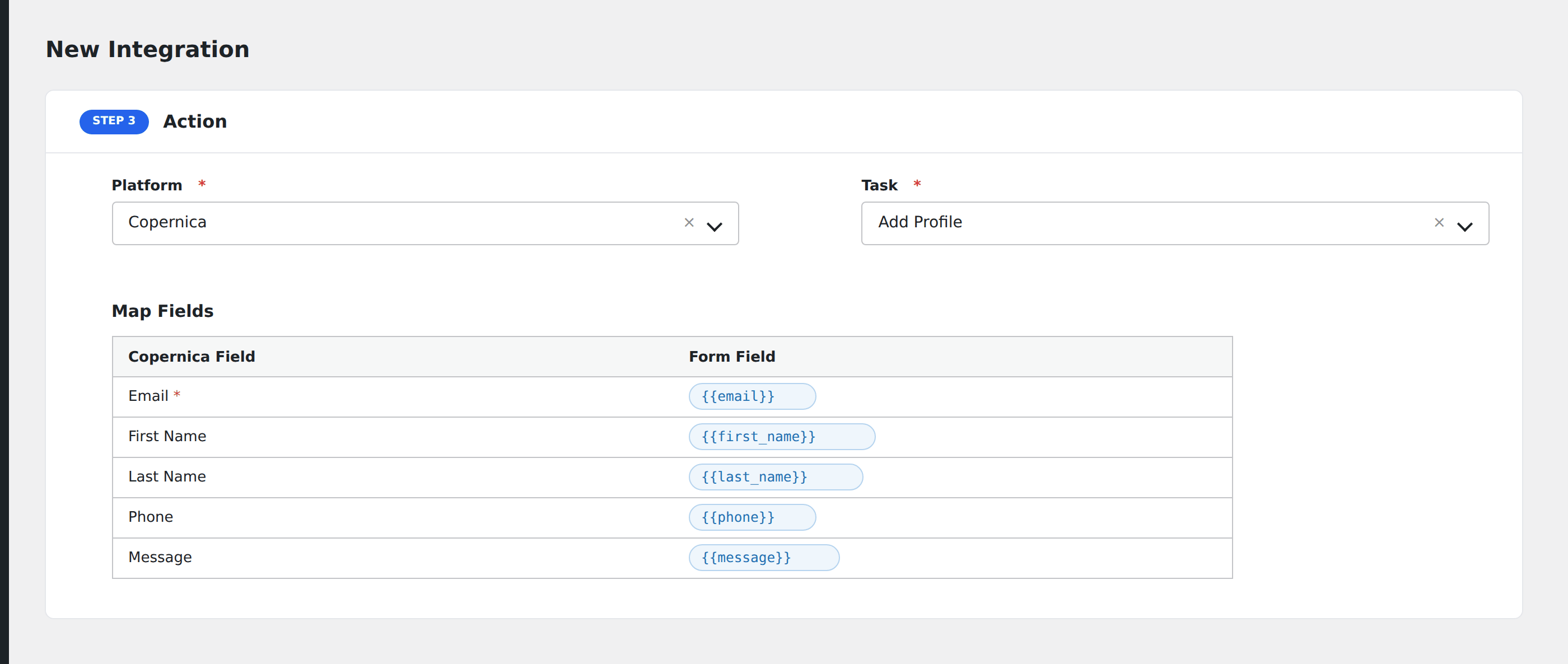
- In Action → Platform, select Copernica.
- In Task, choose Add Profile.
- Pick the target Database: AFI fetches your databases automatically.
- Map the form fields to Copernica’s database columns. AFI loads the column schema for the chosen database, including custom fields. Select-type columns show their predefined options as a description during mapping.
- Optional: configure Conditional Logic.
- Click Save Integration.
Tasks supported
Add Profile
Creates a new profile in the chosen Copernica marketing database. If the database has uniqueness rules (typically on email), Copernica updates the existing profile rather than creating a duplicate.
Conditional logic example
Add the profile to your “Newsletter EN” database only when the form’s language field equals “EN”. Dutch subscribers go to the “Newsletter NL” database via a separate integration.
Troubleshooting
Integration doesn’t fire
Open AFI → Log and find the most recent entry. The log shows the request payload sent to Copernica and the response received, usually pointing straight at the cause.
“Insufficient permissions”
Copernica’s REST API requires a token with REST permissions specifically. If your token only has SOAP, regenerate it with both enabled.
Select-field rejected
Copernica select columns require values that match a predefined option. Check the option list on the database column’s settings. Case matters.