 AFI
AFI
QuillForms
QuillForms is an open-source WordPress form builder with a Typeform-style one-question-at-a-time interface. Advanced Form Integration captures every QuillForms submission and routes the data to any of 200+ destinations.
What you’ll need
- The QuillForms plugin installed and activated.
- The Advanced Form Integration plugin installed and activated.
- A QuillForms form built and published.
Supported form fields
| Field type | Supported | Output format / notes |
|---|---|---|
| Short text | Yes | Same as input |
| Long text | Yes | Same as input |
| Yes | Same as input | |
| Number | Yes | Same as input |
| Phone | Yes | Same as input |
| URL | Yes | Same as input |
| Date | Yes | YYYY-MM-DD |
| Multiple choice | Yes | The selected choice’s label |
| Dropdown | Yes | The selected option label |
| Picture choice | Yes | The selected choice’s label |
| Opinion scale | Yes | The numeric value |
| Rating | Yes | The numeric value |
| File upload | Yes | Public URL of the uploaded file |
| Signature | Yes | URL of the captured signature image |
| Hidden | Yes | Same as the hidden value |
Create the integration
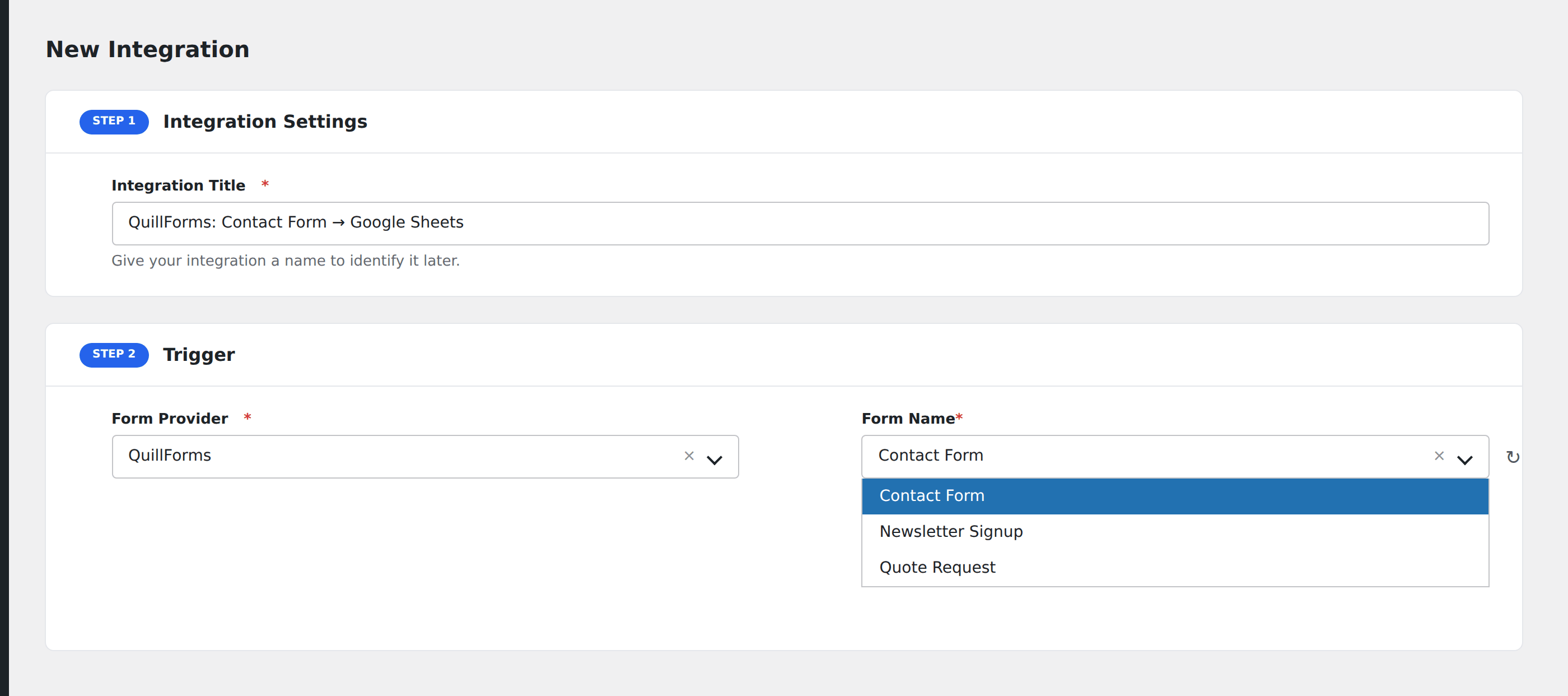
- Go to WP Admin → AFI → Add New.
- Enter an Integration Title that names the form and the destination.
- In Trigger → Form/Data Provider, select QuillForms.
- In Form/Task Name, choose the form you want to connect.
- In Action → Platform, pick the destination and complete the field mapping.
- Optional: configure Conditional Logic.
- Click Save Integration.
Conditional logic example
Goal: when an opinion-scale question scores 8 or higher (a Net Promoter Score “promoter”), automatically request a testimonial via a follow-up email tool.
Create the integration to your email tool. Open the Conditional Logic panel, add a condition with the NPS field, Greater Than, value 7 (which means 8+). Only promoter-level submissions trigger the testimonial request.
Troubleshooting
Field labels appear as field_abc123 in the mapping
QuillForms uses internal block IDs as field keys. To rename them to something readable, edit the form in QuillForms and use the Form Logic → Field IDs screen to set custom IDs per question.
File-upload field arrives empty in the destination
QuillForms uploads files asynchronously. If your destination is hit before the upload completes, the field may be empty. Try a destination that handles delayed uploads (Google Drive via Zapier, for instance) or contact support if this is reproducible.