ConvertKit

Estimated reading: 6 minutes

Overview

ConvertKit is a creator-focused email platform built around Sequences, Forms, and Tags. AFI’s ConvertKit integration uses the legacy v3 API and subscribes form submissions to a ConvertKit Sequence, captures the subscriber, and applies any tags you map. Connection is via API Key + API Secret from the ConvertKit account settings.

If you’re starting fresh and your account is on Kit’s v4 API, use the Kit integration instead; it’s a separate AFI platform that connects with a single V4 API Key.

Supported actions

  • Subscribe To Sequence (Free + Pro); add the contact to a chosen ConvertKit Sequence, populating email + first name and applying mapped tags.

AFI Pro adds richer field mapping for ConvertKit; more sender-plugin field types (phone, date, dropdown, hidden, custom fields) are exposed in the mapping panel, and your ConvertKit custom subscriber fields surface alongside the standard ones.

Quick reference

Need to…Do this
Subscribe to a sequenceCreate integration → Sender plugin → ConvertKit → Subscribe To Sequence → pick the sequence from the dropdown.
Tag a new subscriberMap tag names (comma-separated) in the Tags field; tags are created in ConvertKit if they don’t exist.
Capture first nameMap the First Name field; ConvertKit treats this as a standard subscriber attribute.
Capture custom subscriber fieldsOn Pro, custom fields appear in the mapping panel automatically; on free, you can map onto the built-in attributes.
Re-pull the sequences/tags dropdownClick the refresh icon next to the dropdown in AFI to re-fetch from ConvertKit.
Using Kit’s new v4 API insteadUse the separate Kit integration in AFI; it’s a different platform entry that connects with a single V4 API Key.

Heads up: ConvertKit’s v3 API uses an API Key (public, used for read operations) and an API Secret (private, used for write operations). AFI needs the API Secret to subscribe contacts; pasting the API Key into the secret field is the most common setup mistake. The full setup walkthrough (with screenshots) is below.

Authentication

Before start, you are required to authorize your ConvertKit account on the plugin settings page.

Go to AFI > Settings > General and you will find all the supported platforms listed there. Mark ConvertKit and hit the Save Changes button at the bottom.

convertkit settings

Now find the ConvertKit tab at the top of the settings page click on that, You will be taken to the ConvertKit settings page, where you are to provide API Key then click on Save Changes button. (How to find api key is instructed in ConvertKit settings page)

convertkit authorization

Create New Integration

After the authentication part completed you can start creating new integration. Click on Add New under the AFI menu, New Integration page will appear.

Title

A default title will be auto-generated with an auto incremental number. You can rename it to something related to the task. It will help you to quickly recognize the correct one if multiple integrations are created.

Trigger

Select the sender form in the Form Provider dropdown. For example, Contact Form 7 or Gravity Form, or the Elementor Pro Form which you want to connect. After selecting the form provider, all forms built under that will be fetched and auto-populated in the Form/Task Name dropdown. Select the form that you want to integrate.

Action

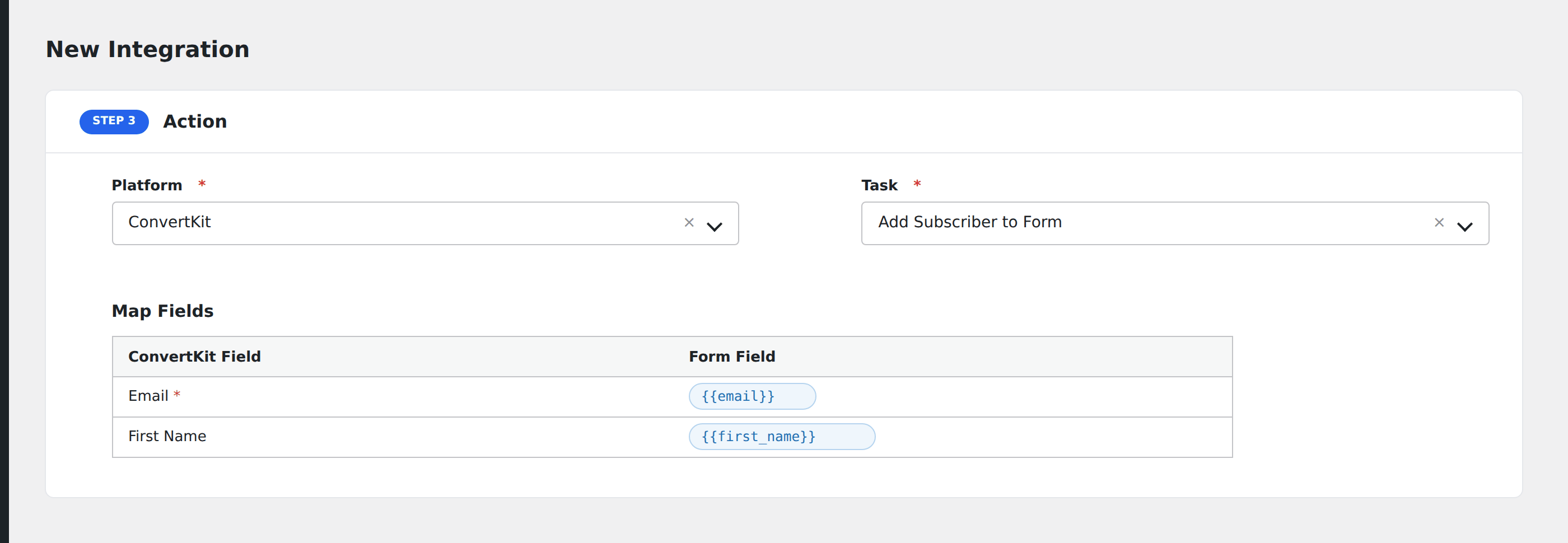
Select ConvertKit in Platform dropdown. If you are using pro version you will get another option ConvertKit[PRO] there select it. Then select Subscribe to Sequence in the Task dropdown.

convertkit integration
Map Fields

The available Sequences and Forms will automatically appear in the dropdowns. You need to select either one or both. If you’re using AFI Pro, select  ConvertKit [PRO]. It has an additional dropdown called Tags. All the tags created in your account will be listed in that dropdown, so you can choose the one you want. On the left side, you’ll see ConvertKit fields, and on the right side dropdowns with the field titles from the form you selected in the trigger area. You can map the Email and Name fields as needed. In the Pro AFI plugin, you’ll also see custom fields (created in your ConvertKit account) under the email and name fields, which you can map and send data to.

Save Integration

Finally, click the Save Integration button and you are done. Now you can start testing.

Troubleshooting

After the integration is made, when users fill up the form and submit it, the plugin initiates the process of sending data to the configured platform. It also saves a log that includes what data it tried to send, and what it got in response from that platform. So if you find an integration is not working, your first task is to check the logs. Go to [direction]AFI > Log[/direction] menu and check the recent logs.

log

Conditional Logic

Please check the documentation on Conditional Logic.

How to Integrate Contact Form 7 with ConvertKit

How to Integrate Elementor Form to ConvertKit

How to Integrate WPForms to ConvertKit

How to Integrate Ninja Forms to ConvertKit

Common issues & fixes

Most ConvertKit issues are credential-related. Work through these in order:

  1. Use the API Secret, not the API Key, in the Secret field. In ConvertKit > Account > Advanced, copy the API Secret value (longer string) and paste it into AFI’s API Secret field. The API Key goes in the API Key field.
  2. Refresh the sequences and tags dropdowns. Click the refresh icon next to each dropdown in AFI to re-pull from ConvertKit after creating new sequences/tags.
  3. Confirm the subscriber email is mapped. Email is required; submissions without an email value are rejected by ConvertKit.
  4. Reconnect after credential rotation. If you regenerate the API Secret in ConvertKit, paste the new value in AFI > Settings > ConvertKit and Save.

Specific symptoms

  • 401 Unauthorized. API Secret invalid; copy it again from ConvertKit > Account > Advanced.
  • Sequence not in the dropdown. Click refresh next to the sequence dropdown; if still missing, confirm the sequence is published (not archived) in ConvertKit.
  • Tags not being applied. Tag names are case-sensitive; copy them verbatim from ConvertKit.
  • Subscriber created but no sequence emails received. Confirm the sequence is in “Published” state (not Draft) in ConvertKit and that there’s at least one email in the sequence.

Notes & caveats

  • Subscribe-to-Sequence semantics. Adding a contact to a Sequence starts them at the first email; if the contact is already in the Sequence, ConvertKit deduplicates by email.
  • API rate limits. ConvertKit caps API calls per minute per account; enable AFI’s Job Queue for high-volume forms.
  • Two ConvertKit/Kit entries in AFI. ConvertKit (this integration) uses the legacy v3 API with API Key + API Secret. Kit is a separate AFI platform for accounts on the new v4 API; pick the one matching the API key type you have.

Related