 AFI
AFI
Knack
Knack is a no-code online database platform. With Advanced Form Integration (AFI), every WordPress form submission can become a new record in any Knack object (table). For example, a job application form can create a record in your Applicants object, or a customer intake form can add a row to your CRM database in Knack, with each form field mapped to the matching Knack field.
Supported Features
- Create Record: create a record in any object in your Knack app, with fields discovered automatically from your app.
- Create Record with extra fields and Record JSON (AFI Pro): the Pro version adds a custom field repeater for fields that auto-discovery missed, plus a Record JSON box for structured field types such as address and multiple choice.
What You’ll Need
- A Knack account and app with at least one object.
- Your Knack App ID and a REST API key.
- AFI free for standard record creation. AFI Pro for the extra fields repeater and Record JSON merge.
Connecting Knack to AFI
AFI authenticates by sending your App ID and REST API key as headers (X-Knack-Application-Id and X-Knack-REST-API-Key) to api.knack.com/v1/.
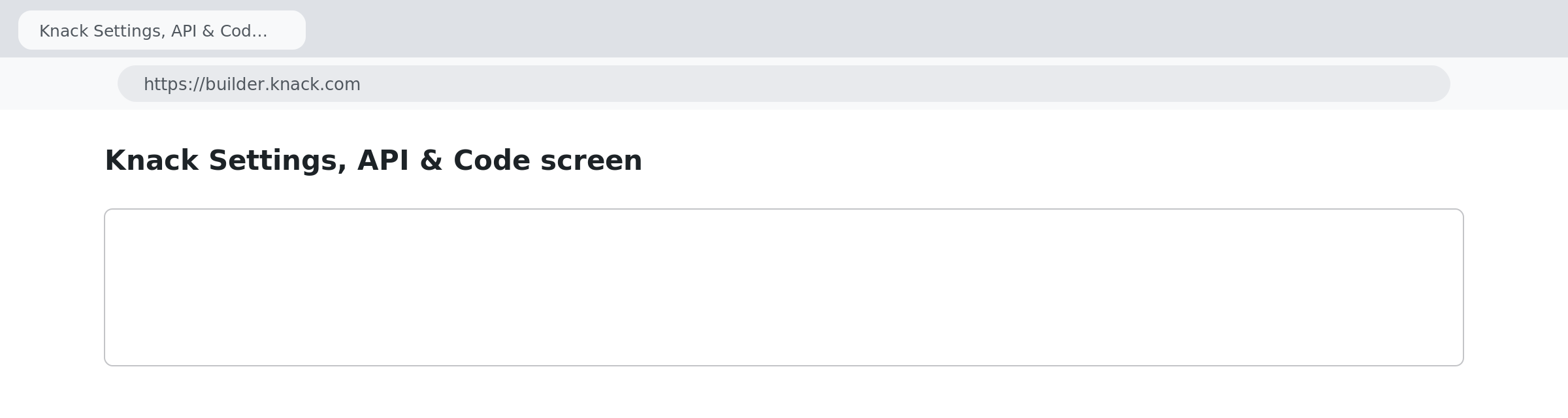
- In Knack, open Settings > API & Code and copy the App ID.
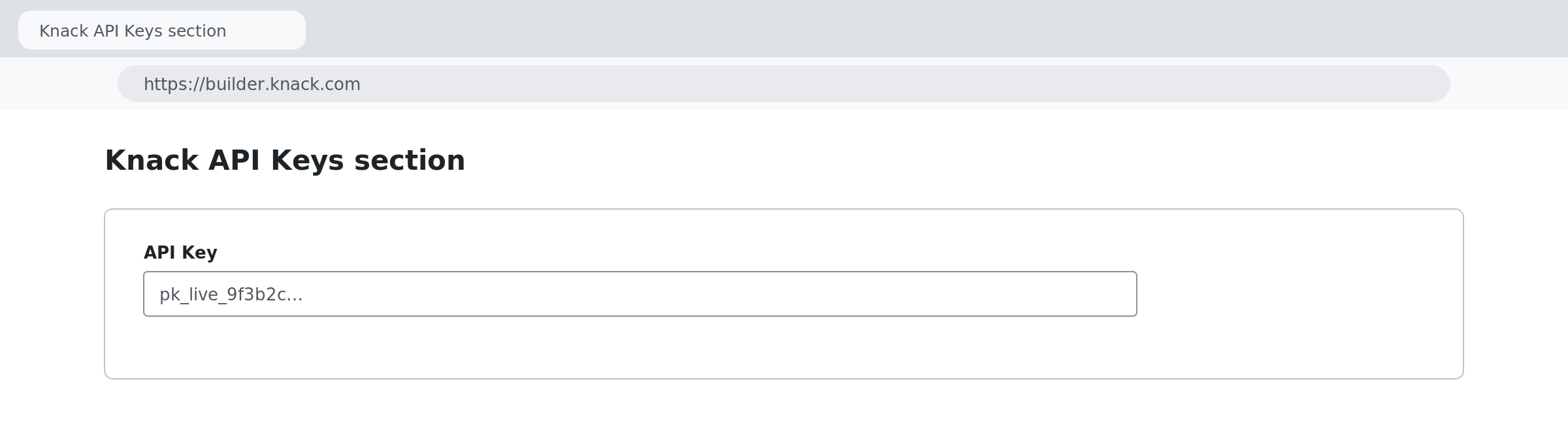
- On the same screen, click API Keys and create (or reuse) a REST API key. Copy it.
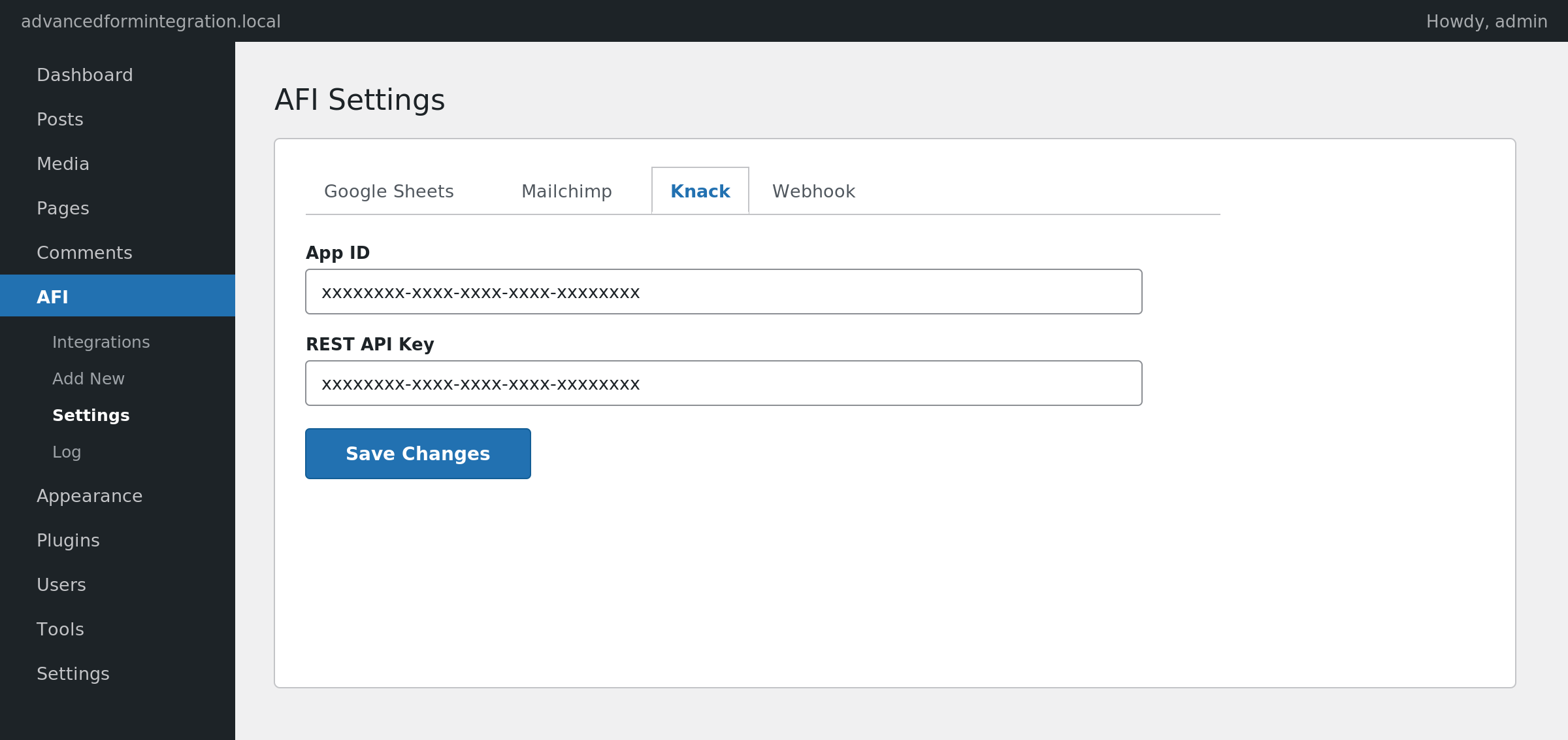
- In WordPress, go to AFI > Settings and open the Knack tab.
- Add a new account, paste the App ID and REST API Key, and save.
How to Create the Integration
- Go to AFI > Add New.
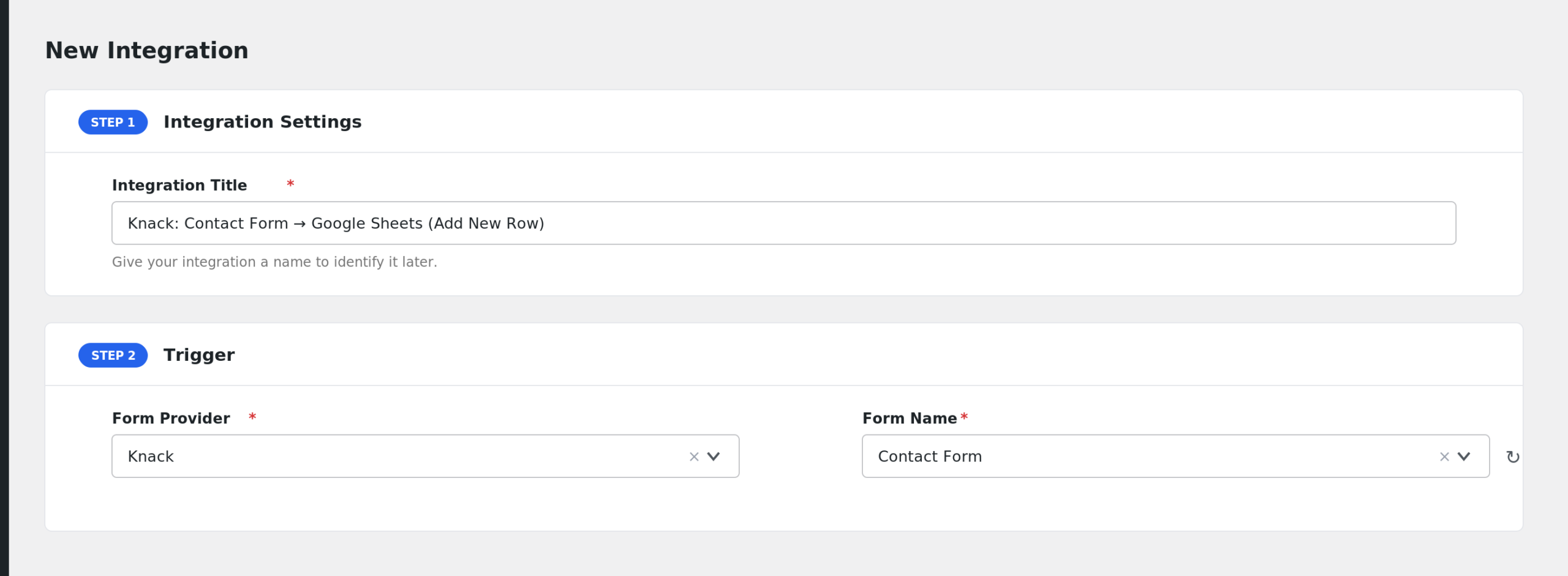
- Rename the auto-filled Integration Title.
- Under Trigger, select your form plugin and the specific form.
- Under Action, select Knack in the Platform dropdown. Pro users can select Knack [PRO].
- Choose the Task: Create Record.
- Select your Knack Account.
- Select the Object (table) the record should go into. AFI loads your app’s objects automatically.
- Map the fields. AFI pulls the field list for the selected object straight from your Knack app.
- Click Save Integration.
Field Mapping
Knack fields are dynamic: AFI reads the selected object’s schema and shows every field by its Knack name. Internally each field maps by its field code (field_1, field_2, and so on).
| Field | Description |
|---|---|
| Object fields (dynamic) | Every field on the selected Knack object, listed by name. Map each one to a form field or static text. |
| Extra Fields (AFI Pro) | Key/value repeater for fields auto-discovery missed. Use the Knack field code, for example field_42. |
| Record JSON merge (AFI Pro) | Optional JSON that is merged into the record body. Use it for structured fields such as address, for example {"field_5":{"street":"123 Main","city":"Austin","state":"TX","zip":"78701"}}. Mapped fields win on collision. |
Typed fields are handled for you. Knack stores Name fields as {first, last} and would silently drop a plain string. AFI detects the field type and splits a mapped full name into first and last automatically. Email fields are wrapped in the format Knack expects as well.
Troubleshooting
“Knack credentials are not configured” or 401 errors
Double-check both values in AFI > Settings > Knack. The App ID and the REST API key come from two different places on the Settings > API & Code screen, and both are required on every request.
Records are not appearing in Knack
Open AFI > Log and inspect the request and response for your submission. If the payload is empty, no mapped field produced a value, so AFI skipped the request. Confirm your field mappings and that the form fields actually contained data.
A Name or Address field saves empty
Name fields are auto-formatted, but Address and multiple-choice fields need structured values. With AFI Pro, use the Record JSON (merge) box to send the structured shape Knack expects.
The Object or field list will not load
The field list is fetched from your Knack app when you pick an account and object. If it stays empty, the API key may lack access or the App ID may be wrong. Fix the credentials, then reload the integration editor.