 AFI
AFI
Selzy
Selzy is an easy-to-use email-marketing platform popular with small businesses for its simple drag-and-drop builder. Advanced Form Integration sends form submissions to Selzy as new contacts on a chosen list. the Pro version adds custom-field mapping and tag application.
What you’ll need
- An active Selzy account.
- A Selzy API Key (Profile → Settings → Integrations & API → Show Full).
- The Advanced Form Integration plugin installed and activated.
Get your Selzy API key
- Log in to your Selzy dashboard.
- Go to Profile → Settings → Integrations & API.
- Click Show Full and copy the API Key.
Connect Selzy to AFI
- In WordPress, go to AFI → Settings.
- Enable Selzy and click Save Changes.
- Open the Selzy tab.
- Paste the API Key and click Save Changes.
Create the integration
- Go to AFI → Add New.
- Configure the trigger.
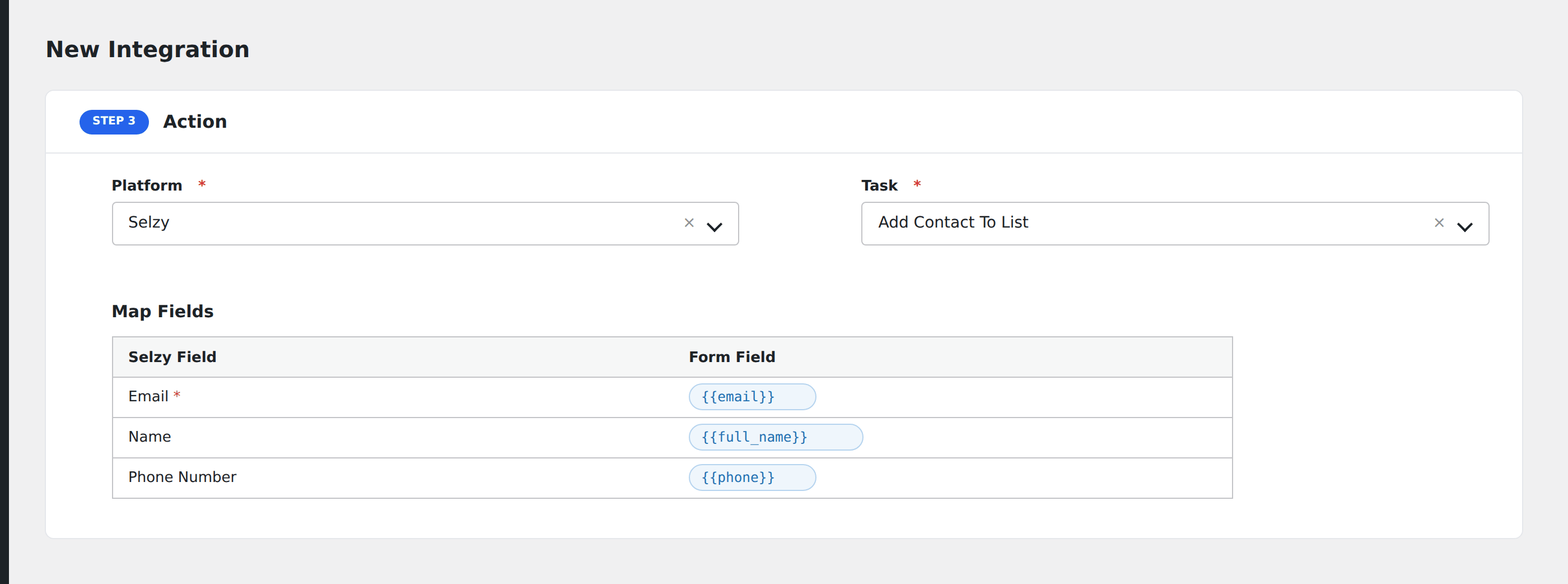
- In Action → Platform, select Selzy (or Selzy [PRO] if using Pro).
- In Task, choose Add Contact to List.
- Pick the List: AFI loads your lists from Selzy automatically.
- Toggle Skip Double Opt-in if you want to skip the confirmation email.
- Map the form fields:
- Email (required), Name, Phone.
- On Pro: any custom fields configured on your account, plus tag assignment.
- Optional: configure Conditional Logic.
- Click Save Integration.
Tasks supported
Add Contact to List
Adds or updates the contact on the chosen Selzy list. Re-submissions update the existing contact rather than creating duplicates. Double opt-in is enforced unless skipped.
Pro features
The Pro Selzy integration adds:
- Custom field mapping: pick a list and AFI auto-loads any custom fields configured in your Selzy account.
- Tag application: assign tags for advanced segmentation.
Conditional logic example
Skip double opt-in only when the form’s confirmed_consent hidden field is “yes”. All other submissions go through Selzy’s confirmation email flow.
Troubleshooting
Integration doesn’t fire
Open AFI → Log and find the most recent entry. The log shows the request payload sent to Selzy and the response received, usually pointing straight at the cause.
“API Key not working”
Selzy API keys can be regenerated from the Integrations page. Copy the new key carefully, then re-save in AFI.
Mailing lists not loading
Make sure your API Key is saved correctly. Click the List dropdown again to refresh the list.
Double opt-in issue
If subscribers aren’t receiving confirmation emails, check whether Skip Double Opt-in is enabled: that disables the confirmation step entirely. Toggle as needed.