 AFI
AFI
Starts With
Use Starts With in AFI conditional logic to fire an integration only when a submitted form value begins with the prefix you configure. It’s the right pick for country-code routing on phone numbers, prefix-based product codes, or postal-code regions.
How it works
When a form is submitted, AFI checks whether the field value starts with the string you enter. If it does, the rule passes and the integration runs. If not, AFI skips this destination for that submission.
The check is case-sensitive and matches the literal beginning of the value.
Example
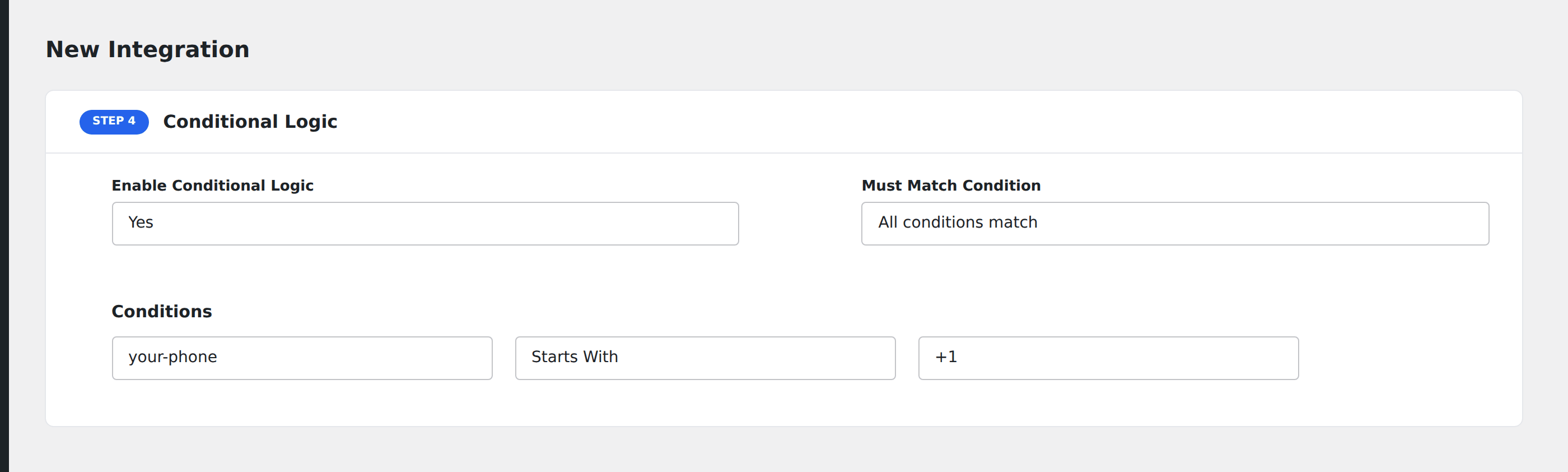
Goal: route US-area phone numbers (those starting with +1) to your US sales team’s CRM, while everything else goes to the global sales team.
Setup:
- Create two integrations on the same form, one pointing at the US CRM and one at the global CRM.
- On the US CRM integration, open the Conditional Logic panel.
- Click Add Condition.
- In the field dropdown, pick the phone field.
- Set the operator to Starts With.
- In the value box, type
+1. - Click Save Integration.
- On the global CRM integration, add the inverse rule using Does Not Contain
+1(or skip the condition entirely if global is the catch-all).
Notes
- Case-sensitive. Starts With is a literal prefix match, including case.
- Whitespace counts. A leading space in the value (
+1) won’t match+1. Trim the value field carefully. - Postal codes. US ZIP codes starting with
9are West Coast; UK postal codes starting withECorWCare central London. Use Starts With with a single character or two-letter prefix to route by region. - Combine with multiple rules. To match several prefixes, add a Starts With rule per prefix and set Must Match Condition to Any.