 AFI
AFI
Ortto
Ortto (formerly Autopilot) is a customer journey and marketing automation platform. Advanced Form Integration adds or updates contacts in Ortto from your WordPress form submissions, so every lead capture, sign-up, or registration lands directly in your marketing journeys.
What you’ll need
- An active Ortto account.
- An Ortto API Key (see below).
- The Advanced Form Integration plugin installed and activated.
Get your Ortto API key
Ortto authenticates API requests with a key sent in the autopilotapikey header.
- Sign in to your Ortto dashboard.
- Go to Settings → Autopilot API.
- Copy your API Key.
- In WordPress, go to AFI → Settings → Ortto and paste the key.
Create the integration
- Go to AFI → Add New.
- Give the integration a name, for example
Lead form to Ortto. - Under Trigger, pick the form plugin and the specific form you want to listen on.
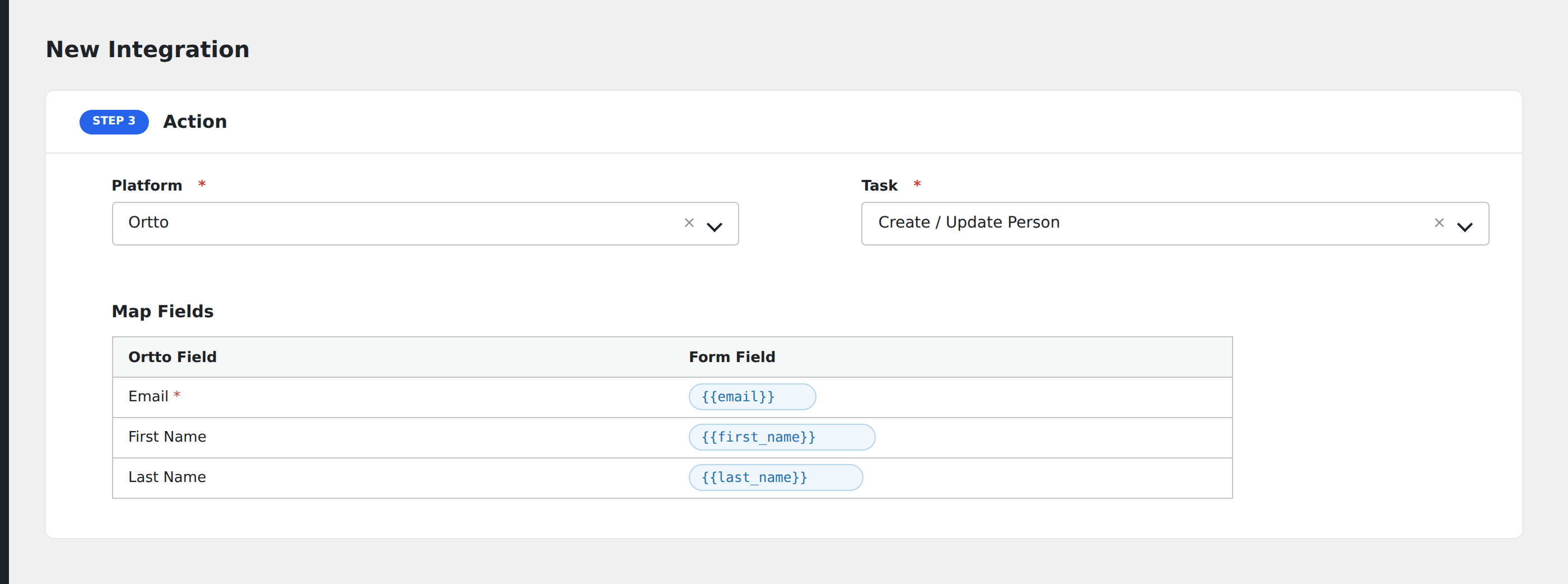
- Under Action → Platform, select Ortto.
- In Task, choose Add/Update Contact.
- Select a Contact List to add the contact to. AFI loads your lists automatically from the API.
- Map your form fields onto the Ortto fields listed below.
- Optional: open Conditional Logic to limit which submissions are sent.
- Click Save Integration.
Tasks supported
Add/Update Contact
Creates or updates a contact in Ortto via POST /v1/contact. If a contact with the same email already exists, Ortto updates their fields. When a contact list is selected, the contact is added to that list via the _autopilot_list field.
| Field | Field key | Required | Notes |
|---|---|---|---|
email |
Yes | Subscriber email address | |
| First Name | firstName |
No | |
| Last Name | lastName |
No | |
| Phone | phone |
No | |
| Mobile Phone | mobilePhone |
No | |
| Title | title |
No | Job title |
| Company | company |
No | |
| Website | website |
No | |
| Industry | industry |
No | |
| Number of Employees | numberOfEmployees |
No | |
| Lead Source | leadSource |
No | |
| Mailing Street | mailingStreet |
No | |
| Mailing City | mailingCity |
No | |
| Mailing State | mailingState |
No | |
| Mailing Postal Code | mailingPostalCode |
No | |
| Mailing Country | mailingCountry |
No |
Pro features
The Pro integration extends the free version with custom field mapping. Pro uses the same Ortto API key connection and the same task.
Custom fields
Pro supports a Custom Fields input where you can pass Ortto custom fields using the pipe-separated key=value|key2=value2 format. Each pair is added to the contact under the custom object in the API payload.
Feature comparison
| Feature | Free | Pro |
|---|---|---|
| Add/update contact | ✅ | ✅ |
| Standard fields (email, name, phone, address, etc.) | ✅ | ✅ |
| Contact list assignment | ✅ | ✅ |
| Custom fields | No | ✅ |
Conditional logic example
Only add contacts to your “Demo Requests” list when the form’s interested_in_demo field is “yes”. Other submissions go to a general list via a separate integration.
Troubleshooting
Nothing arrives in Ortto
Open AFI → Log and find the most recent entry for this integration. AFI stores the request it sent and the raw response it got back. If there is no log entry at all, the trigger never fired: re-check the form selection and submit a real test entry from the front end.
API key rejected
Copy the API key directly from Settings → Autopilot API in your Ortto dashboard. If the key was regenerated, update it in AFI → Settings → Ortto.