 AFI
AFI
Simply Schedule Appointments
Simply Schedule Appointments (SSA) is a booking plugin for WordPress. Connect it to Advanced Form Integration (AFI) and every stage of the appointment lifecycle can trigger an automation. You can log new bookings in Google Sheets, add customers to a Mailchimp list, or create and update contacts in a CRM when appointments are booked, rescheduled, or cancelled.
What You’ll Need
- The Simply Schedule Appointments plugin installed and active
- Advanced Form Integration, free or AFI Pro
- An account on the receiving platform, such as Google Sheets, Mailchimp, or your CRM
How to Create the Integration
- Go to Advanced Form Integration > Add New.
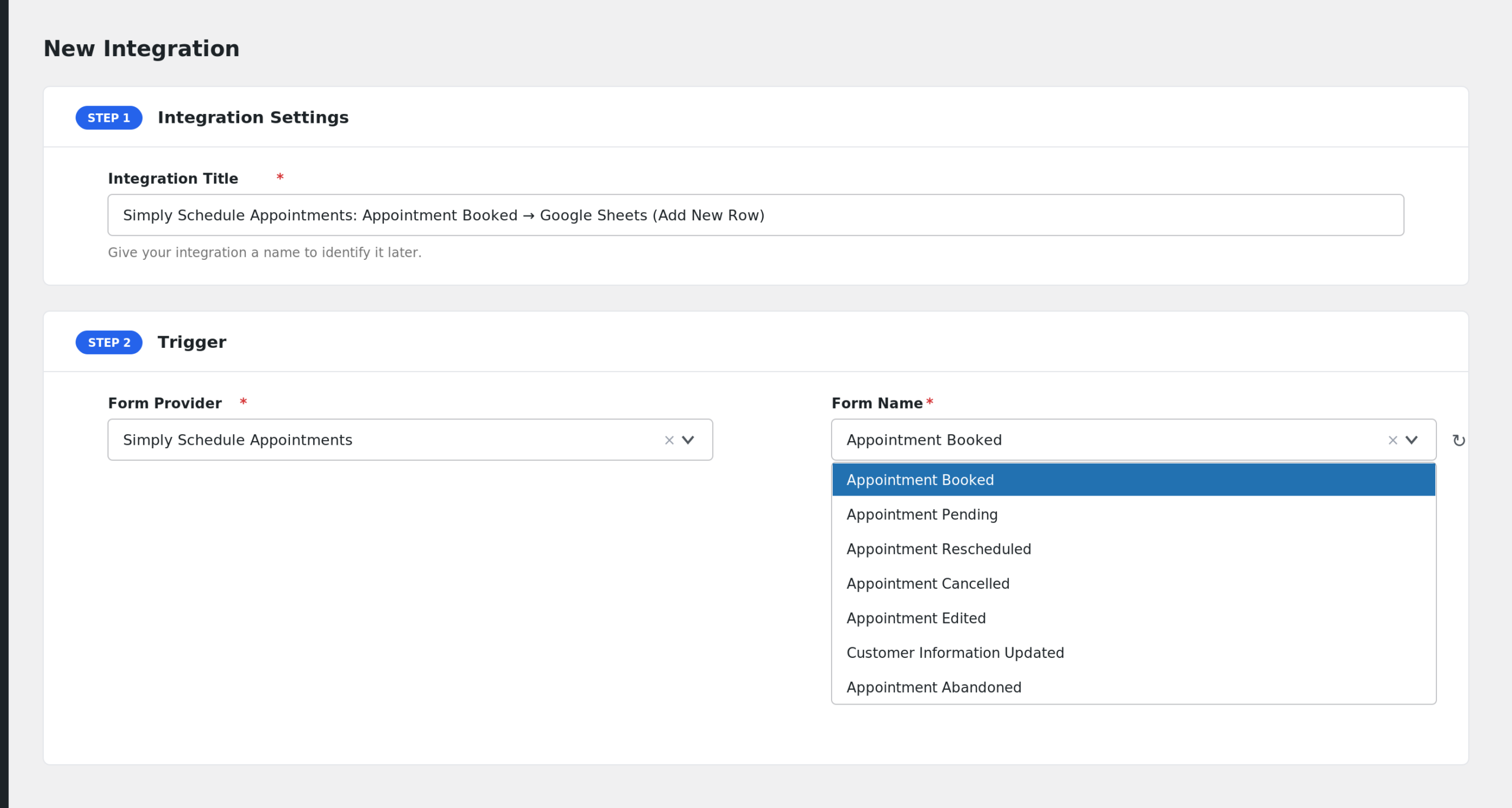
- AFI auto-fills a default Integration Title. Rename it to something recognizable, like “SSA Bookings to Google Sheets”.
- In the Trigger section, open the Form Provider dropdown and select Simply Schedule Appointments. If it is missing, activate the SSA plugin first.
- In the Form/Task Name dropdown, pick the appointment event you want, such as Appointment Booked.
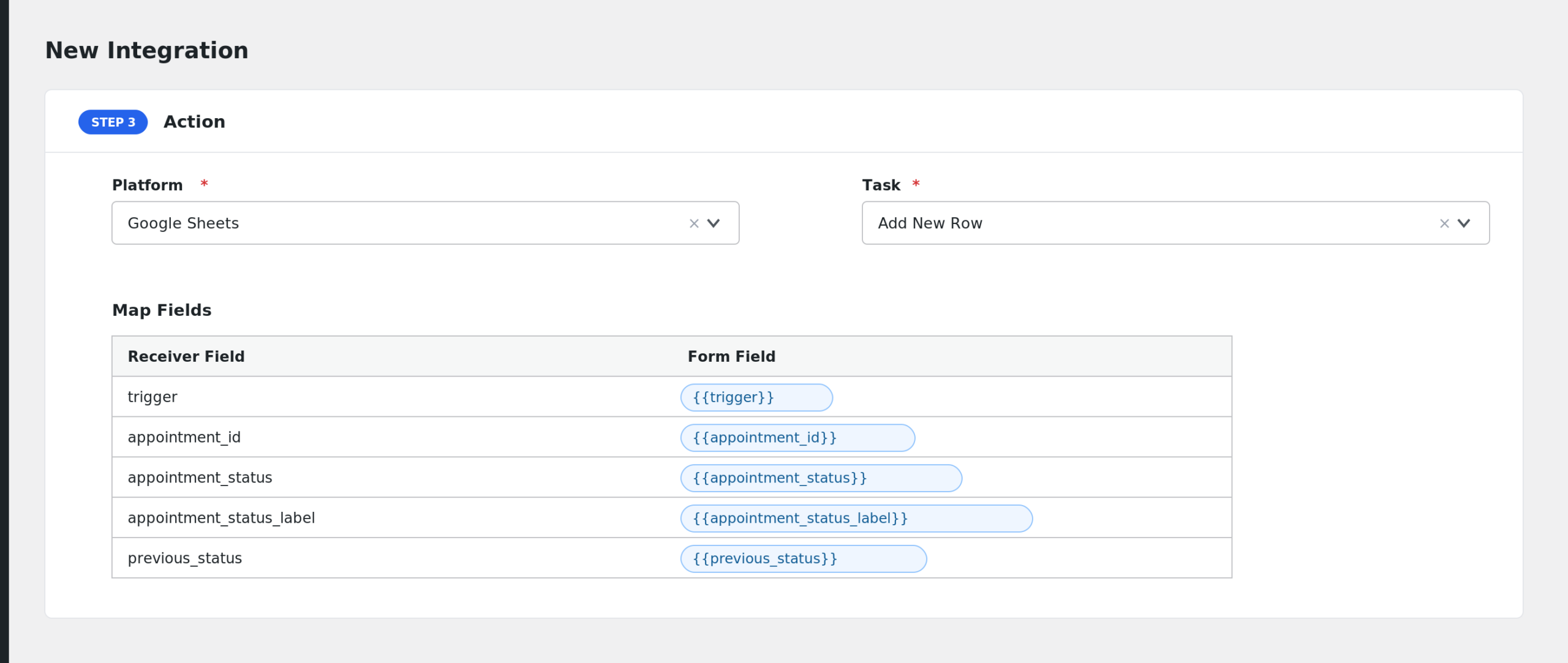
- Under Action, choose your receiver platform and connect your account.
- Map the appointment fields to the receiver’s fields, for example Customer Name, Customer Email, and Start Date.
- Click Save Integration, then book a test appointment to confirm data arrives.
Available Events
- Appointment Booked: fires when an appointment is booked and confirmed.
- Appointment Pending: fires when an appointment enters pending status.
- Appointment Rescheduled: fires when an appointment is moved to a new time.
- Appointment Cancelled: fires when an appointment is cancelled.
- Appointment Edited: fires when appointment details change without a status change.
- Customer Information Updated: fires when the customer’s information on an appointment is edited.
- Appointment Abandoned: fires when a started booking is abandoned.
- Appointment Marked as No Show: fires when an appointment is flagged as a no show.
- Appointment No Show Reverted: fires when a no show flag is removed.
Fields You Can Send
| Field | Description |
|---|---|
| trigger | The event key that fired, such as appointmentBooked |
| appointment_id | The appointment ID |
| appointment_status | The current status machine name |
| appointment_status_label | The current status as a readable label |
| previous_status | The status before the change |
| previous_status_label | The previous status as a readable label |
| appointment_type_id | The appointment type ID |
| appointment_type_title | The appointment type title |
| appointment_type_slug | The appointment type slug |
| rescheduled_from_appointment_id | The original appointment ID after a reschedule |
| rescheduled_to_appointment_id | The new appointment ID after a reschedule |
| group_id | The group booking ID |
| author_id | The WordPress user ID that created the appointment |
| customer_id | The customer’s ID |
| customer_name | The customer’s name |
| customer_email | The customer’s email address |
| customer_phone | The customer’s phone number, if collected |
| customer_timezone | The customer’s timezone |
| customer_locale | The customer’s locale |
| customer_information_json | All customer information as JSON |
| customer_information_plain | All customer information as readable text |
| start_date | The appointment start date and time |
| end_date | The appointment end date and time |
| start_date_timestamp | The start time as a Unix timestamp |
| end_date_timestamp | The end time as a Unix timestamp |
| previous_start_date | The start time before a reschedule or edit |
| previous_end_date | The end time before a reschedule or edit |
| date_created | When the appointment was created |
| date_modified | When the appointment was last updated |
| expiration_date | When a pending appointment expires |
| appointment_title | The appointment title |
| appointment_description | The appointment description |
| payment_method | The payment method used |
| payment_received | The amount of payment received |
| google_calendar_id | The connected Google Calendar ID |
| google_calendar_event_id | The Google Calendar event ID |
| web_meeting_id | The web meeting ID, for example Zoom |
| web_meeting_url | The web meeting join URL |
| web_meeting_password | The web meeting password |
| allow_sms | Whether the customer allowed SMS |
| staff_ids_json | Assigned staff IDs as JSON |
| primary_staff_id | The first assigned staff ID |
| public_edit_url | The public link the customer can use to manage the booking |
| meta_key | Extra event meta key, used by no show events |
| meta_value | Extra event meta value |
| meta_raw | The full event meta as JSON |
AFI also flattens every custom booking form field into its own tag with a customer_ prefix, for example customer_company for a “Company” field. Previous values are available too: previous_customer_information_json, previous_customer_information_plain, and previous_customer_ prefixed fields.
Only Act on Specific Appointment Types
Conditional logic is an AFI Pro feature. A useful setup: only add customers to your “Consultation” Mailchimp list when appointment_type_slug equals your consultation type. Bookings for other appointment types skip the action, so each service can feed a different list or sheet.
Troubleshooting
Simply Schedule Appointments is missing from the Form Provider dropdown
AFI only lists active plugins. Confirm SSA is installed and activated, then reload the AFI page.
The integration is not firing
Make sure you selected the event that matches your test. A booking that requires payment may pass through Appointment Pending before Appointment Booked. Check AFI > Log to see which events actually arrived.
Custom form fields are missing from the mapping list
Custom fields are sent with a customer_ prefix based on the field label, for example customer_phone_number. If a custom field is not listed, you can still target it with a manual smart tag using its normalized key.
Reschedule fields are empty
rescheduled_from_appointment_id and rescheduled_to_appointment_id only carry values on reschedule events. On other events they are 0.