 AFI
AFI
Slack
Slack is the workspace messaging app used by 750,000+ teams. Advanced Form Integration posts a message to a Slack channel every time a form is submitted or a WooCommerce order is placed, useful for lead alerts, support requests, signup notifications, and order pings. The integration uses Slack’s Incoming Webhooks feature, which is included on every Slack plan, and
What you’ll need
- A Slack workspace where you have permission to add apps and incoming webhooks.
- The channel you want messages to land in (a public channel, private channel, or DM).
- The Advanced Form Integration plugin installed and activated.
Create a Slack incoming webhook
Slack’s Incoming Webhook is a unique URL tied to one channel. Posting to that URL sends a message to that channel.
- Open https://api.slack.com/apps and click Create New App.
- Choose From scratch.
- Give the app a name like Advanced Form Integration and pick the workspace where the channel lives. Click Create App.
- From the app’s settings page, open Incoming Webhooks in the left sidebar.
- Toggle Activate Incoming Webhooks on.
- Click Add New Webhook to Workspace.
- Pick the channel that should receive the messages and click Allow.
- Slack returns to the Incoming Webhooks page with a new webhook URL. Copy it. The URL looks like
https://hooks.slack.com/services/T00000000/B00000000/XXXXXXXXXXXXXXXXXXXXXXXX.
The webhook URL is a secret. Anyone with it can post messages to the channel as your app, so don’t commit it to version control or share it publicly.
Create the integration
The Slack webhook URL is entered per-integration, not in global settings. That way each form can post to a different channel if you want.
- Go to WP Admin → AFI → Add New.
- Configure the trigger (see your form plugin’s doc for specifics).
- In Action → Platform, select Slack.
- In Task, choose Send Channel Message.
- Paste the Slack webhook URL into the Inbound Webhook URL field.
- Compose the message in the Message field. Use
{field_name}tokens to insert form data. - Optional: configure Conditional Logic.
- Click Save Integration.
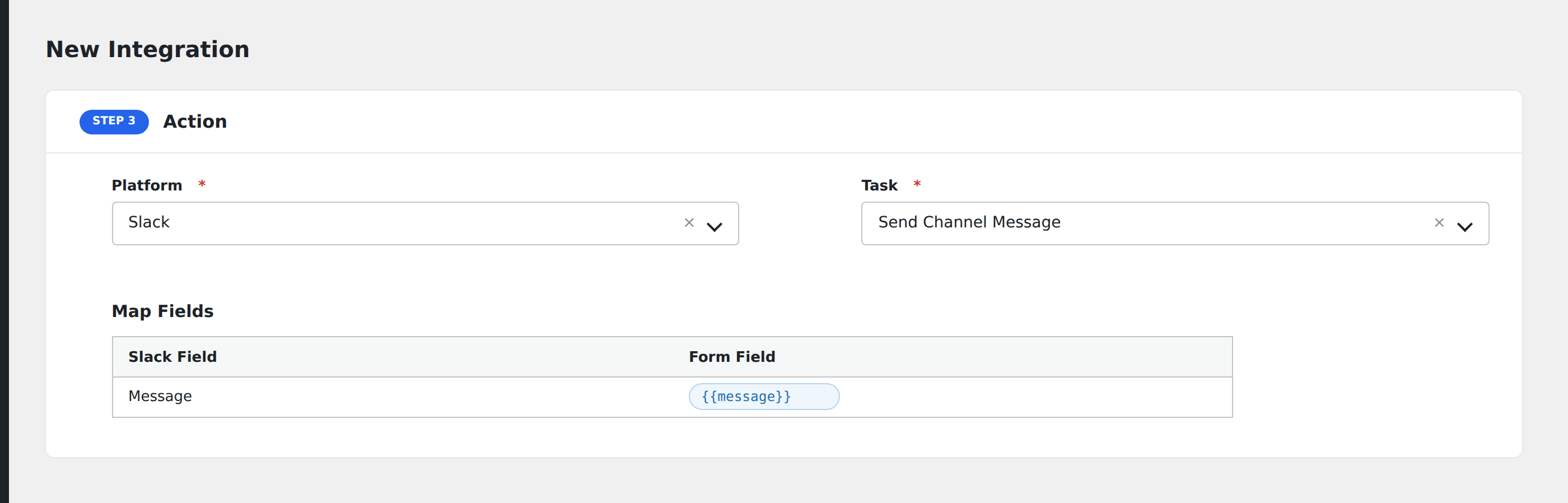
Tasks supported
Send Channel Message
Posts a single message to the channel the webhook URL was created for. The message body supports Slack’s mrkdwn formatting:
boldfor bold text._italic_for italic.~strike~for strikethrough.- `
- “
block` <https://example.com|Link text>for a hyperlink.<@U12345>to mention a Slack user (use the user ID, not their name).<!channel>or<!here>to ping the channel.
A useful template for a lead-notification message:
*New lead from your contact form*
*Name:* {your-name}
*Email:* {your-email}
*Message:* {your-message}
Conditional logic example
Goal: only ping the #urgent-leads Slack channel when a form’s Priority dropdown is set to High.
Create the Slack integration with the webhook URL for #urgent-leads. Open the Conditional Logic panel, add a condition with the Priority field, Equal To, value High. Now only high-priority submissions wake up the channel; everything else still flows to your other (unconditional) integrations.
Troubleshooting
Message doesn’t appear in Slack
Open AFI → Log and find the most recent log entry. Slack’s webhook responds with 200 OK and the literal text ok on success. Anything else is the cause.
invalid_payload: the message body is empty or malformed. Check that the Message field has content.channel_not_found: the channel was renamed or archived after the webhook was created. Create a new webhook for the current channel.no_service: the webhook URL is wrong, or the Slack app was deleted. Re-copy the URL from Slack and re-save the integration.200 OKbut no message. Confirm you’re looking at the right channel; private channels only show messages to members.
Tokens like {your-name} show as literal text
The token name doesn’t match a field in the form. Open the integration, scroll to the message field, and use the Insert Field picker to insert a token instead of typing it manually. That guarantees the token name matches.
“@channel” or “@here” pings don’t fire
Slack requires the special syntax <!channel> or <!here> (with angle brackets and an exclamation mark) for incoming-webhook mentions. Plain @channel is rendered as text.