 AFI
AFI
Equal To
Use Equal To in AFI conditional logic to fire an integration only when a submitted form value is exactly the same as the value you configure. It’s the most common operator, useful for routing by country, plan, language, role, or any other dropdown/text field with a known set of values.
How it works
When a form is submitted, AFI checks each conditional rule before sending data to the destination. The Equal To operator compares the submitted value of the field you pick against the value you enter. If they match exactly, the rule passes and the integration runs. If they don’t, AFI skips this destination for that submission.
The comparison is case-sensitive by default (US does not equal us) and is a literal string match: no wildcards, no regex.
Example
Goal: only add a subscriber to the Mailchimp list when the Country dropdown is US.
Setup:
- Open your integration in WP Admin → AFI → All Integrations and click Edit.
- Scroll to the Conditional Logic panel.
- Click Add Condition.
- In the field dropdown, pick the country field (e.g.
{country}). - Set the operator to Equal To.
- In the value box, type
US. - Click Save Integration.
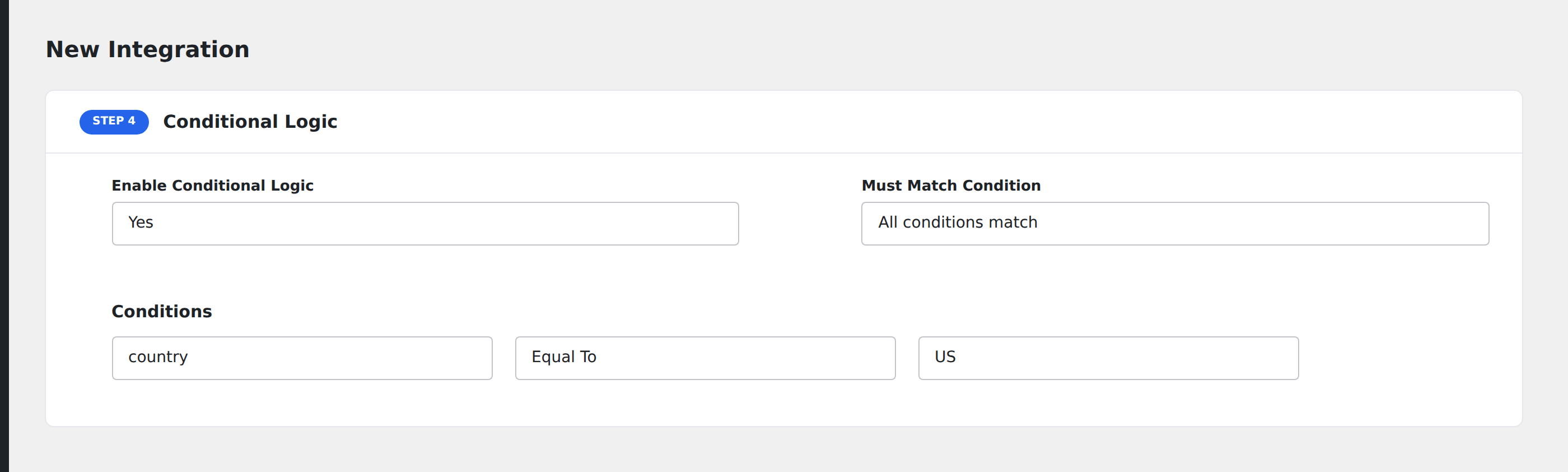
From now on, every submission with Country = US is sent to Mailchimp; every other submission is ignored by this integration.
Combine with other rules
Add more conditions to the same panel and choose whether all must match or any is enough. See Must Match Condition (All / Any) for the full pattern.
Notes
- Case-sensitive.
Pro,pro, andPROare three different values. Make sure your form options match the value you enter here. - Whitespace counts. A trailing space (
US) won’t matchUS. Trim values in your form if your users type the value freely. - Empty values. If the form field is empty on submission, an Equal To rule against any non-empty value will not match. To target empty submissions, leave the value field blank in the rule.
- Numbers vs strings. The comparison is string-based.
5and5.0are different. For numeric thresholds, use Greater Than or Less Than. - Multi-select fields. When the field captures multiple values (checkbox group, multi-select), AFI compares the comma-separated list as a single string. Use Contains for “matches any of these” semantics instead.