 AFI
AFI
Zoho Sheet
Zoho Sheet is an online spreadsheet application. Advanced Form Integration adds rows to your Zoho Sheet worksheets from WordPress form submissions, with auto-loaded column headers.
What you’ll need
- An active Zoho Sheet account.
- Your Zoho Sheet API credentials (see below).
- The Advanced Form Integration plugin installed and activated.
Connect Zoho Sheet via OAuth
- Go to the Zoho API Console.
- Create a Self Client or Server-based Application.
- Copy the Client ID and Client Secret.
- Select your Data Center (.com, .eu, .in, .com.au, .com.cn).
- In WordPress, go to AFI → Settings → Zoho Sheet.
- Click Add Account, enter the Client ID, Client Secret, and Data Center.
- Click Save & Authorize to complete the OAuth2 flow.
Create the integration
- Go to AFI → Add New.
- Give the integration a name, for example
Form to Zoho Sheet. - Under Trigger, pick the form plugin and the specific form.
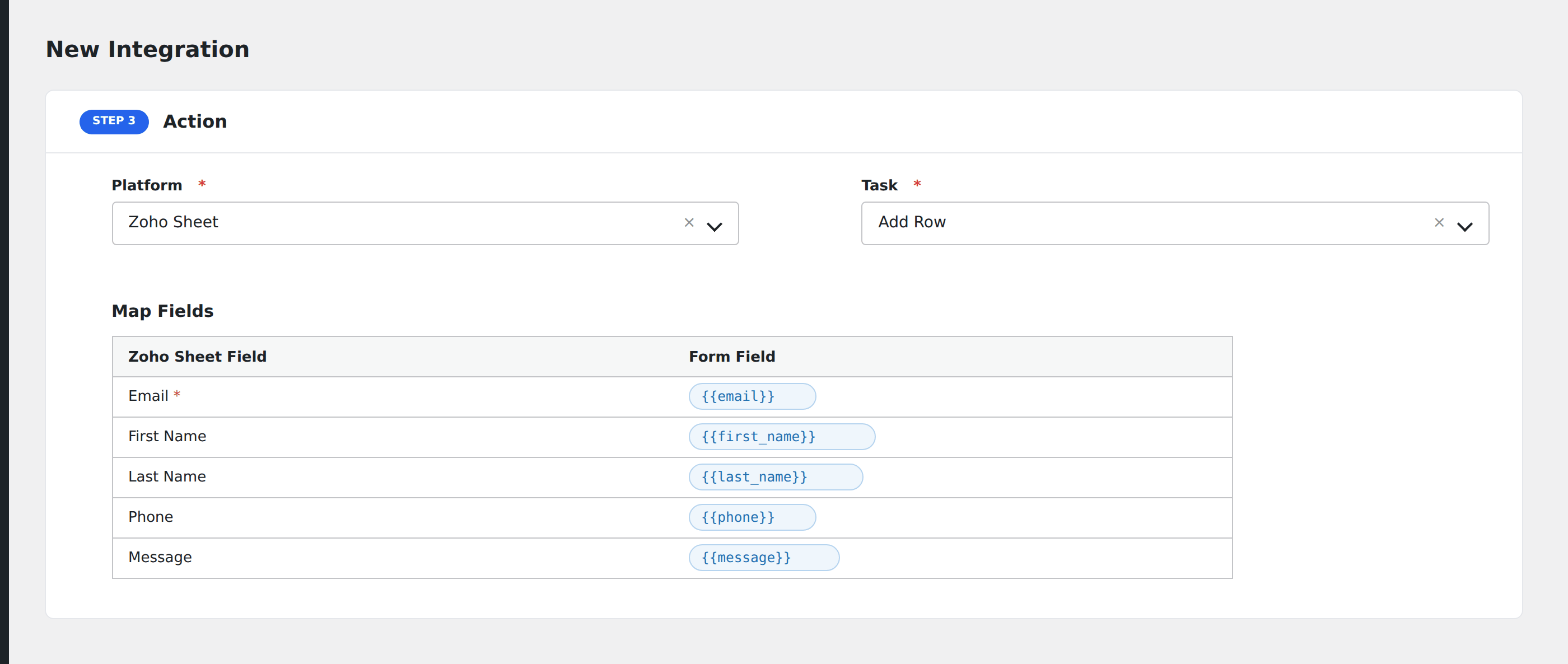
- Under Action → Platform, select Zoho Sheet.
- In Task, choose Add new record.
- Pick the saved account.
- Map your form fields onto the fields listed below.
- Optional: open Conditional Logic to limit which submissions are sent.
- Click Save Integration.
Tasks supported
Add new record
Adds a new row to the selected worksheet. AFI auto-loads the column headers from your worksheet and presents each as a mappable field.
| Field | Field key | Required | Notes |
|---|---|---|---|
| Workbook | workbook_id |
Yes | Selected from dropdown of accessible workbooks |
| Worksheet | worksheet_id |
Yes | Selected from dropdown |
| Column values | varies |
No | Each column header appears in the mapper by name |
Pro features
The Pro integration extends the free version with additional capabilities. Pro uses the same Zoho Sheet connection.
Add New Row
Pro adds the same row-insertion task with extended column mapping.
Update Existing Row
Updates a row by matching a key column value.
Feature comparison
| Feature | Free | Pro |
|---|---|---|
| Add new record (row) | ✅ | ✅ |
| Auto-loaded column headers | ✅ | ✅ |
| Update existing row | No | ✅ |
Conditional logic example
Only send data to Zoho Sheet when specific conditions are met. For example, add a condition on a form field to control which submissions are forwarded.
Troubleshooting
Nothing arrives in Zoho Sheet
Open AFI → Log and find the most recent entry. AFI stores the request URL, body, and raw response.
API credentials rejected
Verify your credentials in your Zoho Sheet account settings. If they were regenerated, update them in AFI → Settings → Zoho Sheet.