 AFI
AFI
Kadence Blocks Form
Kadence Blocks is a free Gutenberg blocks plugin from Kadence WP that includes a fully-featured Form block. Advanced Form Integration captures every Kadence form submission and routes the data to any of 200+ destinations.
What you’ll need
- The Kadence Blocks plugin installed and activated.
- The Advanced Form Integration plugin installed and activated.
- A Kadence Form block placed on a page or post.
Supported form fields
| Field type | Supported | Output format / notes |
|---|---|---|
| Text | Yes | Same as input |
| Yes | Same as input | |
| Textarea | Yes | Same as input |
| Number | Yes | Same as input |
| Telephone | Yes | Same as input |
| URL | Yes | Same as input |
| Date | Yes | YYYY-MM-DD |
| Time | Yes | HH:MM |
| Select | Yes | The selected option value |
| Radio | Yes | The selected option value |
| Checkbox | Yes | Comma-separated selected values |
| Hidden | Yes | Same as the hidden value |
| Accept | Yes | 1 when ticked, empty when not |
Create the integration
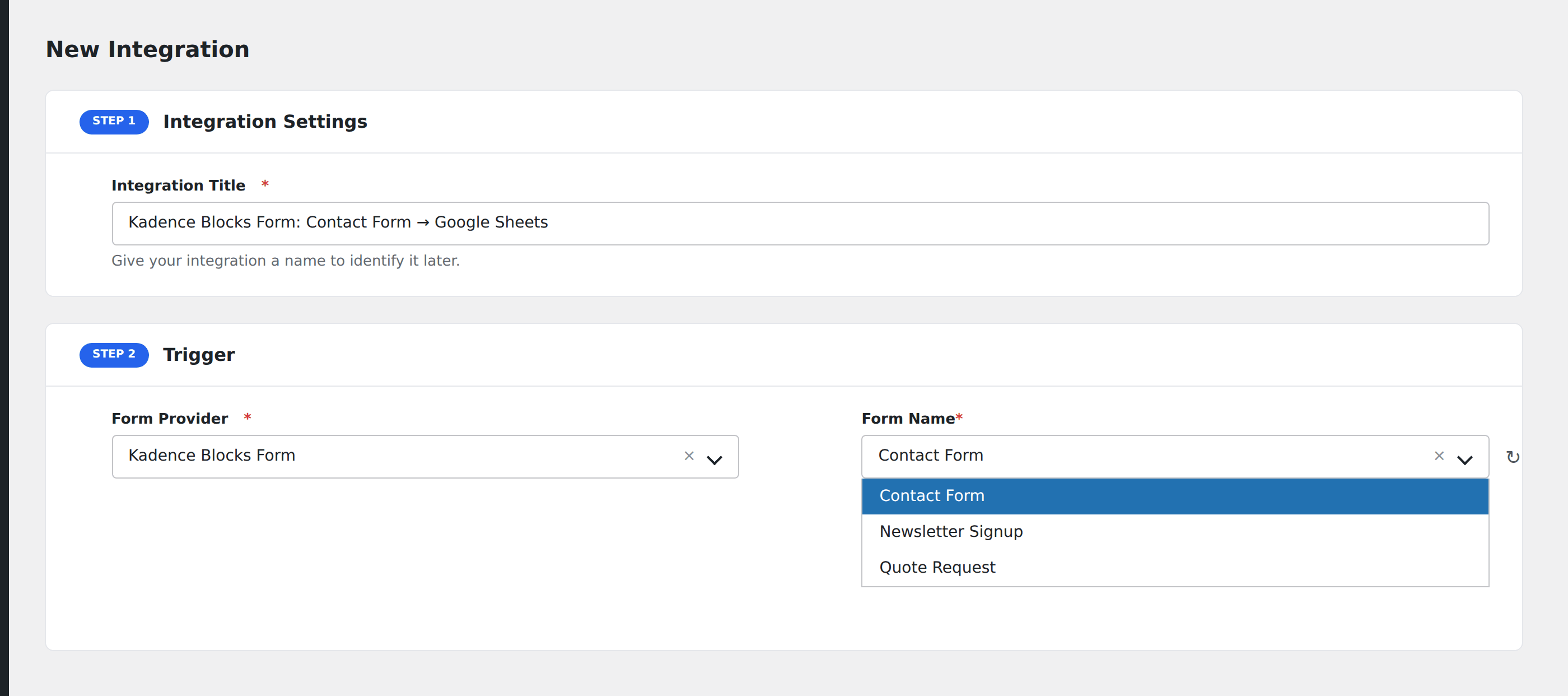
- Go to WP Admin → AFI → Add New.
- Enter an Integration Title that names the form and the destination.
- In Trigger → Form/Data Provider, select Kadence Blocks Form.
- In Form/Task Name, choose the form. Kadence forms are listed by the Form Title set in the block’s settings.
- In Action → Platform, pick where the data should go and complete the field mapping.
- Optional: configure Conditional Logic.
- Click Save Integration.
Naming forms in Kadence
Each Kadence Form block has a Form Title in the block’s General settings. Set this to something descriptive (Newsletter Signup, Contact Form, Demo Request) so the form is easy to find in AFI.
Conditional logic example
Goal: when a Kadence contact form’s Topic dropdown is Support, route to the helpdesk’s email; otherwise route to the sales CRM.
Create two integrations on the same form. On the helpdesk integration, add a condition with the topic field, Equal To, value Support. On the sales CRM integration, use Not Equal To Support.
Troubleshooting
Form not appearing in the Form/Task Name dropdown
Kadence registers a form on first submission. Submit a test entry through the form, then reload the AFI screen. The form should appear.
Submissions arrive but field names look like field0, field1
Kadence assigns numeric IDs by default. To get readable field names, edit each field in the Kadence block, open the Advanced settings, and set a meaningful Field Slug.