 AFI
AFI
Dropbox
Dropbox is the file-syncing service used by 700M+ users worldwide. Advanced Form Integration creates a new file in your Dropbox account for every form submission, useful for archiving submission data as JSON/CSV, or pushing form-uploaded files into a Dropbox folder.
What you’ll need
- An active Dropbox account.
- A Dropbox app registered in their developer console.
- The Advanced Form Integration plugin installed and activated.
Create a Dropbox app
- Go to the Dropbox App Console and click Create app.
- Choose Scoped access for the access type.
- Choose App folder (Dropbox creates a sandboxed folder for the app inside
Apps/your-app-name/) or Full Dropbox (any folder). - Name the app.
Advanced Form Integrationis fine. - Click Create app.
- On the app’s Settings tab, under OAuth 2 → Redirect URIs, paste the redirect URI shown in AFI → Settings → Dropbox.
- Open the Permissions tab and grant
files.content.write(andfiles.content.readif needed). Click Submit at the bottom. - Back on the Settings tab, copy the App key and App secret.
Connect Dropbox to AFI
- In WordPress, go to AFI → Settings → Dropbox.
- Paste the App Key and App Secret.
- Click Save & Authorize.
- Dropbox’s auth screen opens. Allow access.
- AFI shows Connected when authorization completes.
Create the integration
- Go to AFI → Add New.
- Configure the trigger.
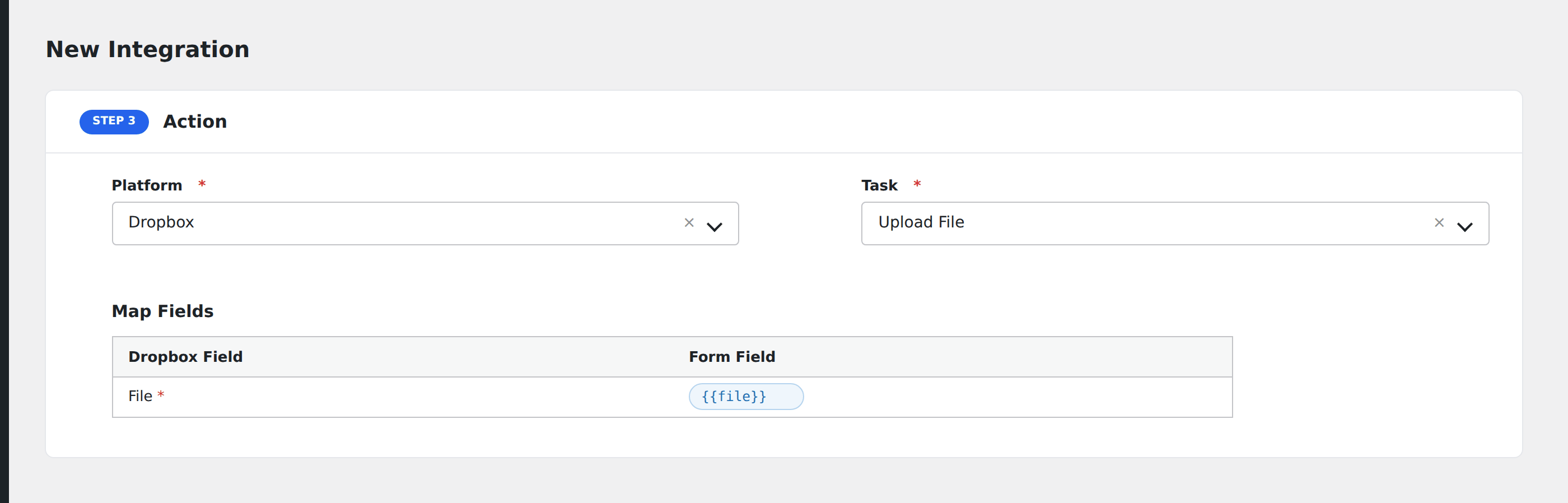
- In Action → Platform, select Dropbox.
- In Task, choose Upload File.
- Map the fields:
- File Path: destination path in Dropbox (e.g.
/submissions/{form_id}-{entry_id}.json). - File Content: content to write. Use Mixed Field tokens to build a JSON or CSV-like body from form fields.
- Optional: configure Conditional Logic.
- Click Save Integration.
Tasks supported
Upload File
Writes a new file to the configured Dropbox path. If a file with the same path already exists, Dropbox creates a numbered duplicate (e.g. submission.json (1)) by default. Use unique paths per submission (include the form entry ID) to avoid clutter.
Use cases
- Submission archive: write each submission as a JSON file to
/submissions/{date}-{name}.jsonfor backup. - CSV export: append submissions to a daily CSV by using the same filename plus a date stamp.
- File-upload mirror: when a form has a file upload, push the uploaded file’s URL into a Dropbox text file so it’s archived alongside metadata.
Conditional logic example
Goal: archive only paid orders to Dropbox, not free signups.
Open the integration’s Conditional Logic panel, add a condition with the order total field, Greater Than, value 0. Free submissions don’t write a file.
Troubleshooting
“expired_access_token” or “invalid_access_token”
Re-authorize via AFI → Settings → Dropbox → Re-authorize.
File not appearing in Dropbox
Check AFI → Log for the API response. Common causes:
- Path conflict with the App folder scope. Paths must be relative to the app’s sandboxed folder.
- File path contains illegal characters (
<,>,:,",|,?,*). - File size limit: Dropbox API caps uploads at 150 MB per request.