 AFI
AFI
Copper
Copper (formerly ProsperWorks) is a CRM built for Google Workspace users. Advanced Form Integration creates companies, people, and opportunities in Copper from your WordPress form submissions.
What you’ll need
- An active Copper account.
- Your Copper Admin Email and API Key (see below).
- The Advanced Form Integration plugin installed and activated.
Get your Copper credentials
Copper authenticates API requests with three headers: X-PW-UserEmail, X-PW-AccessToken, and X-PW-Application.
- Sign in to your Copper account.
- Go to Settings → Integrations → API Keys.
- Generate a new API key and copy it.
- Note the admin email you use to log in.
- In WordPress, go to AFI → Settings → Copper.
- Click Add Account, enter the admin email and API key, and give the account a name.
- Click Save.
Create the integration
- Go to AFI → Add New.
- Give the integration a name, for example
Lead form to Copper. - Under Trigger, pick the form plugin and the specific form you want to listen on.
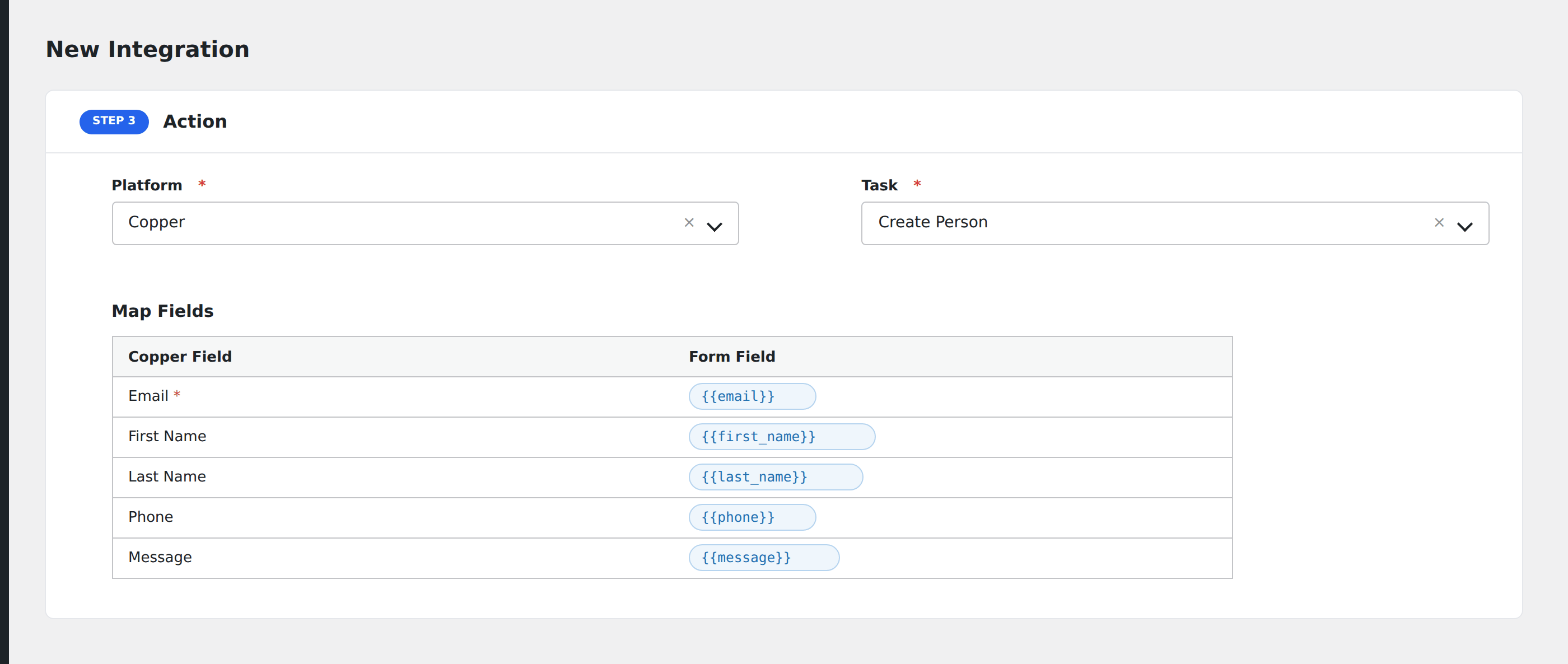
- Under Action → Platform, select Copper.
- In Task, choose Create New Company, Person, Opportunity.
- Pick the saved account in the Copper Account dropdown.
- Select an Owner to assign records to.
- Map your form fields onto the Copper fields listed below.
- Optional: open Conditional Logic to limit which submissions are sent.
- Click Save Integration.
Tasks supported
Create New Company, Person, Opportunity
Creates records in Copper in order: company first (upsert by name via companies/search), then person (upsert by email via people/fetch_by_email, linked to company), then opportunity (linked to company and person). Each entity is only created if its required fields are mapped.
Company fields
| Field | Field key | Notes |
|---|---|---|
| Name [Company] | com_name |
Required for company creation |
| Phone / Website / Email Domain | com_workphone, com_workwebsite, com_emaildomain |
|
| Social / Address | com_linkedin, com_street, com_city, etc. |
Person fields
| Field | Field key | Notes |
|---|---|---|
| Name [Person] | per_name |
Required for person creation |
| Email [Person] | per_workemail |
Used for upsert matching |
| Phone / Title / Social | per_workphone, per_title, per_linkedin |
Opportunity fields
| Field | Field key | Notes |
|---|---|---|
| Name [Opportunity] | deal_name |
Required for opportunity |
| Pipeline_Stage ID | deal_pipeline |
Format: pipelineID_stageID |
| Value / Source / Priority | deal_value, deal_source, deal_priority |
Pro features
The Pro integration extends the free version with custom fields, tags, four additional tasks (Create Lead, Add Note/Activity, Create Task, Add Tags to Existing Record), and lead creation. Pro uses the same Copper account connection.
Custom fields
Pro auto-loads all custom field definitions from GET /custom_field_definitions. Fields are filtered by object type (company, person, opportunity, lead). Dropdown and MultiSelect option names are auto-mapped to their IDs.
Tags
Pro supports tags on companies, people, opportunities, and leads. Enter comma-separated tag values.
Additional Pro tasks
- Create New Lead: creates a lead with full contact info, custom fields, and tags.
- Add Note (Activity) to Record: finds a person or company by email/name, attaches a user activity note.
- Create Task: standalone task with due date, assignee, and optional related record.
- Add Tags to Existing Record: finds a record, merges new tags with existing ones (Copper’s PUT replaces tags, so Pro fetches and merges first).
Feature comparison
| Feature | Free | Pro |
|---|---|---|
| Create/update company, person, opportunity | ✅ | ✅ |
| Standard fields | ✅ | ✅ |
| Upsert (company by name, person by email) | ✅ | ✅ |
| Custom fields (auto-loaded with option mapping) | No | ✅ |
| Tags | No | ✅ |
| Create Lead | No | ✅ |
| Add Note/Activity | No | ✅ |
| Create Task | No | ✅ |
| Add Tags to Existing Record | No | ✅ |
Conditional logic example
Only create opportunities for enterprise leads. Add a condition on company_size being greater than 500. Smaller submissions still create a company and person but skip the opportunity.
Troubleshooting
Nothing arrives in Copper
Open AFI → Log and find the most recent entry. AFI stores the request and response.
Rate limited (HTTP 429)
Copper caps at 180 requests/minute. AFI automatically retries once on HTTP 429.