 AFI
AFI
Gutenverse Form
Gutenverse Form lets you build forms directly in the block editor with the Gutenverse page builder. When you connect it to Advanced Form Integration (AFI), every submission can be sent automatically to other platforms. For example, you can add each new entry as a row in Google Sheets, subscribe the person to a Mailchimp list, or create a contact in a CRM like HubSpot.
What You’ll Need
- The Gutenverse plugin installed and active, with at least one published Gutenverse form.
- Advanced Form Integration installed and active. The free version sends name and email fields only. AFI Pro unlocks all form fields.
- An account on the receiving platform, such as Google Sheets or Mailchimp.
How to Create the Integration
- In your WordPress dashboard, go to AFI > Add New.
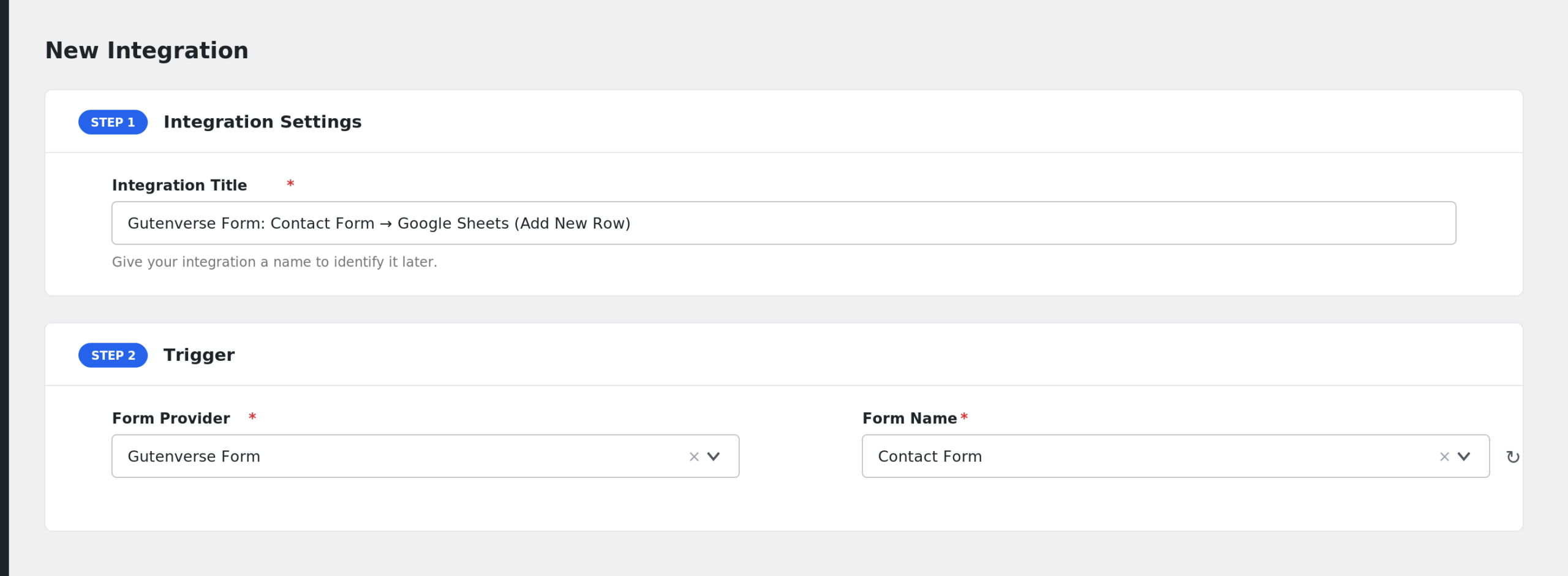
- AFI fills in a default Integration Title. Rename it to something you will recognize later, like “Gutenverse Contact Form to Google Sheets”.
- In the Trigger section, open the Form Provider dropdown and select Gutenverse Form. If it does not appear, make sure the Gutenverse plugin is active.
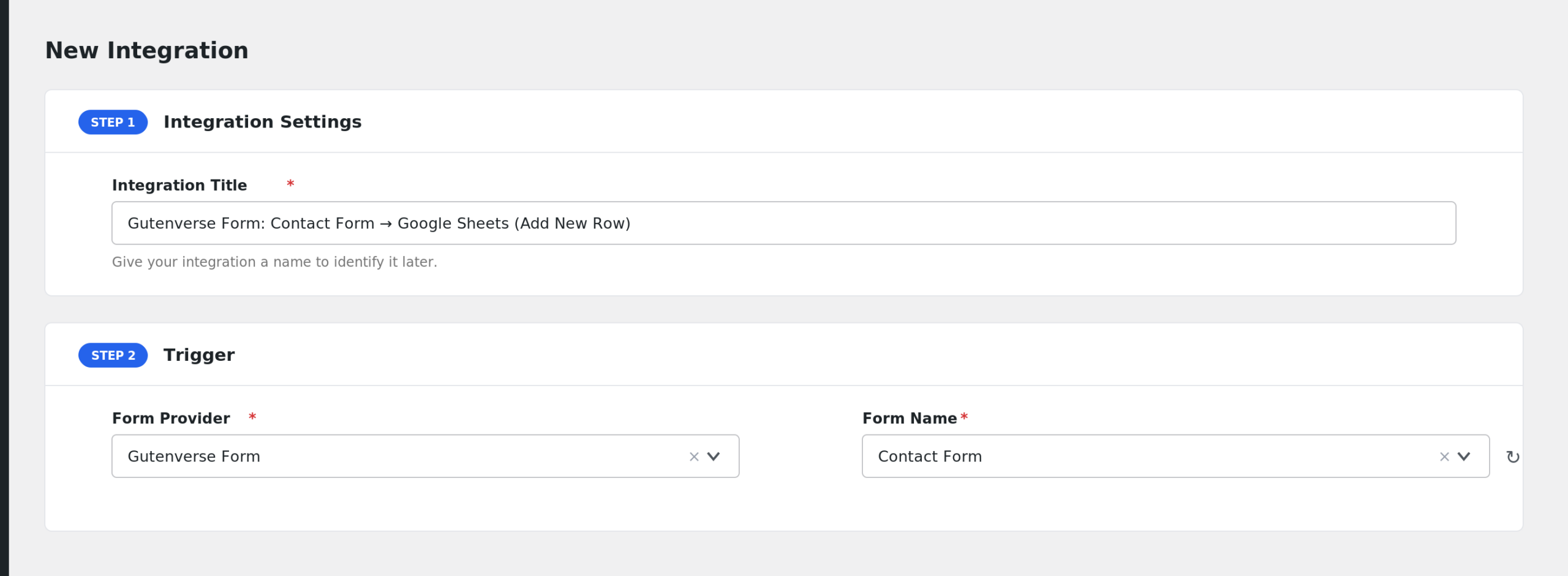
- In the Form/Task Name dropdown, pick the form you want to connect. AFI lists all published Gutenverse forms by title.
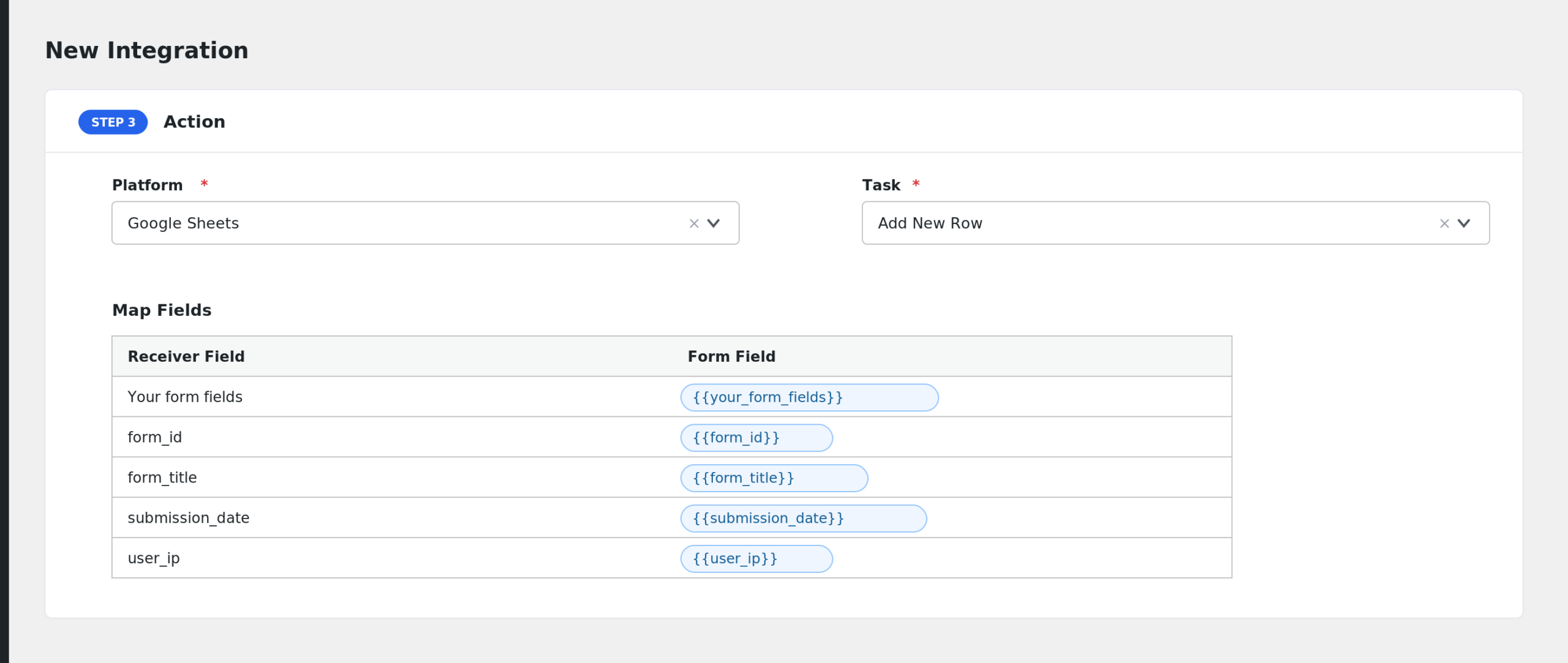
- In the Action section, choose your receiver platform, for example Google Sheets, and complete its account setup.
- Map your Gutenverse fields to the receiver fields. Click the tag icon next to each receiver field and pick the matching form field.
- Click Save Integration. Submit a test entry on your form to confirm the data arrives.
Fields You Can Send
AFI reads the input blocks inside your form, so your own field names appear in the mapping dropdown. On top of those, AFI adds these fields:
| Field | Description |
|---|---|
| Your form fields | Each Gutenverse input block, listed by its input name and label. |
| form_id | The ID of the Gutenverse form post. |
| form_title | The title of the form. |
| submission_date | The date and time of the submission. |
| user_ip | The IP address of the visitor. |
| entry_id | The ID of the entry saved by Gutenverse. |
Checkbox and multi-select values arrive as a single comma separated string. General special tags such as user and post data are also available in the dropdown.
Note: With the free version of AFI, only email fields and text fields with “name” in the field name are available. Upgrade to AFI Pro to send every field.
Conditional Logic Example
Say your form has a dropdown named topic. You can add a condition so the integration only runs when topic equals Sales. Support requests then skip your CRM, while sales leads flow straight in. AFI Pro includes conditional logic on every integration.
Troubleshooting
Gutenverse Form is not in the Form Provider list
The Gutenverse plugin must be active on the same site. Check Plugins and activate it, then reload the AFI screen.
My form is missing from the Form/Task Name dropdown
AFI only lists published Gutenverse forms. Open the form in the editor and confirm its status is Published, not Draft.
The integration is not firing
Gutenverse submits forms through the WordPress REST API, and AFI listens for a successful submission with an entry ID. Confirm the form submits without errors on the front end, then check AFI > Log to see whether the trigger ran and what the receiver responded.
Fields arrive blank
Re-open the integration and refresh the field mapping after any change to the form. If you renamed an input block, the old field key no longer matches and you need to remap it. On the free version, remember that only name and email fields carry data.