AFI
AFI
Braze
Braze is an enterprise customer engagement platform for cross-channel marketing. Advanced Form Integration sends form submissions to Braze as new users or as custom events.
What you’ll need
- An active Braze account.
- A Braze REST API key (Settings → API Keys → Create New API Key).
- Your Braze REST endpoint (e.g.
https://rest.iad-01.braze.com; region varies). - The Advanced Form Integration plugin installed and activated.
Connect Braze to AFI
- In WordPress, go to AFI → Settings → Braze.
- Enter the API Key and REST endpoint URL, click Save Changes.
Create the integration
- Go to AFI → Add New.
- Configure the trigger.
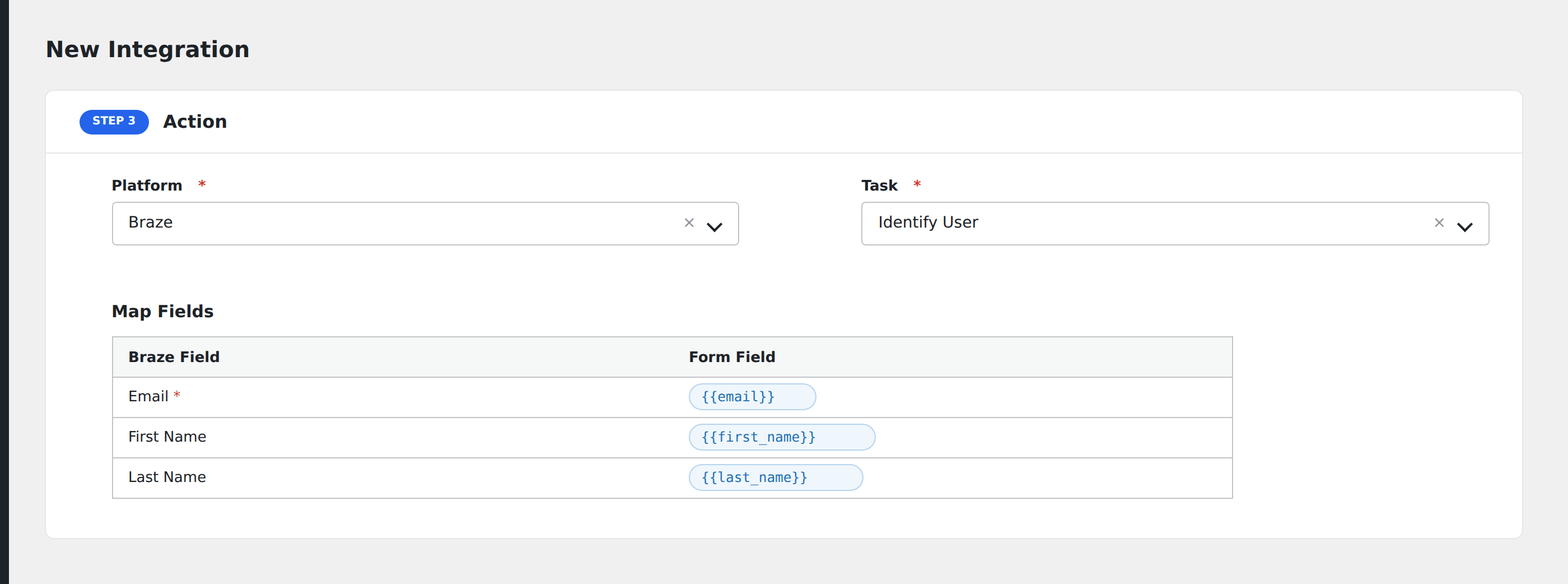
- In Action → Platform, select Braze.
- In Task, choose Identify User or Track Event.
- Map the form fields:
- External ID / Email (required).
- Custom user attributes by name.
- Optional: configure Conditional Logic.
- Click Save Integration.