 AFI
AFI
Webba Booking Lite
Webba Booking Lite is an appointment booking plugin for WordPress. With Advanced Form Integration (AFI), you can react to bookings the moment they are created, paid, or cancelled, and push the details anywhere: log every booking in Google Sheets, add the customer to a Mailchimp list, create a contact and deal in a CRM, or send an SMS through Twilio.
What You’ll Need
- The Webba Booking (Lite or paid) plugin installed and active, with at least one service configured
- The AFI plugin (free) installed and active
- An account on the receiving platform you want to connect
Available Events
Unlike a regular form trigger, Webba Booking Lite gives you three events to choose from in the Form/Task Name dropdown:
| Event | When it fires |
|---|---|
| Booking Created | A visitor completes the booking form and the booking is saved |
| Booking Paid | A booking is marked as paid, either by the customer paying online or by an admin setting it as paid |
| Booking Cancelled | A booking is cancelled by the customer or from the admin side |
You can create separate integrations for each event, for example one that adds new bookings to a spreadsheet and another that updates your CRM when a booking is cancelled.
How to Create the Integration
- Go to AFI > Add New in your WordPress admin.
- A default title is auto-filled in the Integration Title box. Rename it to something recognizable, like “Webba Booking Paid to Google Sheets”.
- In Trigger > Form Provider, select Webba Booking Lite. The Webba Booking plugin must be active, otherwise it won’t appear.
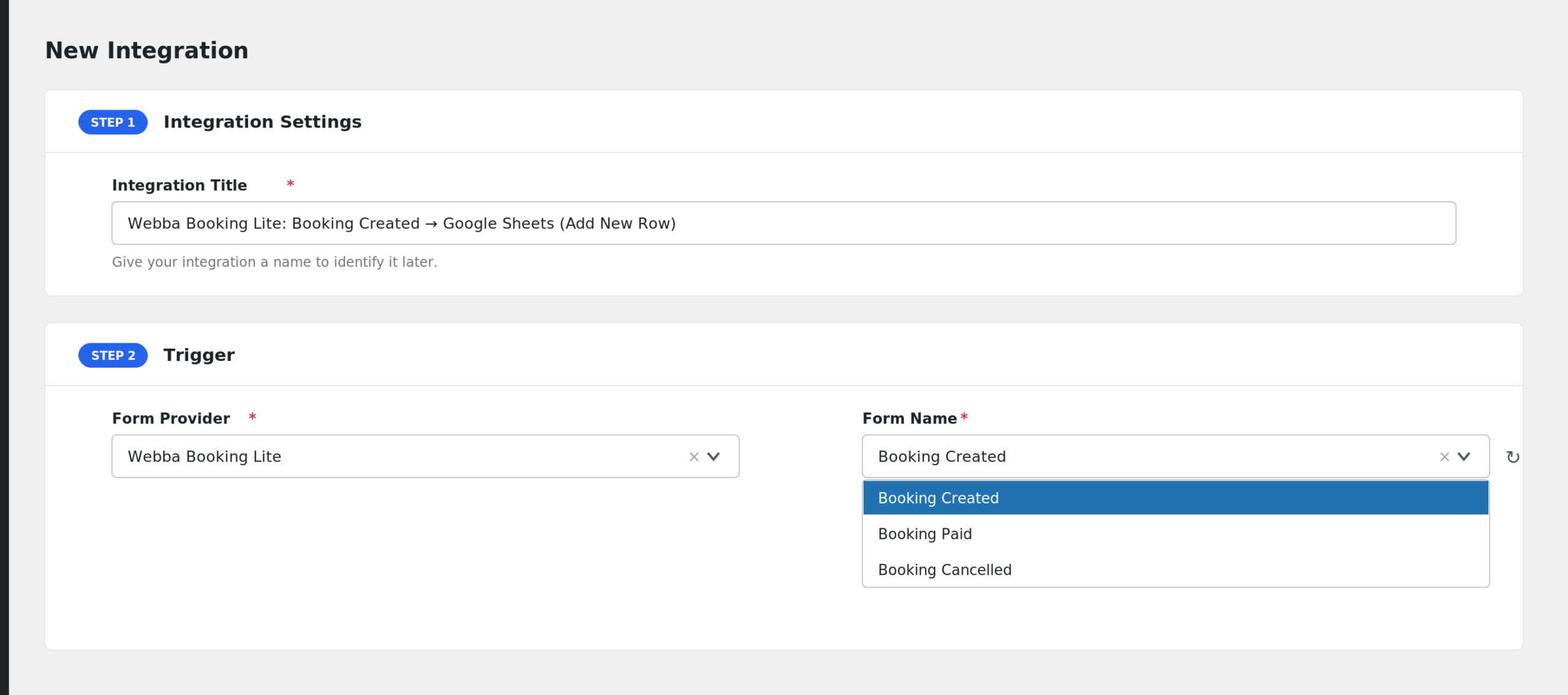
- In Form/Task Name, pick the event: Booking Created, Booking Paid, or Booking Cancelled.
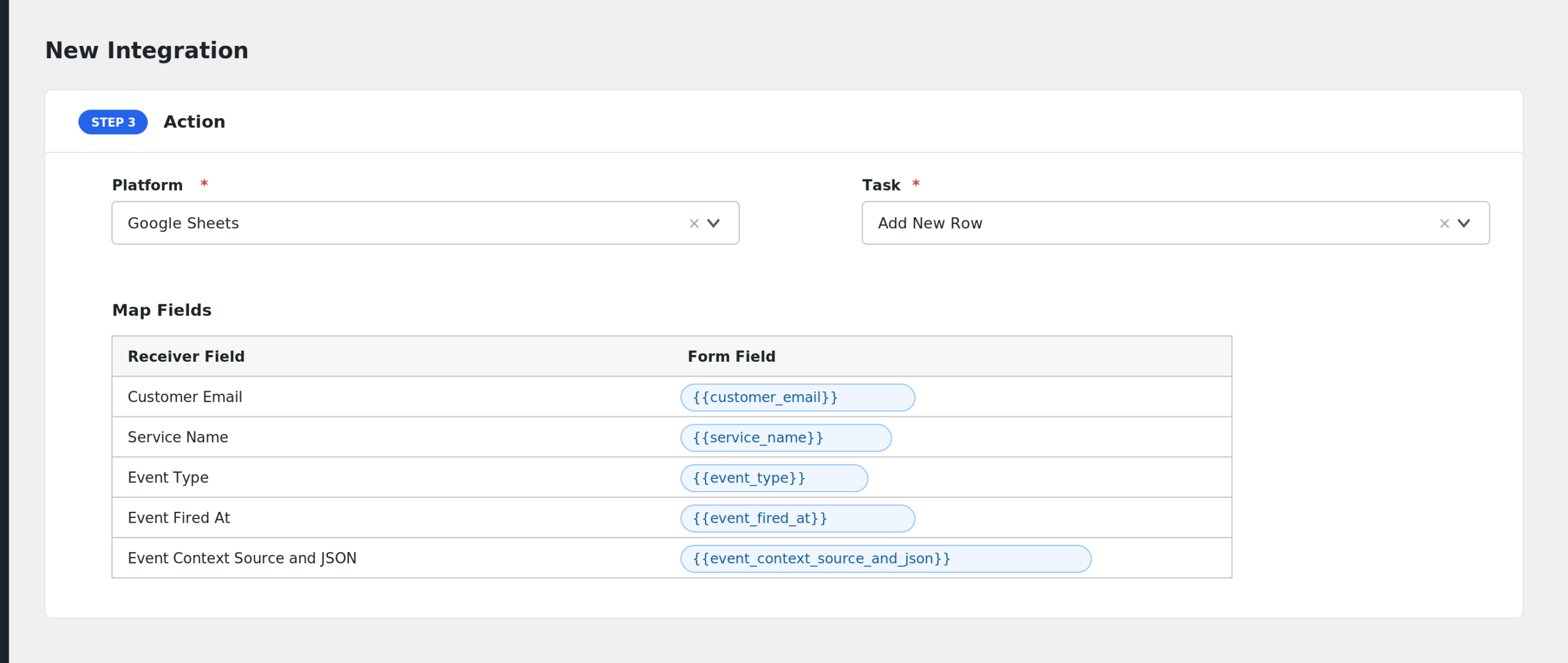
- Under Action, select the receiver platform and its task.
- Map the booking fields to the receiver’s fields.
- Add Conditional Logic if you only want certain bookings sent (optional).
- Click Save Integration and make a test booking.
Fields You Can Send
This trigger exposes a very rich payload, around one hundred fields. The full list appears in the mapping dropdown; here are the main groups:
| Group | Key fields |
|---|---|
| Event | Event Type, Event Fired At (Timestamp and ISO8601), Event Context Source and JSON |
| Booking | Booking ID, Booking Status, Previous/Next Status, Booked Quantity, Duration (Minutes), Booking Day, Created At (local and UTC), Created By, Cancelled By, Booking Token |
| Schedule | Start and End DateTime in service timezone, ISO8601 and UTC, Start/End Timestamps, Slot Label |
| Customer | Full Name, First Name, Last Name, Email, Phone, Locale, Language, IP, Time Offset, Custom Fields (JSON and Text), Uploaded Files (JSON and List) |
| Payment | Payment Method, Price Per Person, Booking Total, Amount Paid, Balance Due, Payment Breakdown, each in raw and formatted variants |
| Coupon | Coupon ID, Name, Fixed and Percentage Discount, Usage Limit, Times Used, Remaining Uses, Date Range |
| Service | Service ID, Name, Description, Duration, Base Price, Fee, Min/Max Quantity, Categories, Linked WooCommerce Product ID, Google Calendar IDs |
| Links | Customer Payment URL, Customer Cancel URL, Add To Google Calendar URL, Admin Cancel URL, Admin Approve URL |
| Integrations | Google Calendar Event ID, Zoom Meeting ID, URL, and Password |
Tip: fields ending in (JSON) send structured data, useful for webhooks. The (Text) and (List) variants are easier to read in spreadsheets and emails.
Conditional Logic Example
To send only bookings for one specific service to your CRM, add a condition: select Service Name, choose Equal to, and enter the service’s exact name. You could also filter paid bookings above a certain amount using Booking Total with the Greater Than operator.
Troubleshooting
Webba Booking Lite is not in the Form Provider dropdown
Confirm the Webba Booking plugin is installed and active. AFI registers this trigger only when the booking plugin is loaded.
The integration fires on creation but not on payment
Booking Created and Booking Paid are separate events. Check which event your integration is listening to in the Trigger section. If you need both, create two integrations.
Fields arrive empty at the receiver
Some fields only have values in certain situations. For example, coupon fields are empty when no coupon was used, and Zoom fields are empty unless the service is connected to Zoom. Check AFI > Log to see the exact payload that was sent.