 AFI
AFI
FluentAuth
FluentAuth secures login and registration on your WordPress site. Connect it to Advanced Form Integration (AFI) and authentication events become automations. You can add new registrations to a Mailchimp audience, log every login in Google Sheets, or push failed login attempts to a security dashboard or CRM for review.
What You’ll Need
- The FluentAuth plugin installed and active
- Advanced Form Integration (free version is enough for this trigger)
- An account on the receiving platform, such as Google Sheets or Mailchimp
How to Create the Integration
- Go to AFI > Add New.
- AFI fills in a default Integration Title. Rename it to something recognizable, such as “New Signups to Mailchimp”.
- In the Trigger section, select FluentAuth from the Form Provider dropdown. FluentAuth must be active on your site or the provider will not appear.
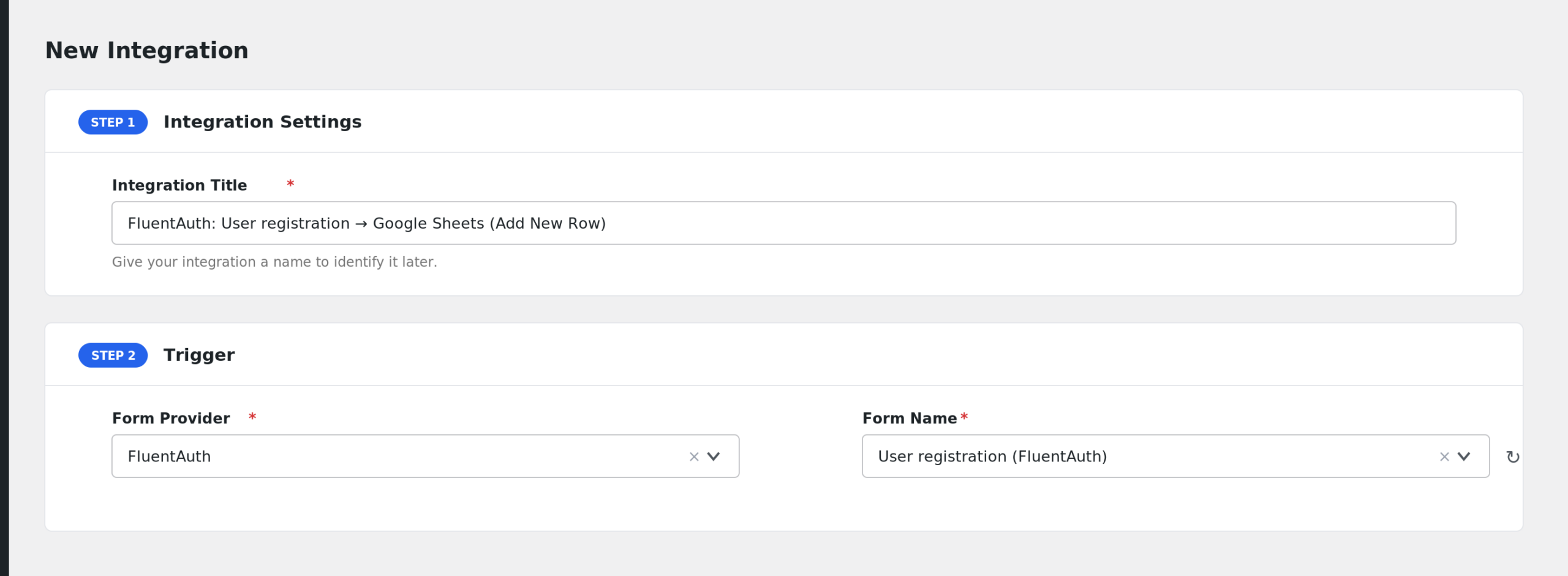
- In the Form/Task Name dropdown, choose the event, for example User registration (FluentAuth).
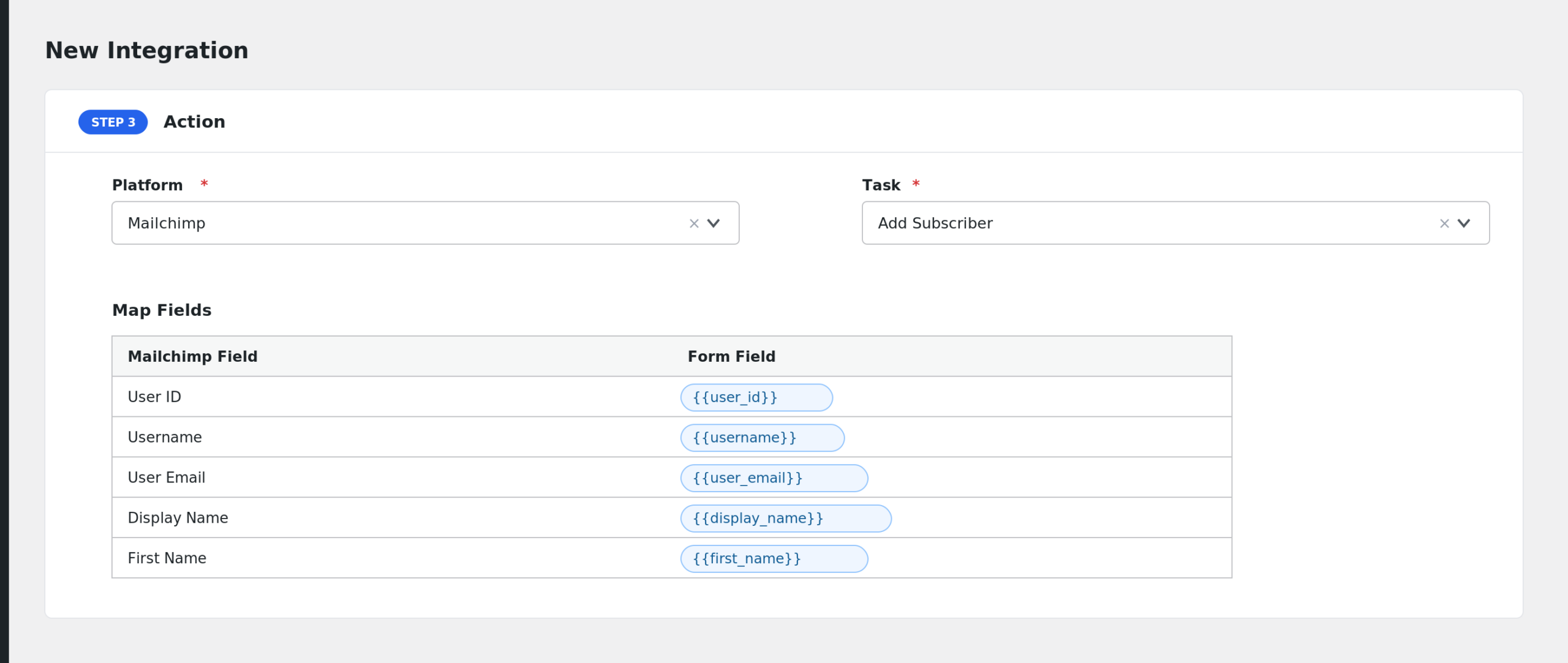
- Under Action, select your receiver platform and connect your account.
- Map the FluentAuth fields to the receiver fields. For registrations you would typically map User Email, First Name, and Last Name.
- Click Save Integration.
- Register a test user or log in to confirm data arrives.
Available Events
- User registration (FluentAuth): fires when a new user account is created through FluentAuth signup.
- User login success (FluentAuth): fires when a user logs in successfully. AFI listens to both FluentAuth login hooks and includes duplicate protection, so a single login only fires once.
- User login failed (FluentAuth): fires on a failed login attempt while FluentAuth is active.
Fields You Can Send
User registration
| Field | Description |
|---|---|
| User ID | New user’s ID |
| Username | Login name |
| User Email | Email address |
| Display Name | Display name |
| First Name | First name |
| Last Name | Last name |
| User Roles | Assigned roles, comma separated |
| Website URL | User website URL |
| Registered At | Registration date and time |
| IP Address | IP address of the signup |
| Signup Data (JSON) | Submitted signup fields as JSON, the password is removed |
User login success
| Field | Description |
|---|---|
| User ID | Logged in user’s ID |
| Username | Login name |
| User Email | Email address |
| Display Name | Display name |
| User Roles | Assigned roles, comma separated |
| Login Media | Login method reported by FluentAuth, for example web or a social provider |
| IP Address | IP address of the login |
| User Agent | Browser user agent string |
| Login Time | Date and time of the login |
User login failed
| Field | Description |
|---|---|
| Username or Email | The value the visitor typed |
| User ID | Matching user ID, when the account exists |
| User Email | Matching user email, when the account exists |
| User Exists | yes or no |
| Error Code | WordPress error code, such as incorrect_password |
| Error Message | Human readable error message |
| IP Address | IP address of the attempt |
| User Agent | Browser user agent string |
| Login Media | Login method reported by FluentAuth |
| Attempt Time | Date and time of the attempt |
Alert Only on Attacks Against Real Accounts
Failed logins against existing accounts matter more than random bot noise:
- Create an integration on the User login failed (FluentAuth) event.
- Enable Conditional Logic.
- Set the condition to: User Exists equals yes.
- Save the integration.
Now you only get notified when someone fails to log in to an account that actually exists.
Troubleshooting
FluentAuth is not in the dropdown
Confirm the FluentAuth plugin is active. AFI checks for the FluentAuth version constant at runtime and stays silent when the plugin is missing.
The integration is not firing
Check AFI > Log after a test login or registration. If nothing appears, verify the integration is active and the right event is selected. The registration event fires only for signups that go through FluentAuth, not for users created in the WordPress admin.
Duplicate login entries
AFI already suppresses duplicate login events fired within two seconds of each other. If you still see doubles, check whether you saved two integrations on the same event.
First Name or Last Name arrive blank
These come from the user’s profile meta. If the signup form did not collect them, the fields stay empty. The Signup Data (JSON) field contains everything the form submitted.