 AFI
AFI
Capsule CRM
Capsule is a simple, focused CRM for small businesses. Advanced Form Integration creates organisations, people, opportunities, cases, and tasks in Capsule from your WordPress form submissions, so every lead capture or enquiry lands directly in your CRM pipeline.
What you’ll need
- An active Capsule CRM account.
- A Capsule API Authentication Token (see below).
- The Advanced Form Integration plugin installed and activated.
Get your Capsule API token
Capsule authenticates API requests with a bearer token.
- Sign in to your Capsule account.
- Go to My Preferences → API Authentication Tokens → Generate New API Token.
- Copy the token.
- In WordPress, go to AFI → Settings → Capsule CRM.
- Click Add Account, paste the token, and give the account a name.
- Click Save.
Create the integration
- Go to AFI → Add New.
- Give the integration a name, for example
Contact form to Capsule. - Under Trigger, pick the form plugin and the specific form you want to listen on.
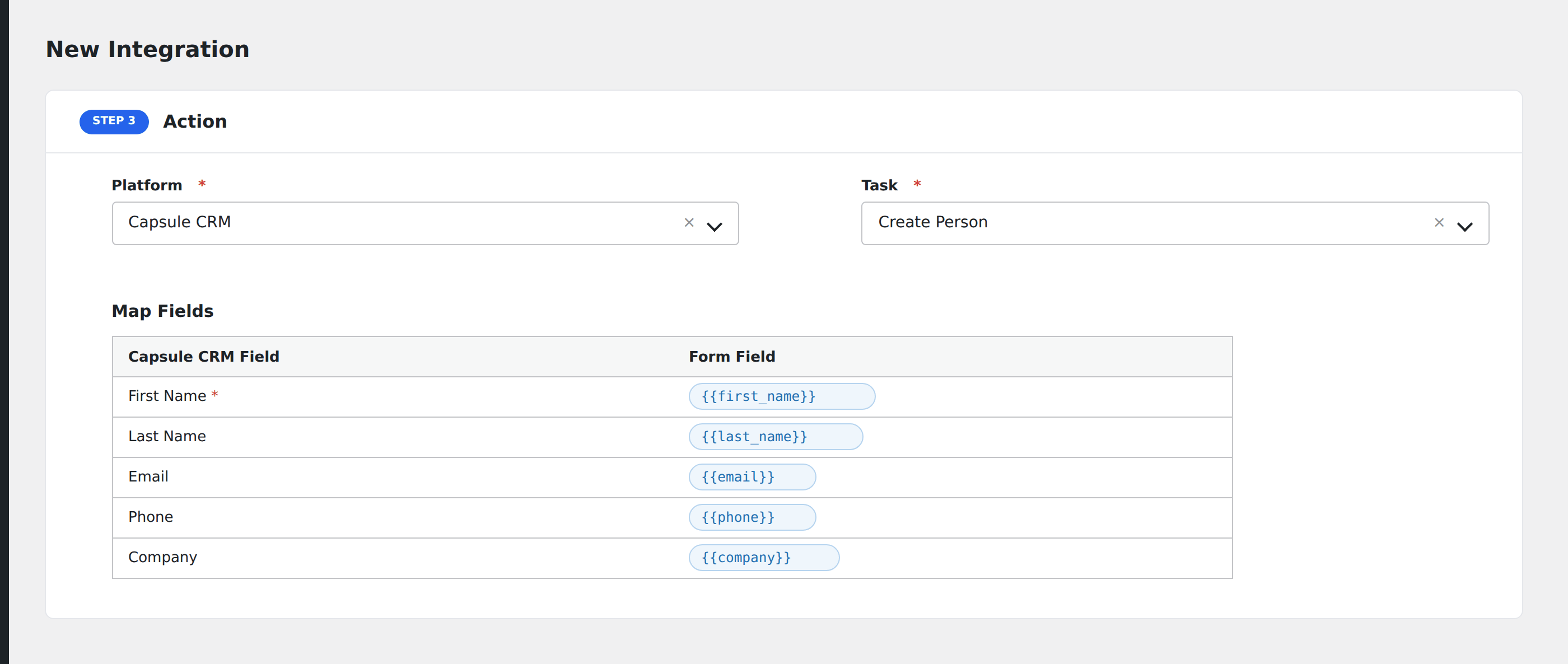
- Under Action → Platform, select Capsule CRM.
- In Task, choose Add Party, Opportunity, Case, Task.
- Pick the saved account in the Capsule CRM Account dropdown.
- Select an Owner/Team to assign records to.
- Check the entity types you want to create: Organisation, Person, Opportunity, Case, Task.
- Click Get Fields to load the relevant field mappings.
- Map your form fields onto the Capsule fields.
- Optional: open Conditional Logic to limit which submissions are sent.
- Click Save Integration.
Tasks supported
Add Party, Opportunity, Case, Task
Creates one or more linked records in Capsule. The action works in order: organisation first (upsert by name), then person (upsert by email, linked to organisation), then opportunity (linked to person/organisation), then case (linked to party and opportunity), then task (linked to party). Each entity is only created if its required fields are mapped.
Organisation fields
| Field | Field key | Notes |
|---|---|---|
| Name [Organization] | org_name |
Required to create organisation |
| Phone / Email / Website | org_phone etc. |
|
| Address fields | org_address, org_city, org_state, org_zip, org_country |
|
| Social profiles | org_twitter, org_linkedin, org_facebook |
Person fields
| Field | Field key | Notes |
|---|---|---|
| First Name [Person] | person_firstName |
Required to create person |
| Last Name [Person] | person_lastName |
|
| Email [Person] | person_email |
Used for upsert matching |
| Phone fields | person_workPhone, person_mobilePhone |
|
| Address fields | person_address, person_city, etc. |
Opportunity, Case, and Task fields
Opportunity requires a name and supports milestone, value, currency, probability, expected close date, and payment terms. Case requires a name. Task requires a description with optional due date and category.
Pro features
The Pro integration extends the free version with custom fields, tags, tracks, file attachments, and three additional tasks. Pro uses the same Capsule account connection.
Custom fields
Pro auto-loads all custom field definitions from Capsule for organisations, people, opportunities, and cases. Each field appears in the mapper by name.
Tags
Pro adds tag support for organisations, people, opportunities, and cases. Enter tags separated by commas.
Tracks
Pro can add records to Capsule tracks (workflows). Track IDs are listed in the field description, loaded from the Capsule API.
Additional Pro tasks
- Add Note to Party: finds a party by email or name, attaches a note.
- Add Tags to Existing Party: finds a party, merges new tags with existing ones, and saves.
- Create Task: standalone task creation linked to an optional party.
Feature comparison
| Feature | Free | Pro |
|---|---|---|
| Create/update organisation, person, opportunity, case, task | ✅ | ✅ |
| Standard fields | ✅ | ✅ |
| Party upsert by name/email | ✅ | ✅ |
| Custom fields (auto-loaded) | No | ✅ |
| Tags | No | ✅ |
| Tracks | No | ✅ |
| File attachments | No | ✅ |
| Add Note to Party | No | ✅ |
| Add Tags to Existing Party | No | ✅ |
| Standalone Create Task | No | ✅ |
Conditional logic example
Only create opportunities when the form’s deal_value field is greater than 1000. Smaller submissions still create a person but skip the opportunity fields.
Troubleshooting
Nothing arrives in Capsule
Open AFI → Log and find the most recent entry. AFI stores the request and response, including any Capsule error messages.
Rate limited (HTTP 429)
Capsule limits at 4000 requests/hour. AFI automatically retries once on HTTP 429, honouring the Retry-After header.