 AFI
AFI
NEX-Forms
NEX-Forms is a popular drag and drop form builder sold on CodeCanyon. Connect it to Advanced Form Integration (AFI) and every submission can flow straight into your other tools. Log each entry in Google Sheets, add subscribers to Mailchimp, or push new leads into a CRM without writing any code.
What You’ll Need
- The NEX-Forms plugin installed and active, with at least one form created.
- Advanced Form Integration installed and active. The free version sends name and email fields only. AFI Pro unlocks all form fields.
- An account on the receiving platform, for example Google Sheets or Mailchimp.
How to Create the Integration
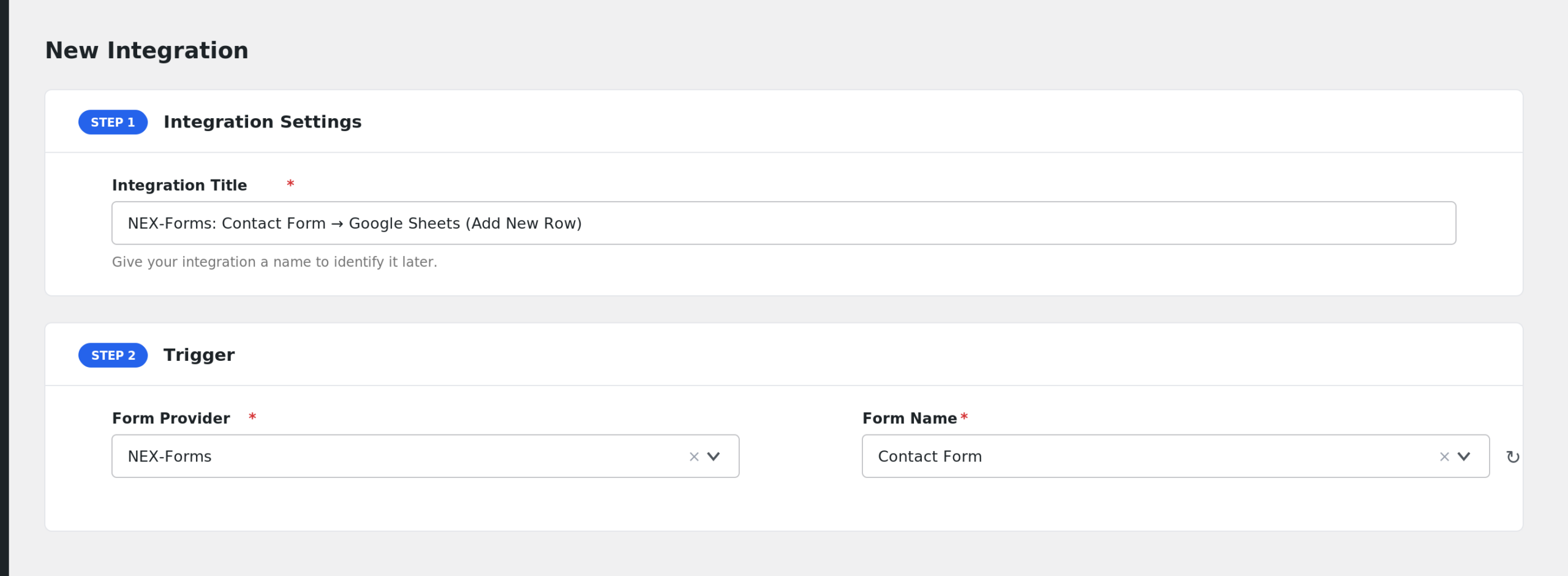
- In your WordPress dashboard, go to AFI > Add New.
- AFI fills in a default Integration Title. Rename it to something recognizable, like “NEX Quote Form to Mailchimp”.
- In the Trigger section, open the Form Provider dropdown and select NEX-Forms. The NEX-Forms plugin must be active or it will not appear.
- In the Form/Task Name dropdown, pick the NEX-Forms form you want to connect. AFI lists all forms from your NEX-Forms installation by title.
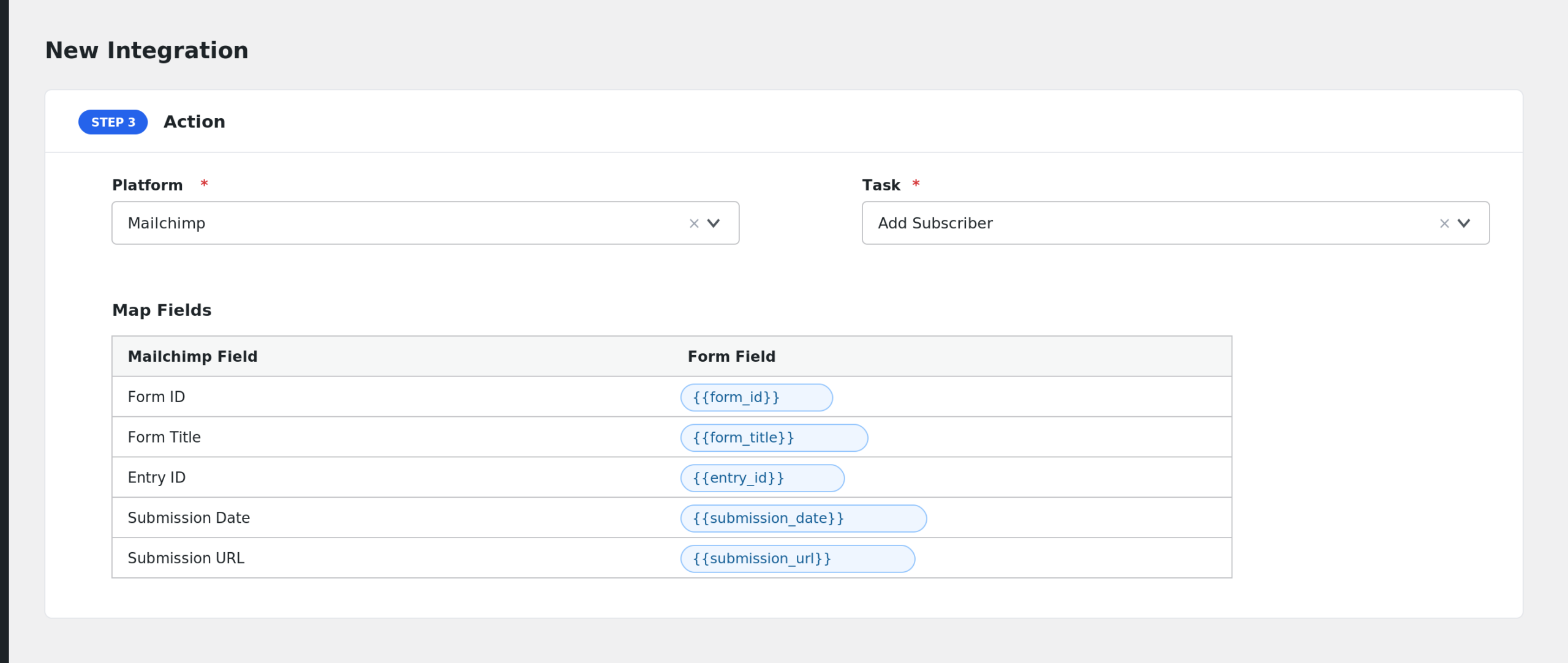
- In the Action section, choose your receiving platform and task, for example Mailchimp > Subscribe.
- Map the NEX-Forms fields to the receiver’s fields. AFI reads the field names and labels directly from your form’s markup, so you will see your own field labels here.
- Click Save Integration.
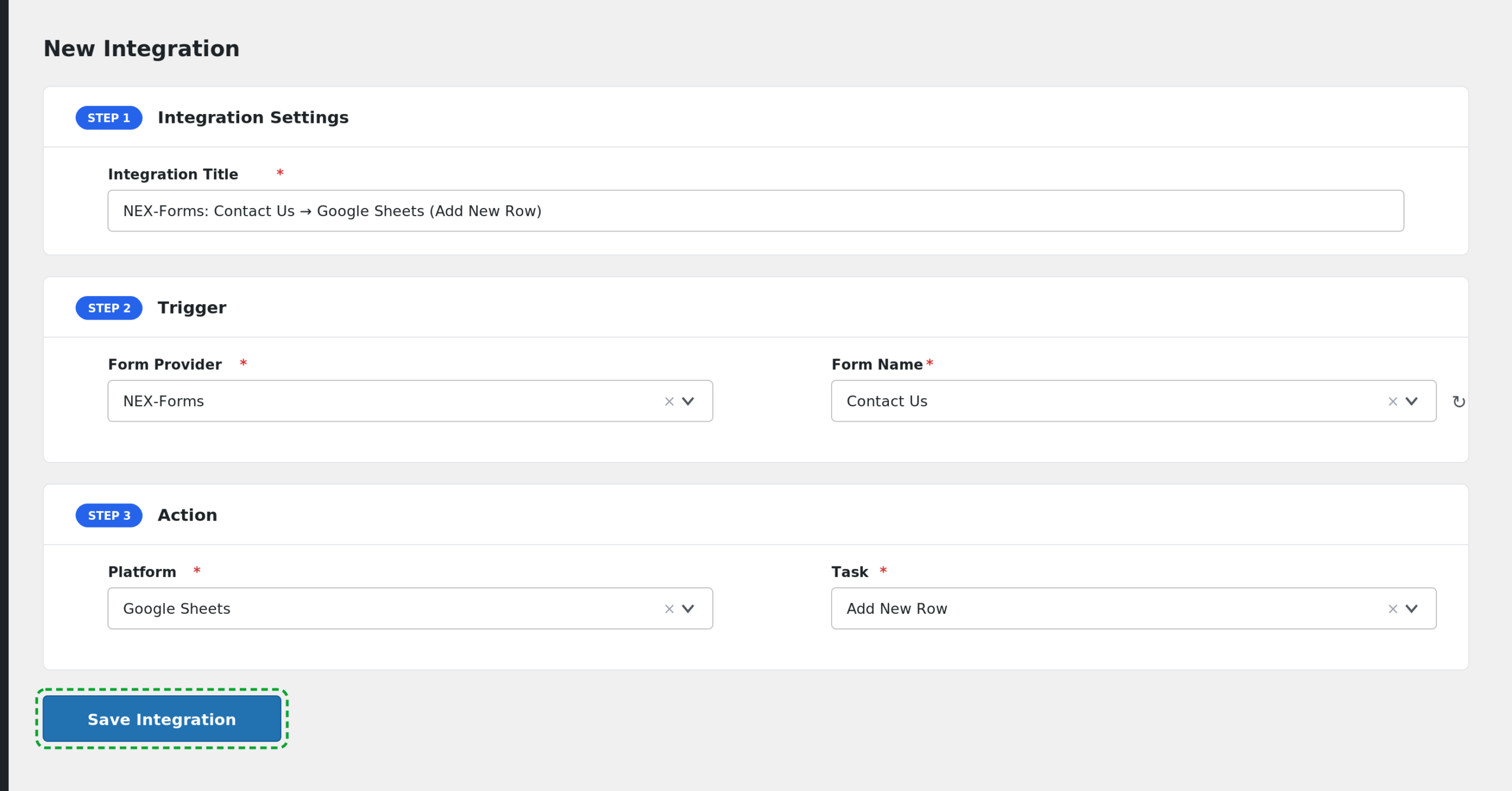
Submit a test entry on the form and confirm it arrives on the receiving platform.
Fields You Can Send
AFI always provides these submission details:
| Field | Description |
|---|---|
| Form ID | The numeric ID of the NEX-Forms form. |
| Form Title | The form’s title in NEX-Forms. |
| Entry ID | The ID of the saved entry in the NEX-Forms entries table. |
| Submission Date | Date and time of the submission. |
| Submission URL | The page URL where the form was submitted. |
| Submission Page Title | The title of the page where the form was submitted. |
| User IP | The visitor’s IP address as reported by NEX-Forms. |
| User Agent | The visitor’s browser user agent string. |
On top of these, AFI scans your form and lists every input, textarea, and select field it finds, using the field’s label or placeholder as its name. Internal NEX-Forms keys (like paging and PayPal helpers) are filtered out automatically.
Free version limit: with the free AFI plugin, only fields whose names contain name, email, first, or last are available for mapping. AFI Pro unlocks every field in the form.
AFI also adds its general Special Tags (such as _Date, _Time, and site details). See Smart Tags and Field Mapping.
Conditional Logic Example
Suppose your NEX-Forms contact form has a Budget dropdown. You can route only high-value leads to your CRM:
- Enable Conditional Logic on the integration.
- Set the rule to: Budget equals $5,000+.
Everything else still lands in your email notifications, but only qualified leads create CRM contacts.
Troubleshooting
NEX-Forms is not in the Form Provider dropdown
The NEX-Forms plugin must be active. Check Plugins in your dashboard, then reload the AFI screen.
The Form/Task Name dropdown is empty
AFI reads forms from the NEX-Forms database table. If you have no forms yet, create one first. If forms exist but do not appear, another plugin may have renamed or removed the NEX-Forms tables, so try deactivating and reactivating NEX-Forms.
The integration is not firing
Go to AFI > Log after a test submission. If no entry appears, confirm the integration is active and that the correct form is selected. AFI detects NEX-Forms submissions early in the page load, so aggressive caching on the form page can interfere. Exclude the form page from caching and test again.
Most of my fields are missing from the mapping list
If you only see name and email style fields, you are on the free AFI plugin. This trigger limits the free version to name and email fields. Upgrade to AFI Pro to map every field in the form.
Fields arrive blank
AFI prefers the saved NEX-Forms entry data and falls back to the raw submission. If values are blank, check that entry saving is enabled in NEX-Forms, then review the captured data in AFI > Log to see what was received.