 AFI
AFI
Quickbase
Quickbase is a cloud-based platform for creating and managing custom business applications. Advanced Form Integration sends form submissions to Quickbase as new records in a chosen app and table.
What you’ll need
- An active Quickbase account.
- A Quickbase User Token with access to the target app(s) (My Preferences → Manage User Tokens → New User Token).
- Your Quickbase Realm Hostname (e.g.,
yourcompany.quickbase.com). - The Advanced Form Integration plugin installed and activated.
Get your Quickbase user token
- Log in to your Quickbase account and open the Admin Console.
- Navigate to My Preferences → Manage User Tokens.
- Click + New User Token.
- Provide a name, select the app(s) it will access, and click Create.
- Copy the token.
Connect Quickbase to AFI
- In WordPress, go to AFI → Settings.
- Enable Quickbase and click Save Changes.
- Open the Quickbase tab.
- Enter the User Token and Realm Hostname.
- Click Save Changes.
You can save credentials for multiple Quickbase accounts and pick which one each integration uses.
Create the integration
- Go to AFI → Add New.
- Configure the trigger.
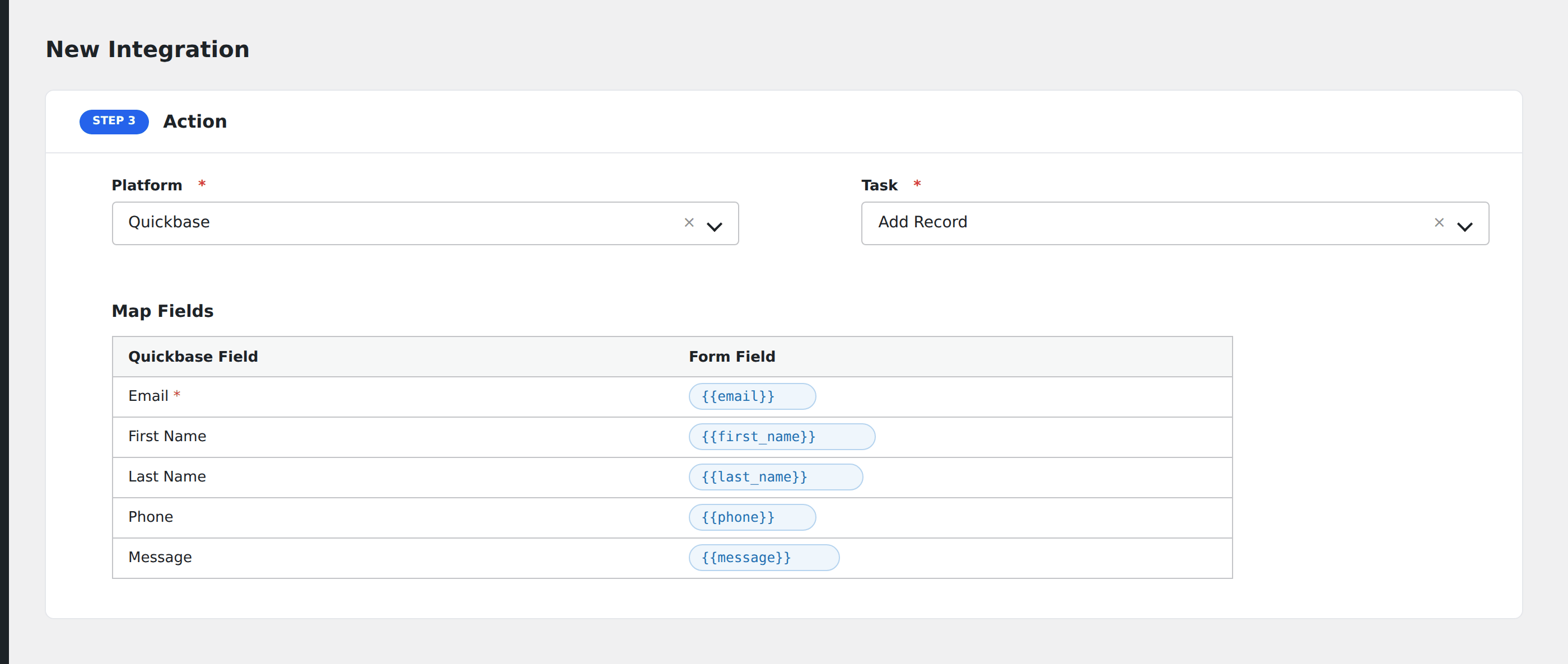
- In Action → Platform, select Quickbase.
- In Task, choose Add Record.
- Pick the Quickbase Account and the target Table: AFI auto-loads available tables, then loads the table’s full field schema after selection.
- Map the form fields to the Quickbase table fields.
- Optional: configure Conditional Logic.
- Click Save Integration.
Tasks supported
Add Record
Creates a new record in the chosen Quickbase table. AFI handles type coercion automatically. Text, numeric, and select fields all map naturally. Some field types like timestamps and addresses are skipped by default.
Conditional logic example
Create the Quickbase record in the “Approved leads” table only when the form’s qualified field is “yes”. Unqualified submissions go to a separate “Pending review” table via a different integration.
Troubleshooting
Integration doesn’t fire
Open AFI → Log and find the most recent entry. The log shows the request payload sent to Quickbase and the response received, usually pointing straight at the cause.
Field not appearing
Quickbase user tokens are app-scoped. The token must have access to the target app. If a freshly added field doesn’t appear, re-pick the table to refresh the schema cache.
“Realm not found”
The Realm Hostname must include the full domain (e.g., yourcompany.quickbase.com), not just the subdomain.