 AFI
AFI
Apptivo
Apptivo is an all-in-one business app suite with a CRM module covering leads, contacts, opportunities, and projects. Advanced Form Integration sends form submissions to Apptivo as new lead records.
What you’ll need
- An active Apptivo account.
- An Apptivo API Key and Access Key (Business Settings → API Access).
- The Advanced Form Integration plugin installed and activated.
Get your Apptivo API and Access Keys
- Log in to your Apptivo account.
- Open Business Settings → API Access.
- Copy the API Key and Access Key (you’ll need both).
Connect Apptivo to AFI
- In WordPress, go to AFI → Settings.
- Enable Apptivo and click Save Changes.
- Open the Apptivo tab.
- Paste the API Key and Access Key, then click Save Changes.
Create the integration
- Go to AFI → Add New.
- Configure the trigger.
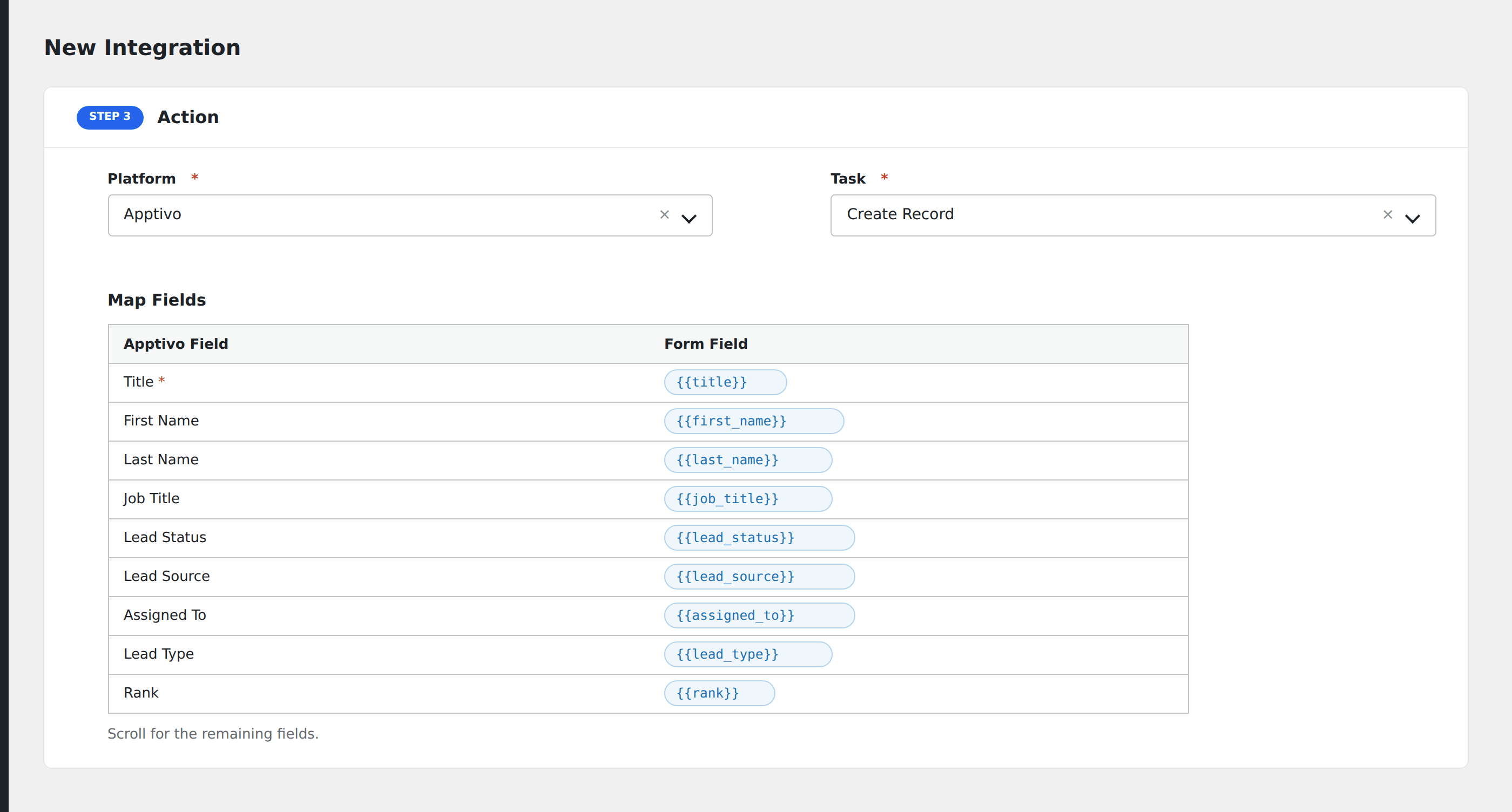
- In Action → Platform, select Apptivo.
- In Task, choose Create Record.
- Pick the Entity: currently Leads is supported. AFI loads available fields for the entity automatically.
- Map the form fields:
- Title, First Name, Last Name.
- Job Title, Lead Status, Lead Source, Assigned To, Lead Type, Rank, Revenue.
- Business Email, Mobile Phone, Website.
- Address fields (Line 1, City, State, ZIP, Country).
- Social links (Facebook, LinkedIn, Twitter).
- Description, Referred By.
- Optional: configure Conditional Logic.
- Click Save Integration.
Tasks supported
Create Record
Creates a new record in the chosen Apptivo entity (currently Leads). AFI auto-loads the entity’s field schema, so dropdowns reflect your Apptivo customizations.
Conditional logic example
Set the Apptivo lead’s Lead Status to “Qualified” only when the form’s budget field is greater than 5000. Smaller leads come in at “New” status via a separate integration.
Troubleshooting
Integration doesn’t fire
Open AFI → Log and find the most recent entry. The log shows the request payload sent to Apptivo and the response received, usually pointing straight at the cause.
“Authentication failed”
Apptivo requires both the API Key AND the Access Key on every call. Both are scoped to the user who created them. If that user is removed from your Apptivo organization, the keys stop working.
Field rejected
Apptivo’s Lead Status, Lead Source, and Country fields are dropdowns with predefined values. Sending a value not on Apptivo’s list returns a validation error. Check the spelling and case in your Apptivo account.