 AFI
AFI
Freshdesk
Freshdesk is a cloud-based customer support and helpdesk platform. Advanced Form Integration creates tickets, contacts, and companies in Freshdesk from your WordPress form submissions, so every support request or enquiry becomes a trackable ticket.
What you’ll need
- An active Freshdesk account.
- Your Freshdesk API Key and App Domain (see below).
- The Advanced Form Integration plugin installed and activated.
Get your Freshdesk credentials
- Copy your account’s full domain, for example
https://afi1234.freshdesk.com. You can also enter just the subdomain (e.g.afi1234) and AFI will expand it. - Open Profile Settings, click View API Key, and copy it.
- In WordPress, go to AFI → Settings → Freshdesk.
- Click Add Account, enter the API Key and App Domain, and give the account a name.
- Click Save.
Freshdesk uses HTTP Basic Auth with the API key as the username and X as the password. AFI normalizes the App Domain to https://host with no trailing path or slash.
Create the integration
- Go to AFI → Add New.
- Give the integration a name, for example
Support form to Freshdesk. - Under Trigger, pick the form plugin and the specific form.
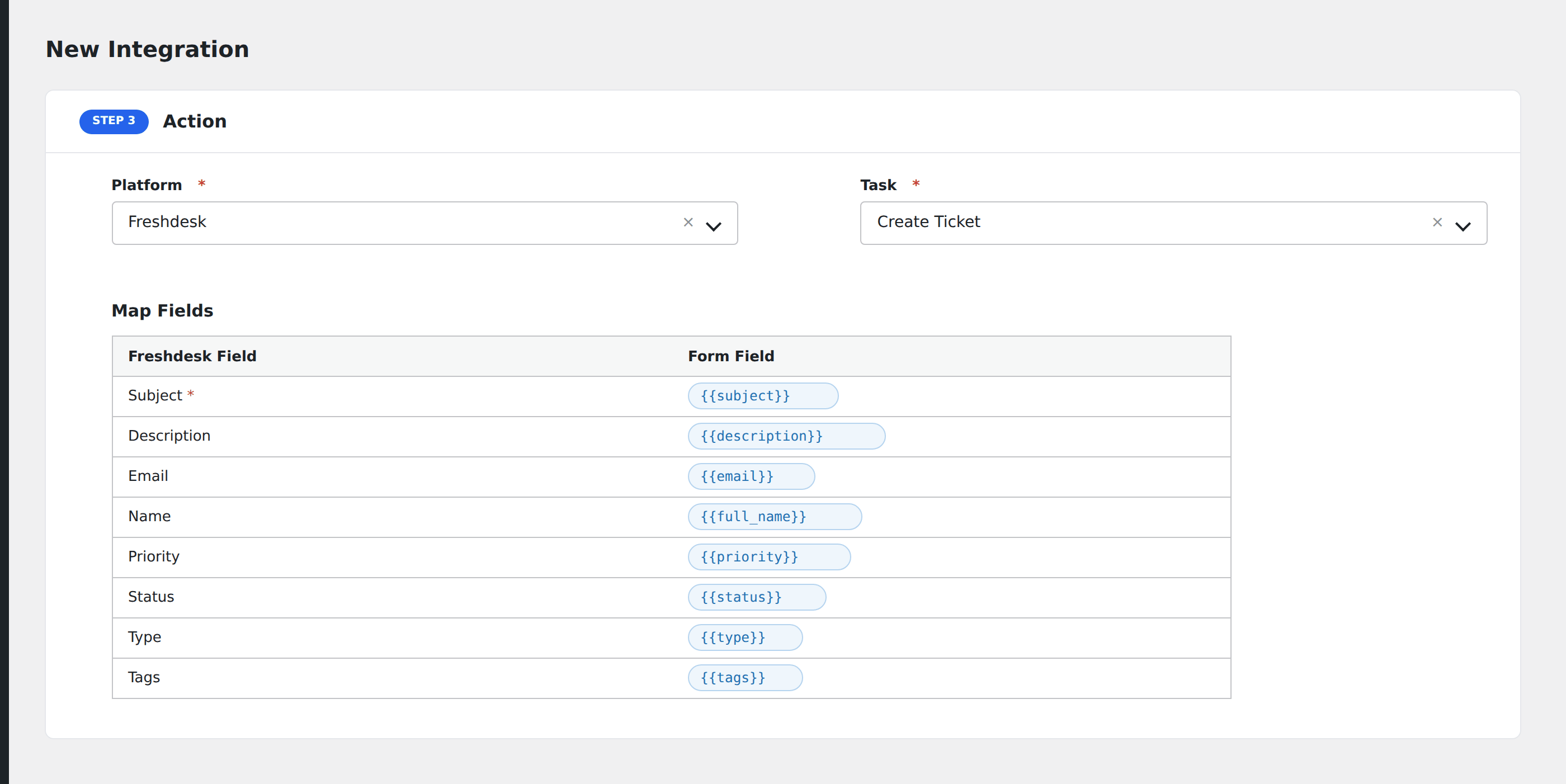
- Under Action → Platform, select Freshdesk.
- In Task, choose Create Ticket.
- Pick the saved account in the Freshdesk Account dropdown.
- Map your form fields onto the Freshdesk fields listed below.
- Optional: open Conditional Logic to limit which submissions are sent.
- Click Save Integration.
Tasks supported
Create Ticket
Creates a ticket in Freshdesk via POST /api/v2/tickets. AFI handles the full record-creation pipeline in order:
- Company: if a Company Name is mapped, AFI searches for an existing company by name. If found, it updates the company. If not, it creates a new company and links the contact to it.
- Contact: if a Contact Email is mapped, AFI searches for an existing contact by email. If found, it updates the contact. If not, it creates a new contact.
- Ticket: creates the ticket and links it to the contact as the requester.
Ticket fields
| Field | Field key | Required | Notes |
|---|---|---|---|
| Ticket Subject | ticket_subject |
Yes | |
| Ticket Description | ticket_description |
No | |
| Type | ticket_type |
No | |
| Source ID | ticket_source |
No | Email: 1, Portal: 2, Phone: 3, Chat: 7, Feedback Widget: 9, Outbound Email: 10 |
| Status | ticket_status |
No | Open: 2, Pending: 3, Resolved: 4, Closed: 5. Defaults to Open (2). |
| Priority | ticket_priority |
No | Low: 1, Medium: 2, High: 3, Urgent: 4. Defaults to Low (1). |
| Group ID | ticket_group_id |
No | Group IDs loaded from your Freshdesk account |
| Product ID | ticket_product_id |
No | |
| CC Emails | ticket_cc_emails |
No | Comma-separated; auto-converted to array |
Contact fields
| Field | Field key | Notes |
|---|---|---|
| Contact Name | contact_name |
|
| Contact Email | contact_email |
Used for contact lookup/upsert |
| Contact Phone / Mobile | contact_phone, contact_mobile |
|
| Contact Job Title | contact_job_title |
|
| Contact Address | contact_address |
|
| Contact Unique External ID | contact_unique_external_id |
Company fields
| Field | Field key | Notes |
|---|---|---|
| Company Name | company_name |
Triggers company lookup/creation |
| Company Description | company_description |
|
| Company Notes | company_notes |
|
| Company Domains | company_domains |
Comma-separated |
Pro features
The Pro integration extends the free version with auto-loaded custom fields (ticket, contact, and company), agent assignment, and four additional tasks. Pro uses the same Freshdesk account connection.
Custom fields (auto-loaded)
Pro fetches cf_* custom field definitions from Freshdesk for tickets, contacts, and companies. Each field appears in the mapper with its label and “(Custom)” suffix. Dropdown choices are shown in the description. Custom fields are routed to the custom_fields object in the API payload.
Agent assignment
Pro adds an Agent ID field (mapped to responder_id) on ticket creation and update. Agent IDs are loaded from your Freshdesk account.
Additional Pro tasks
- Update Ticket: updates an existing ticket by ID via
PUT /api/v2/tickets/{id}. - Add Note / Reply to Ticket: adds a note (private or public) or a reply to an existing ticket.
- Create / Update Contact: standalone contact upsert by email.
- Create / Update Company: standalone company upsert by name.
Feature comparison
| Feature | Free | Pro |
|---|---|---|
| Create ticket (+ contact/company) | ✅ | ✅ |
| Contact upsert by email | ✅ | ✅ |
| Company lookup and auto-create | ✅ | ✅ |
| Standard fields (ticket, contact, company) | ✅ | ✅ |
| Custom fields (auto-loaded for all entities) | No | ✅ |
| Agent assignment (responder_id) | No | ✅ |
| Update Ticket | No | ✅ |
| Add Note / Reply | No | ✅ |
| Standalone Create/Update Contact | No | ✅ |
| Standalone Create/Update Company | No | ✅ |
Conditional logic example
Route urgent tickets to a specific group. Add a condition on priority being “4” (Urgent) so only urgent submissions create Freshdesk tickets, while lower-priority enquiries go to an email-only notification.
Troubleshooting
Nothing arrives in Freshdesk
Open AFI → Log and find the most recent entry. AFI stores the request URL, JSON body, and raw response including Freshdesk error details.
404 errors
The App Domain is incorrect. AFI normalizes it to https://host, but if the subdomain is wrong, all API calls will 404. Verify the domain in your browser address bar when logged in to Freshdesk.
Contact not linked to ticket
The contact is created or found by email, then its ID is set as requester_id on the ticket. If the email field is empty or the contact creation fails, the ticket is still created but without a requester.