 AFI
AFI
signNow
signNow is an e-signature platform by airSlate. With Advanced Form Integration (AFI), every WordPress form submission can create a document from one of your signNow templates and invite the person who submitted the form to sign it. For example, a booking form can send the customer your terms and conditions, already filled in with their details, to sign by email.
Supported Features
- Send Document From Template: pick a signNow template and a signer role from dropdowns, map the signer’s email from the form, and AFI creates the document and sends the signing invite.
- Choose the template per submission: the template ID (and role) can come from a form field instead of a fixed choice.
- Prefill template text fields (AFI Pro): fill the template’s text fields with form answers before the invite goes out.
What You’ll Need
- A signNow account with API access. signNow sells API access separately from its regular plans; a trial or development application works for testing.
- At least one template in signNow with a signer role and fields placed for it.
- A signNow API key. The steps are below.
- AFI free for sending documents. AFI Pro to prefill template text fields.
Connecting signNow to AFI
AFI authenticates with a signNow API key sent as a Bearer token to api.signnow.com. API keys don’t expire, so there is no sign-in window and nothing to refresh.
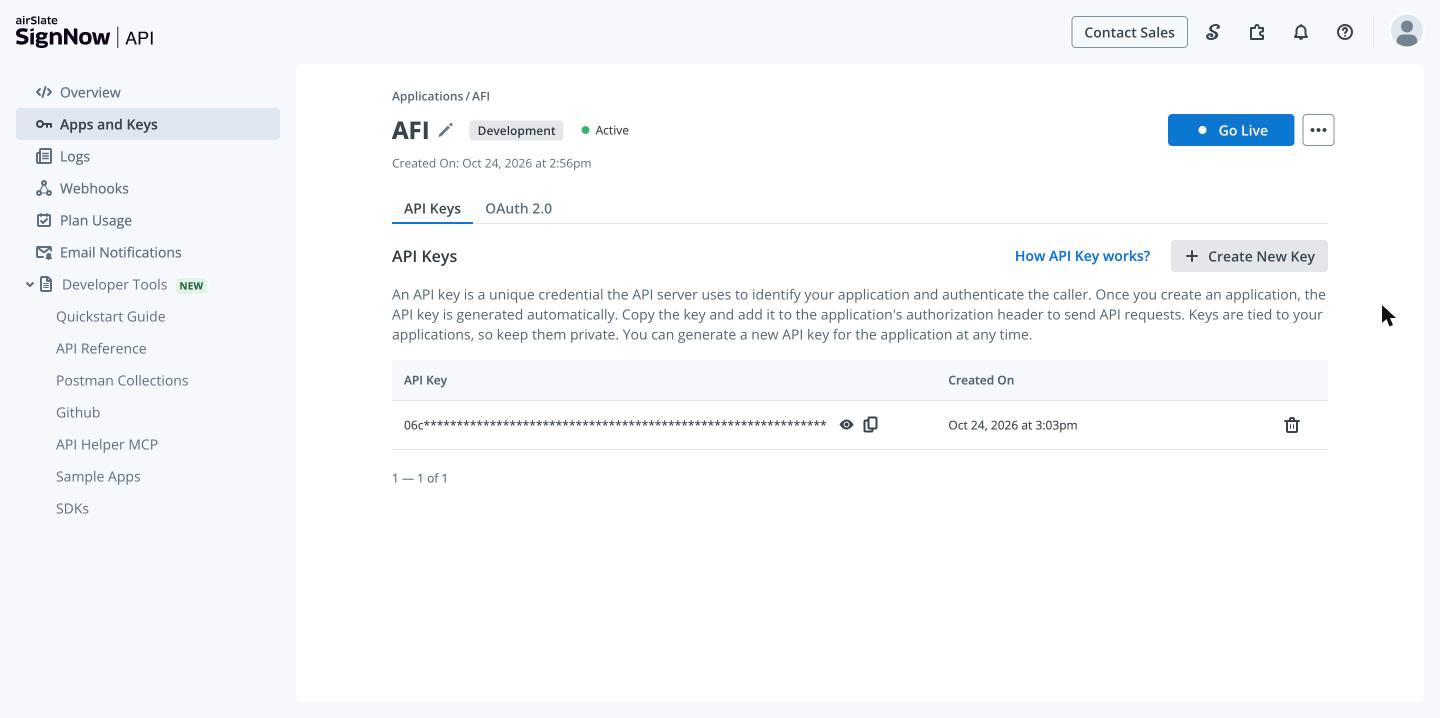
- Sign in to signNow and open the API dashboard, then Apps and Keys. Create an application if you don’t have one, for example AFI.

- Open the application, go to the API Keys tab and click Create New Key. Copy the key.
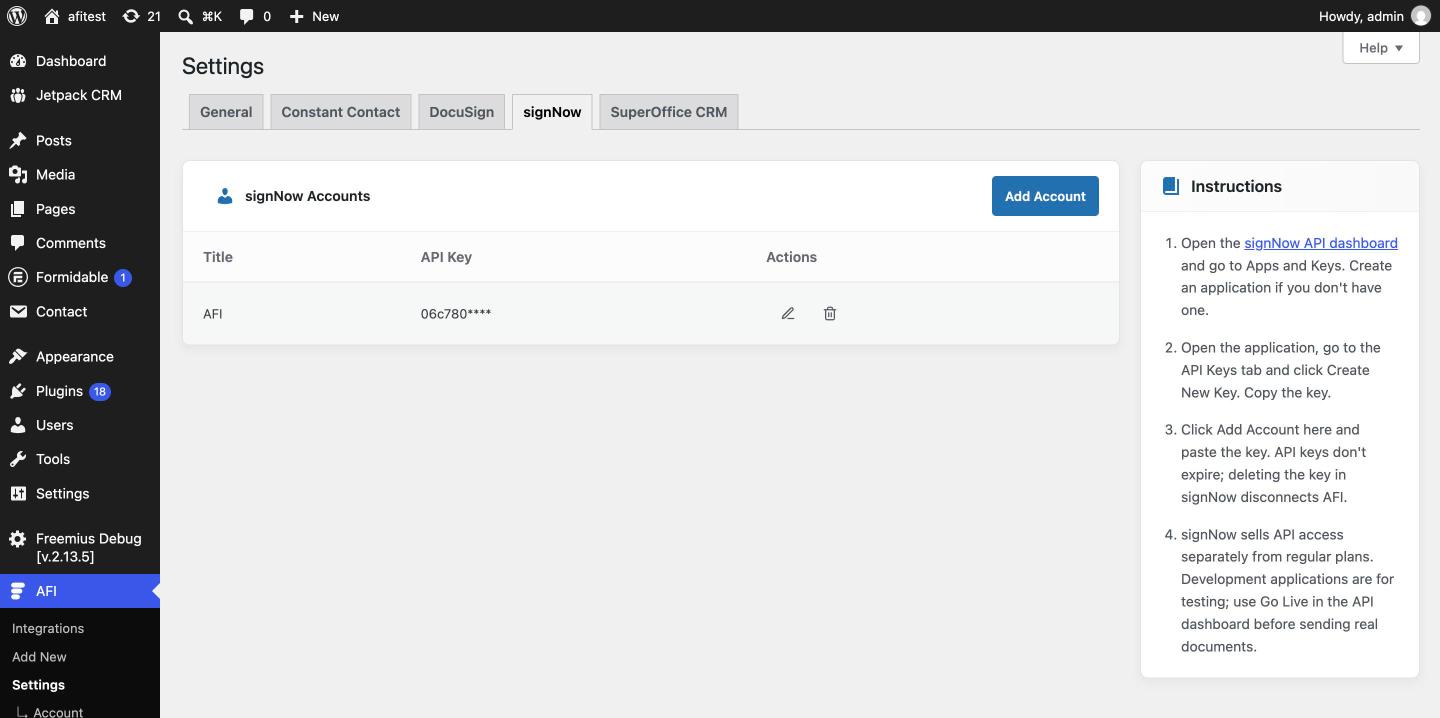
- In WordPress, go to AFI > Settings and open the signNow tab.
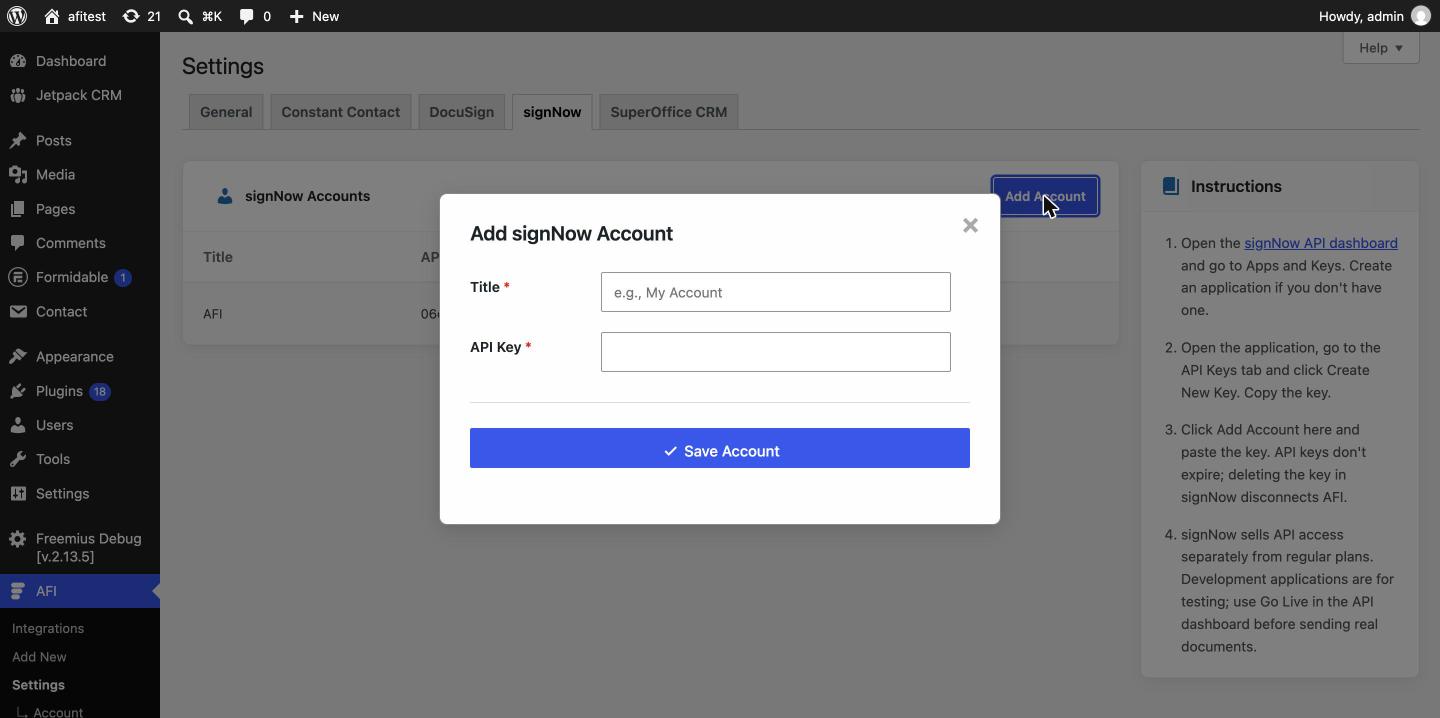
- Click Add Account, give it a title, paste the API Key and save.
Development vs Go Live: a new application in the API dashboard starts in development mode, which is meant for testing. Use Go Live in the API dashboard before sending real documents to customers. Deleting the key in signNow disconnects AFI immediately.
Preparing a Template in signNow
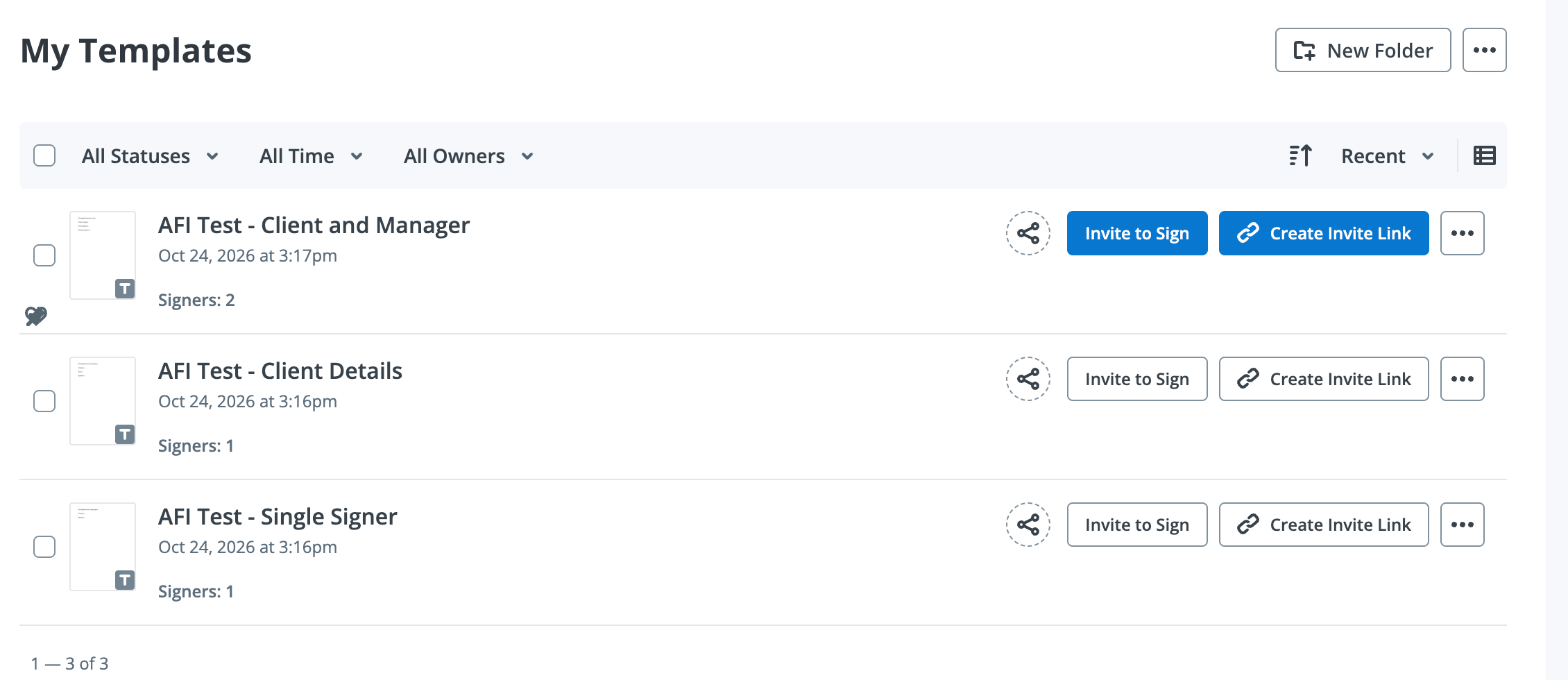
- In signNow, upload a document and add fields (Signature, Text, Date and so on).
- Assign every field to a role, for example Signer 1 or Client. The role is who AFI will invite.
- Give text fields you want AFI Pro to fill a clear name (for example
full_name,company). - Save it as a template. AFI lists templates from your Templates and Team Templates folders.
How to Create the Integration
- Go to AFI > Add New.
- Rename the auto-filled Integration Title.
- Under Trigger, select your form plugin and the specific form.
- Under Action, select signNow in the Platform dropdown. Pro users can select signNow [PRO] to prefill template fields.
- Choose the Task: Send Document From Template.
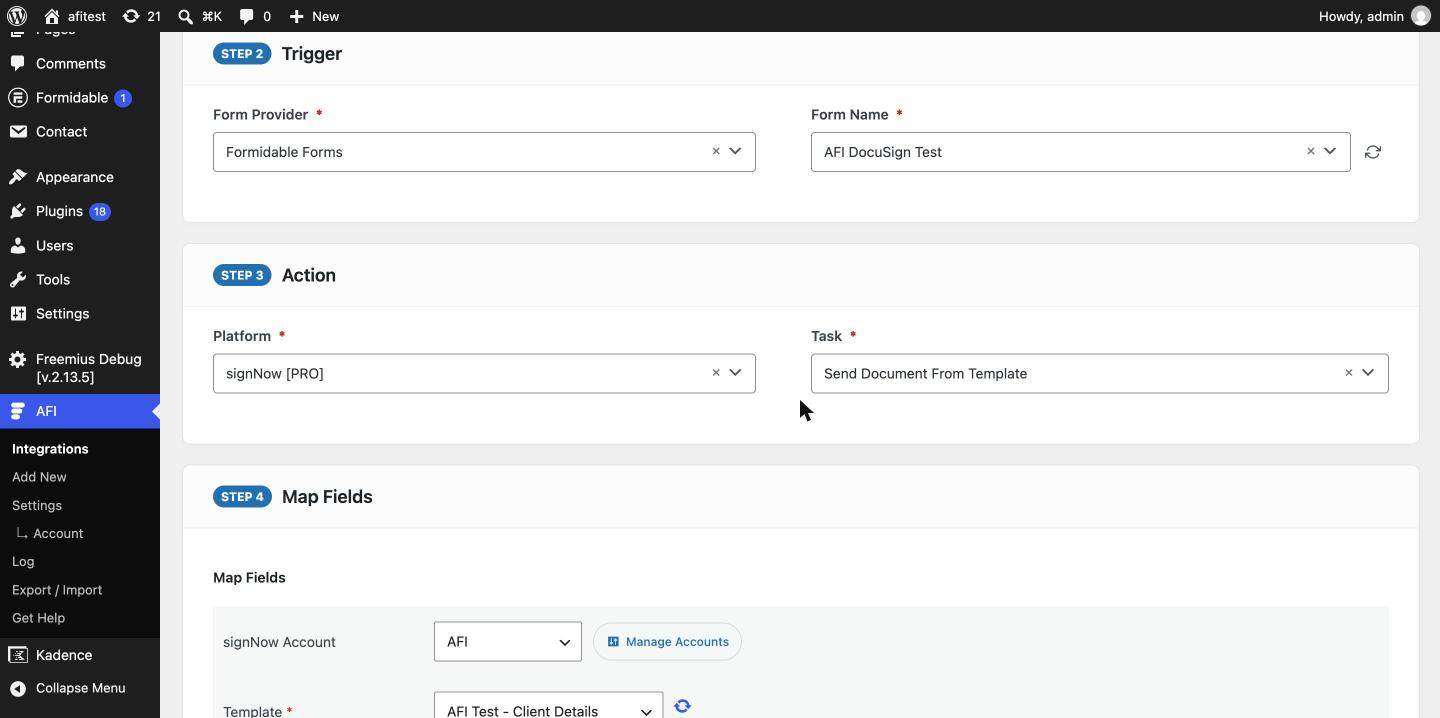
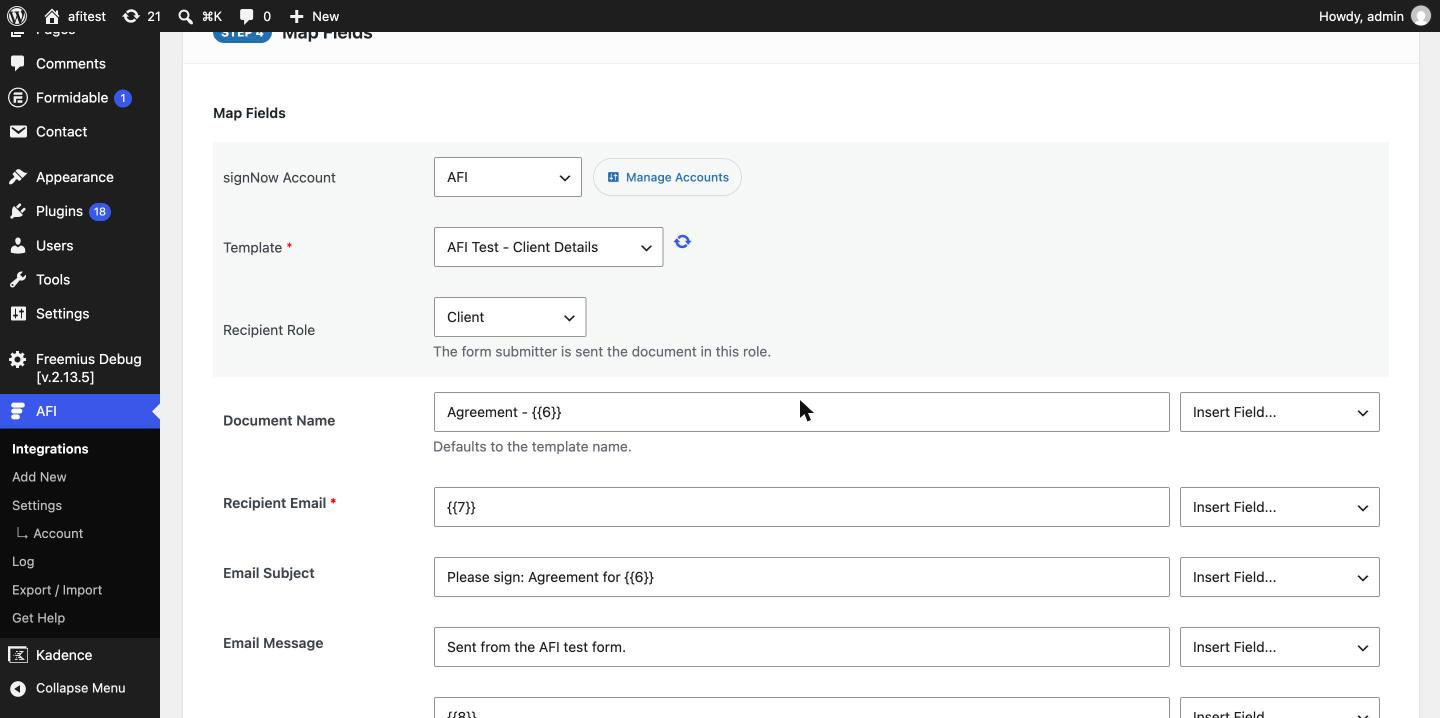
- Select your signNow Account. AFI loads the account’s templates.
- Pick the Template from the dropdown. Use the refresh icon after adding a template in signNow.
- Pick the Recipient Role. AFI reads the roles from the template and preselects the first one.
- Map Recipient Email to your form’s email field. Optionally set Document Name, Email Subject and Email Message; you can mix static text and form fields, for example
Agreement - {{name}}. - Click Save Integration and submit a test entry from the front end.
Field Mapping
| Field | Required | Description |
|---|---|---|
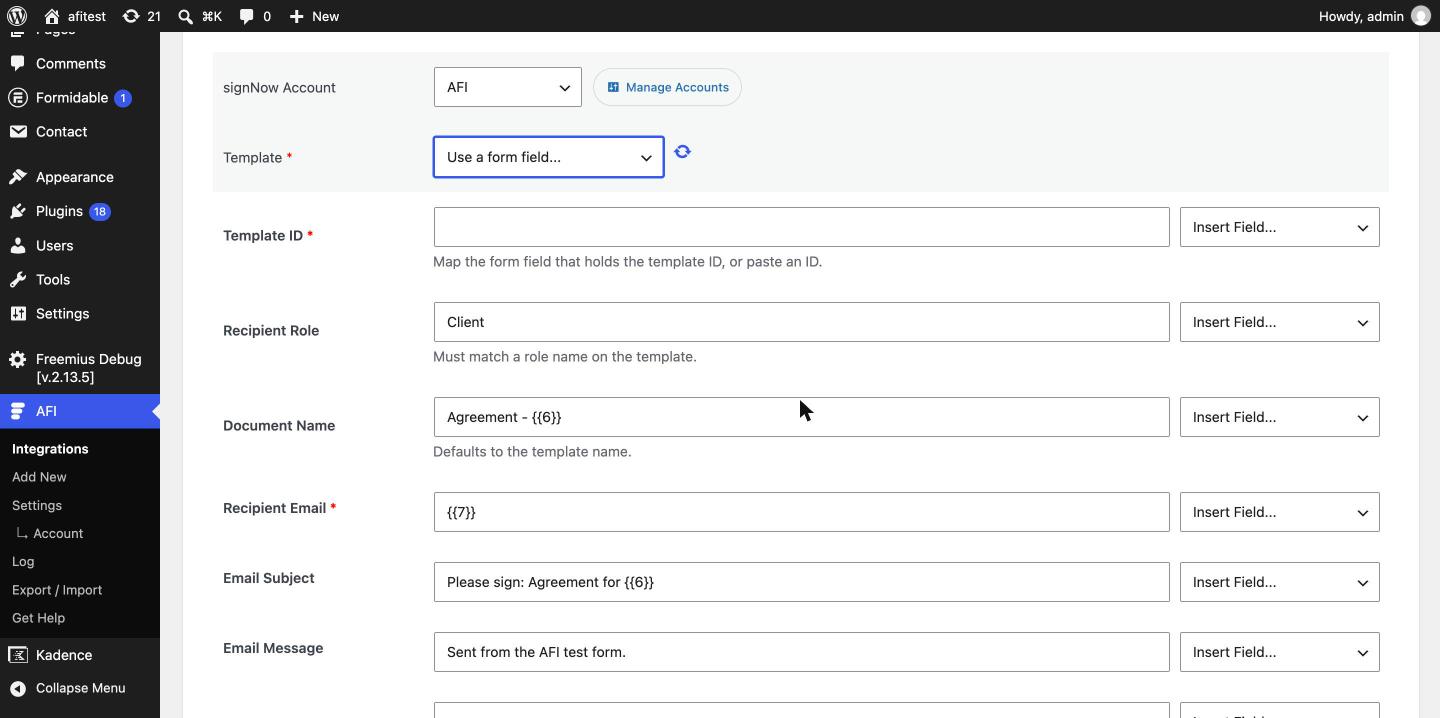
| Template | Yes | Dropdown of templates in your Templates and Team Templates folders. The template ID is saved behind it. Choose Use a form field… to map the ID from the form. |
| Recipient Role | Yes | Role on the template the form submitter is invited as. |
| Document Name | No | Name of the new document in signNow. Defaults to the template name. |
| Recipient Email | Yes | Signer who receives the invite. Usually your form’s email field. |
| Email Subject | No | Subject of the invite email. signNow uses its default when empty. |
| Email Message | No | Message shown in the invite email. |
| Prefill: <name> (AFI Pro) | No | One row per text field on the template, named by the field name in signNow. |
Choosing the template from a form field
Add a dropdown to your form whose option values are signNow template IDs, then in AFI choose Use a form field… in the Template dropdown and map that field to Template ID. Type the Recipient Role, which must exist on every template you offer. A template’s ID is the long string in its URL in signNow.
Pro: Prefill Template Fields
With signNow [PRO], AFI reads the template’s text fields and adds a Prefill: <name> row for each. Map form fields to them and the document is created already filled in, so the signer only reviews and signs.
![signNow [PRO] action showing Prefill rows for the template text fields mapped to form fields](https://advancedformintegration.com/wp-content/uploads/2026/10/afi-signnow-editor-prefill.jpg)
In Use a form field… mode AFI can’t read the template, so it shows generic Prefill Field 1-5 rows instead; their keys must match the template’s text field names.
What Happens on Each Submission
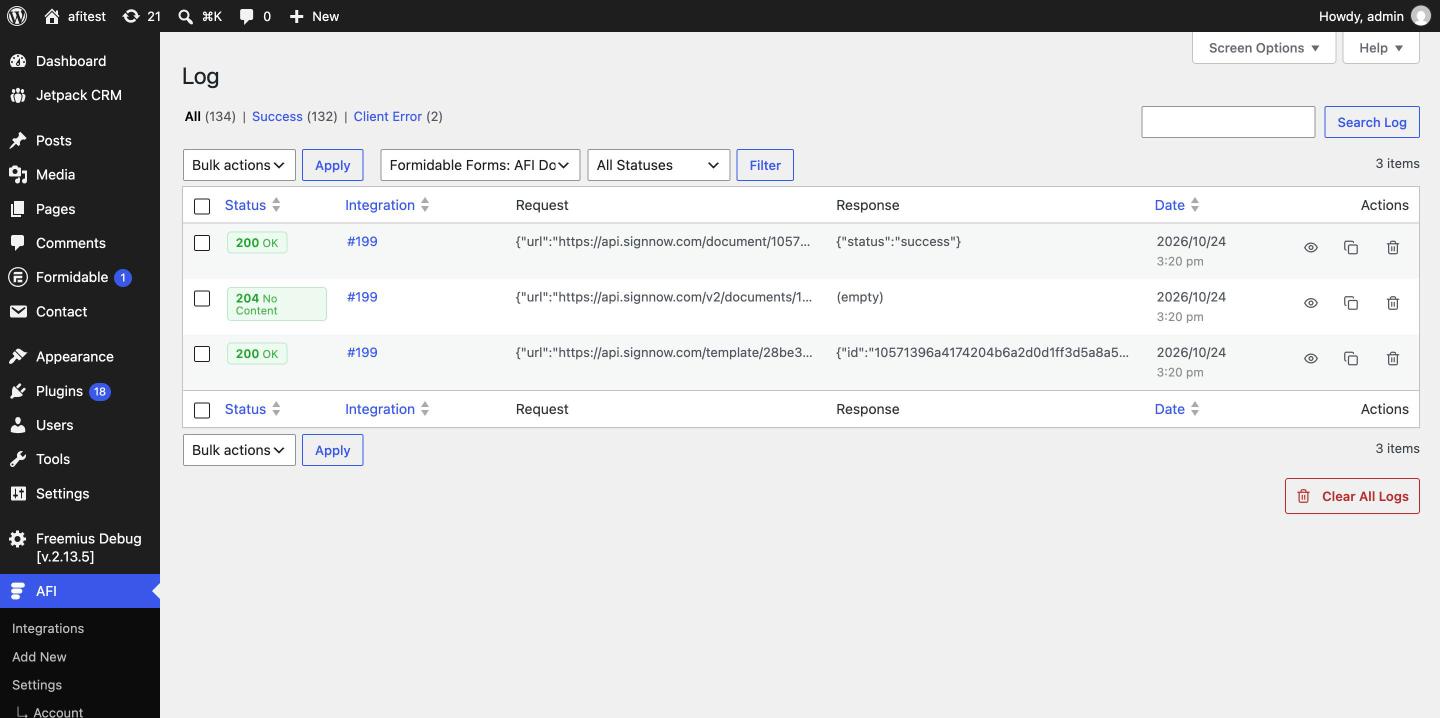
AFI makes three signNow API calls for every submission, and each one appears in AFI > Log:
- Copy the template into a new document (
POST /template/{id}/copy), named with your Document Name. - Prefill text fields (AFI Pro, only when prefill rows are mapped) (
PUT /v2/documents/{id}/prefill-texts). - Send the invite to the recipient in the chosen role (
POST /document/{id}/invite).
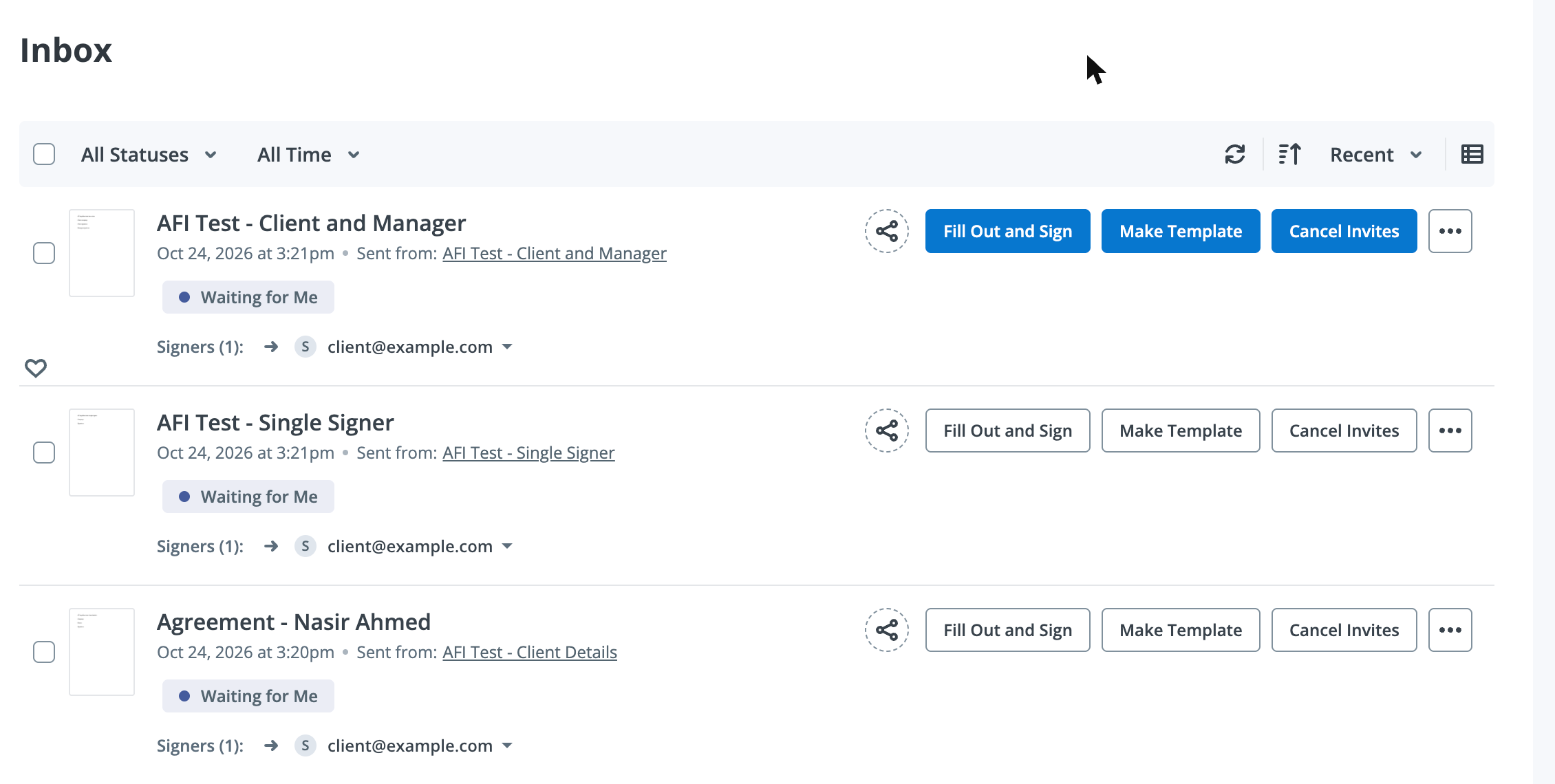
The new documents show up in signNow’s documents list and in the signer’s inbox, with “Sent from” pointing at the template.
Good to Know
- The invite comes from your signNow login email. signNow requires the sender to be the account owner, so AFI reads it from your account automatically.
- One signer per integration. Only the chosen role is invited. For templates with several roles (for example Client and Manager), invite the other roles from signNow, or create a second AFI integration that targets the other role.
- Your API key is never logged. AFI masks the Authorization header as
Bearer ***in the log.
Troubleshooting
“signNow API key not configured” or 401 errors
The key is missing, mistyped or was deleted in signNow. Create a new key on the application’s API Keys tab and update the account in AFI > Settings > signNow.
The template list is empty
AFI lists templates from the Templates and Team Templates folders. Make sure the document is saved as a template (not a regular document) and click the refresh icon next to the Template dropdown.
No roles appear, or the invite fails with a role error
The template has no roles, or fields aren’t assigned to one. Edit the template in signNow, assign its fields to a role, save, then refresh in AFI. When you type the role manually, it must match the role name exactly.
Prefilled values are missing
Only text fields can be prefilled, and the Prefill row’s key must match the field name in signNow. Re-select the template in AFI so the rows are read again after you rename fields.
Documents are not created
Open AFI > Log and check the three requests for your submission. The first failing call shows signNow’s error message. No entry at all means the trigger didn’t fire, or Template or Recipient Email was empty, so AFI skipped the request.