 AFI
AFI
Notion
Notion is an all-in-one workspace for notes, databases, wikis, and project management. Advanced Form Integration adds items to your Notion databases from WordPress form submissions, with support for all property types.
What you’ll need
- An active Notion account.
- Your Notion API credentials (see below).
- The Advanced Form Integration plugin installed and activated.
Create a Notion integration and get your token
- Go to notion.so/my-integrations.
- Click New integration, name it, select your workspace, and click Submit.
- Copy the Internal Integration Token.
- In your Notion database, click … → Connections and add the integration. This step is required or the API will deny access.
- In WordPress, go to AFI → Settings → Notion.
- Click Add Account, paste the token, and give the account a name.
- Click Save.
Create the integration
- Go to AFI → Add New.
- Give the integration a name, for example
Form to Notion. - Under Trigger, pick the form plugin and the specific form.
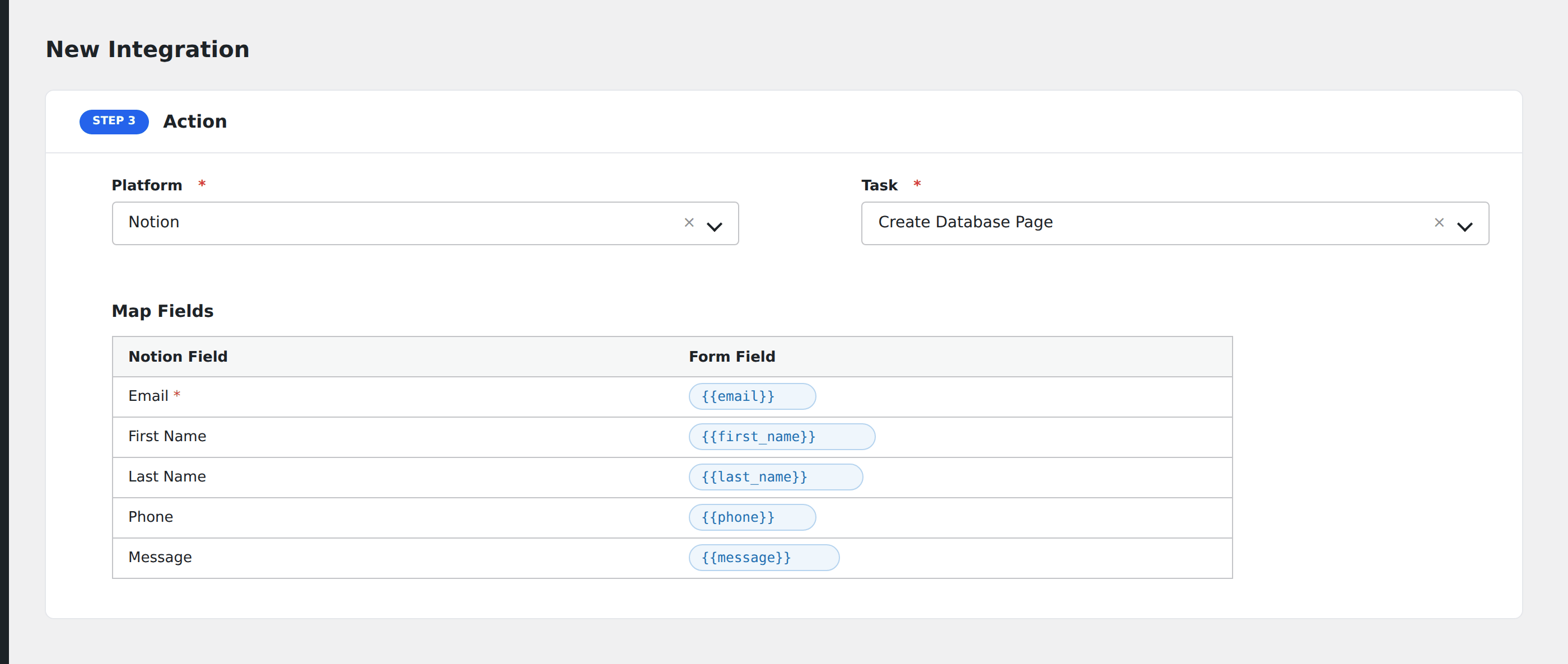
- Under Action → Platform, select Notion.
- In Task, choose Add Database Item.
- Pick the saved account.
- Map your form fields onto the fields listed below.
- Optional: open Conditional Logic to limit which submissions are sent.
- Click Save Integration.
Tasks supported
Add Database Item
Creates a new page (item) in the selected Notion database via POST /v1/pages. AFI auto-loads all properties from your database and handles type coercion for text, numbers, selects, multi-selects, dates, checkboxes, URLs, emails, phone numbers, and people.
| Field | Field key | Required | Notes |
|---|---|---|---|
| Database ID | database_id |
Yes | Selected from dropdown of accessible databases |
| Auto-loaded properties | varies |
No | Each database property appears by name |
Pro features
The Pro integration extends the free version with additional capabilities. Pro uses the same Notion connection.
Add/Update Database Item
Upsert mode: searches by a key property and updates the page if found, creates a new one if not.
Create Page with Content
Creates a page with rich text content blocks (headings, paragraphs, lists, callouts). Supports child database blocks.
Feature comparison
| Feature | Free | Pro |
|---|---|---|
| Add database item | ✅ | ✅ |
| Auto-loaded properties (all types) | ✅ | ✅ |
| Boolean/checkbox coercion | ✅ | ✅ |
| Add/Update (upsert by key) | No | ✅ |
| Create Page with Content blocks | No | ✅ |
Conditional logic example
Only send data to Notion when specific conditions are met. For example, add a condition on a form field to control which submissions are forwarded.
Troubleshooting
Nothing arrives in Notion
Open AFI → Log and find the most recent entry. AFI stores the request URL, body, and raw response.
API credentials rejected
Verify your credentials in your Notion account settings. If they were regenerated, update them in AFI → Settings → Notion.