 AFI
AFI
EngageBay
EngageBay is an all-in-one CRM, marketing, sales, and customer service platform for small businesses. Advanced Form Integration creates and updates contacts in EngageBay from WordPress form submissions, with automatic company creation and list assignment.
What you’ll need
- An active EngageBay account.
- An EngageBay REST API Key (see below).
- The Advanced Form Integration plugin installed and activated.
Get your EngageBay API key
- Sign in to your EngageBay dashboard.
- Go to Account Settings → API & Tracking Code.
- Copy your REST API Key.
- In WordPress, go to AFI → Settings → EngageBay.
- Click Add Account, paste the API key, and give the account a name.
- Click Save.
Create the integration
- Go to AFI → Add New.
- Give the integration a name, for example
Lead form to EngageBay. - Under Trigger, pick the form plugin and the specific form.
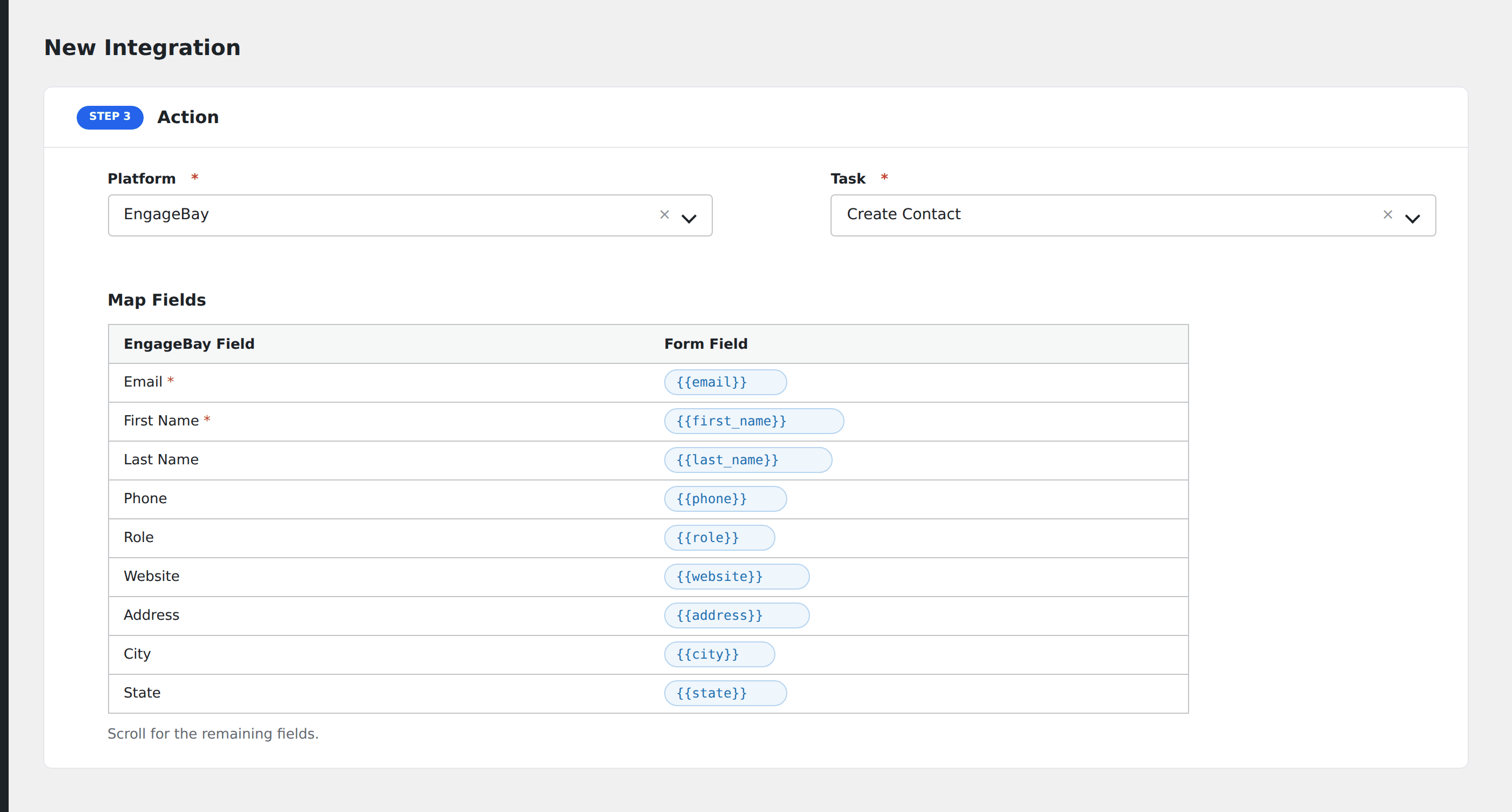
- Under Action → Platform, select EngageBay.
- In Task, choose Create New Contact.
- Pick the saved account in the EngageBay Account dropdown.
- Select an EngageBay List to add the contact to.
- Map your form fields onto the EngageBay fields listed below.
- Optional: open Conditional Logic to limit which submissions are sent.
- Click Save Integration.
Tasks supported
Create New Contact
Creates or updates a contact in EngageBay. AFI searches for an existing contact by email first. If found, the contact is updated via PUT /panel/subscribers/update-partial. If not found, a new contact is created via POST /panel/subscribers/subscriber.
When a Company name is provided, AFI checks if the company exists. If not, it creates the company and links the contact to it. Address fields are merged with any existing address data (EngageBay stores addresses as JSON objects).
| Field | Field key | Required | Notes |
|---|---|---|---|
email |
Yes | Used for upsert matching | |
| First Name | firstName |
No | |
| Last Name | lastName |
No | |
| Phone | phone |
No | |
| Role / Job Title | role |
No | |
| Website | website |
No | |
| Company | company |
No | Auto-creates company if it does not exist |
| Address | address |
No | Merged with existing address |
| City | city |
No | |
| State | state |
No | |
| Zip | zip |
No | |
| Country | country |
No |
Pro features
The Pro integration extends the free version with auto-loaded custom fields, tags, and four additional tasks. Pro uses the same EngageBay API key connection.
Custom fields (auto-loaded)
Pro fetches custom field definitions from GET /panel/customfields/list/CONTACT. Each field appears in the mapper with its label. Values are sent under the field’s internal name in the contact properties array.
Tags
Pro applies tags to contacts during creation or update. Enter tags as a comma-separated string. Each tag is also registered in EngageBay’s tag registry via POST /panel/tags before being applied to the contact.
Additional Pro tasks
- Add Tag(s) to Contact: adds tags to an existing contact by email via
POST /panel/subscribers/email/tags/add. - Remove Tag(s) from Contact: removes tags from a contact via
POST /panel/subscribers/email/tags/delete. - Create Deal: creates a deal linked to a contact by email via
POST /panel/deals/create-deal/{email}. Supports deal name, amount, track name, and milestone. - Add Note to Contact: resolves a contact by email, then attaches a note via
POST /panel/notes.
Feature comparison
| Feature | Free | Pro |
|---|---|---|
| Create/update contact (email upsert) | ✅ | ✅ |
| Standard fields (name, phone, address, etc.) | ✅ | ✅ |
| Company auto-create and link | ✅ | ✅ |
| List assignment | ✅ | ✅ |
| Custom fields (auto-loaded) | No | ✅ |
| Tags | No | ✅ |
| Add/remove tags on existing contacts | No | ✅ |
| Create Deal | No | ✅ |
| Add Note to Contact | No | ✅ |
Conditional logic example
Only create deals for high-value leads. Add a condition on deal_value being greater than 5000. Lower-value submissions still create a contact but skip deal creation via a separate integration.
Troubleshooting
Nothing arrives in EngageBay
Open AFI → Log and find the most recent entry. AFI stores the request URL, JSON body, headers, and raw response.
Rate limited (HTTP 429)
AFI automatically retries once on HTTP 429, honoring the Retry-After header with a 2-second default.
API key rejected
Verify the REST API Key in Account Settings → API & Tracking Code. EngageBay uses the raw API key as the Authorization header value (no “Bearer” prefix).