 AFI
AFI
Hubspot CRM
HubSpot CRM is a free CRM used by 200,000+ businesses to manage contacts, deals, and marketing. Advanced Form Integration sends every form submission straight into your HubSpot account as a new contact, mapping form fields to HubSpot’s standard properties (first name, last name, email, phone, company) and to any custom contact properties you’ve created. The integration is included in the free version of AFI; the Pro version unlocks bulk custom-property mapping and richer field types.
What you’ll need
- An active HubSpot account.
- A HubSpot Private App access token (we’ll create one in the next step).
- The Advanced Form Integration plugin installed and activated.
Get your HubSpot Private App access token
HubSpot deprecated standalone API keys in 2022. Instead, every integration uses a Private App with explicit scopes. That’s what AFI authenticates with.
- Log in to your HubSpot account.
- Click the gear icon (top right) to open Settings.
- In the left sidebar go to Integrations → Private Apps.
- Click Create a private app.
- Give the app a name like Advanced Form Integration and add a short description.
- Open the Scopes tab. Search for and tick these scopes:
crm.objects.contacts.readcrm.objects.contacts.writecrm.schemas.contacts.read(only if you’ll map custom contact properties)
- Click Create app and confirm.
- On the app’s detail page, copy the Access token that’s shown.
Treat the access token like a password. Anyone with the token can read and write contacts in your HubSpot account.
Connect HubSpot to AFI
- In WordPress, go to AFI → Settings.
- Open the Hubspot CRM tab and turn it on.
- Paste the access token into the Access Token field.
- Click Save Changes.
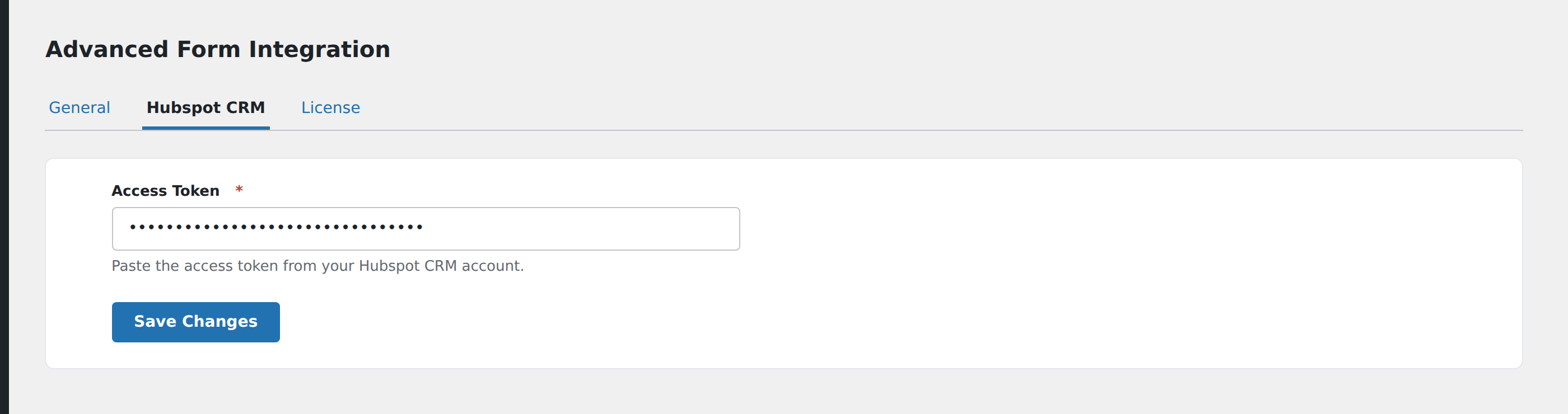
AFI stores the token under the adfoin_hubspot_access_token option in wp_options.
Create the integration
- Go to AFI → Add New.
- Configure the trigger (see your form plugin’s doc for specifics).
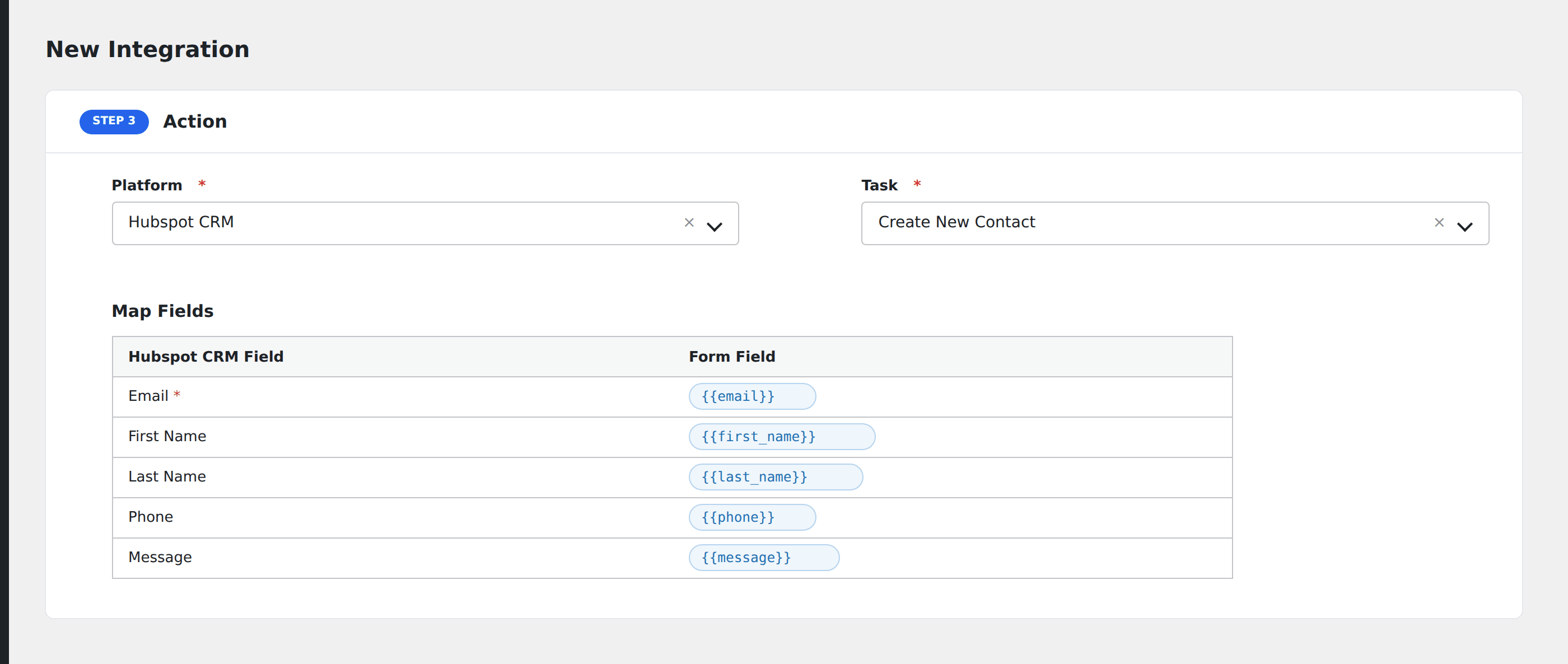
- In Action → Platform, select Hubspot CRM.
- In Task, choose Create New Contact.
- Map the form fields to HubSpot properties. Email is required: if you don’t map it, HubSpot will reject the contact.
- Optional: configure Conditional Logic to route only matching submissions.
- Click Save Integration.
Tasks supported
Create New Contact
Adds a new contact to HubSpot using the email address as the primary identifier. If a contact with the same email already exists in your HubSpot account, HubSpot updates the existing record instead of creating a duplicate. This is HubSpot’s standard merge behavior, not something AFI controls.
Required field mapping:
- Email: must be a valid email address.
Common optional mappings:
- First Name, Last Name, Phone, Company, Website, Job Title, Lifecycle Stage.
Custom properties: Any custom contact property defined in your HubSpot account also appears in the mapping dropdown. Use the property’s internal name (HubSpot’s “API name”), not the label.
Pro features
The Pro version of the HubSpot integration adds:
- Bulk custom property mapping. Map dozens of properties without scrolling.
- Multi-select and checkbox property support, mapped to HubSpot’s enumeration types.
- Date-property formatting that respects HubSpot’s UTC midnight requirement.
Conditional logic example
Goal: only push leads from the United States to HubSpot, while non-US leads go to a Mailchimp segment instead.
On the HubSpot integration, open the Conditional Logic panel, add a condition with the Country form field, the Equal To operator, and the value US. Submissions from any other country will skip this integration and only fire the Mailchimp one.
Troubleshooting
Contact isn’t created
Open AFI → Log and find the most recent log entry for this integration. The HubSpot API returns clear error messages. The most common are:
Property "X" does not exist: your mapping references a HubSpot property that’s been renamed or deleted. Open the integration and re-pick the field.Email is required: the form’s email field wasn’t mapped, or the user submitted an empty value. Add Email to the mapping.INVALID_EMAIL: the value mapped to email isn’t a valid format. Confirm you mapped the email field, not name.
“401 Unauthorized” in the log
The access token has been deleted, regenerated, or the Private App was disabled in HubSpot. Generate a new token and re-save it in AFI → Settings → Hubspot CRM.
Custom properties don’t appear in the mapping dropdown
The token’s scopes don’t include crm.schemas.contacts.read. Edit the Private App in HubSpot, add the scope, save, and re-copy the new token into AFI.