 AFI
AFI
Jetpack CRM
Jetpack CRM (formerly Zero BS CRM) is a free CRM plugin for WordPress by Automattic. Because it runs on the same site as your forms, Advanced Form Integration (AFI) can save every form submission straight into Jetpack CRM as a contact: no API keys, no accounts to connect and no external requests. For example, a contact or booking form can add the visitor to Jetpack CRM as a Lead, tag them Website Lead, fill your custom fields and link them to their company.
Supported Features
- Add Contact (action): create a Jetpack CRM contact, or update the existing contact with the same email.
- All contact fields, including your own custom fields, read directly from your Jetpack CRM setup.
- Tag new and updated contacts.
- Link a company by name when B2B mode is on (found or created automatically).
- Jetpack CRM as a trigger: send new Jetpack CRM contacts or companies to other platforms (see Jetpack CRM trigger).
What You’ll Need
- The Jetpack CRM plugin installed and active on the same WordPress site as AFI.
- A form plugin supported by AFI (Contact Form 7, WPForms, Gravity Forms, Formidable, Elementor, and many more).
- Optional: B2B mode turned on in Jetpack CRM if you want contacts linked to companies.
Enable Jetpack CRM in AFI
There is nothing to connect. If Jetpack CRM doesn’t appear in the Platform dropdown, go to AFI > Settings > General, turn on Jetpack CRM in the platform list and save.
How to Create the Integration
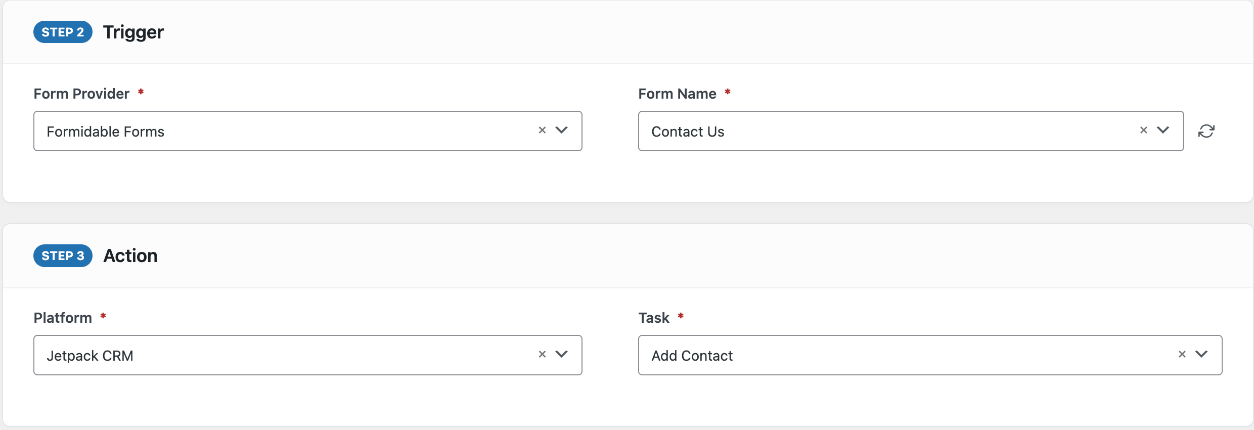
- Go to AFI > Add New.
- Under Trigger, select your form plugin and the specific form.
- Under Action, select Jetpack CRM in the Platform dropdown.
- Choose the Task: Add Contact.
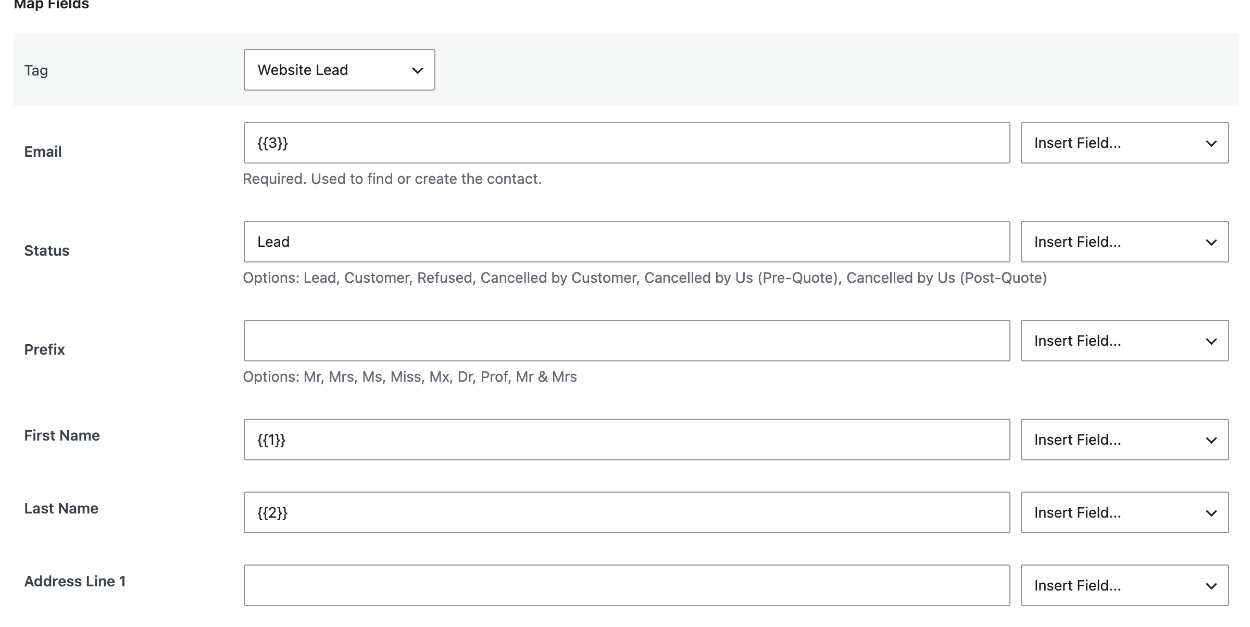
- Optionally pick a Tag. It’s added to the contact without removing tags it already has.
- Map Email (required) and any other fields using the Insert Field… dropdowns. You can also type fixed values, for example
Leadin Status. - Click Save Integration and submit a test entry from the front end. The contact appears under Jetpack CRM > Contacts.
Field Mapping
The field list comes from your own Jetpack CRM setup, so it matches what you see on a contact record. Fields switched off in Jetpack CRM (for example the second address) don’t appear, and auto-number fields are filled in by Jetpack CRM itself. Under each field AFI shows the accepted options or format.
| Field | Description |
|---|---|
| Tag | Optional tag added to the contact. Create tags in Jetpack CRM first; they appear in this dropdown. |
| Email (required) | Used to find the contact. If a contact with this email exists it is updated, otherwise a new one is created. |
| Status | One of your Jetpack CRM statuses, for example Lead or Customer. |
| Prefix | Mr, Mrs, Ms, Miss, Mx, Dr, Prof or Mr & Mrs. |
| First Name, Last Name | The contact’s name. |
| Address fields | Address Line 1 and 2, City, County, Post Code and Country, plus the second address when it’s enabled in Jetpack CRM. |
| Home, Work and Mobile Telephone | Phone numbers. |
| Custom fields | Every contact custom field you created in Jetpack CRM, marked Custom field. |
| Company | Shown only when B2B mode is on. Links the contact to the company with this name (case-insensitive), creating it if needed. Existing company links are kept. |
| Twitter / X Handle, Facebook Page, LinkedIn Profile | Social profiles. |
Custom fields, checkboxes and dates
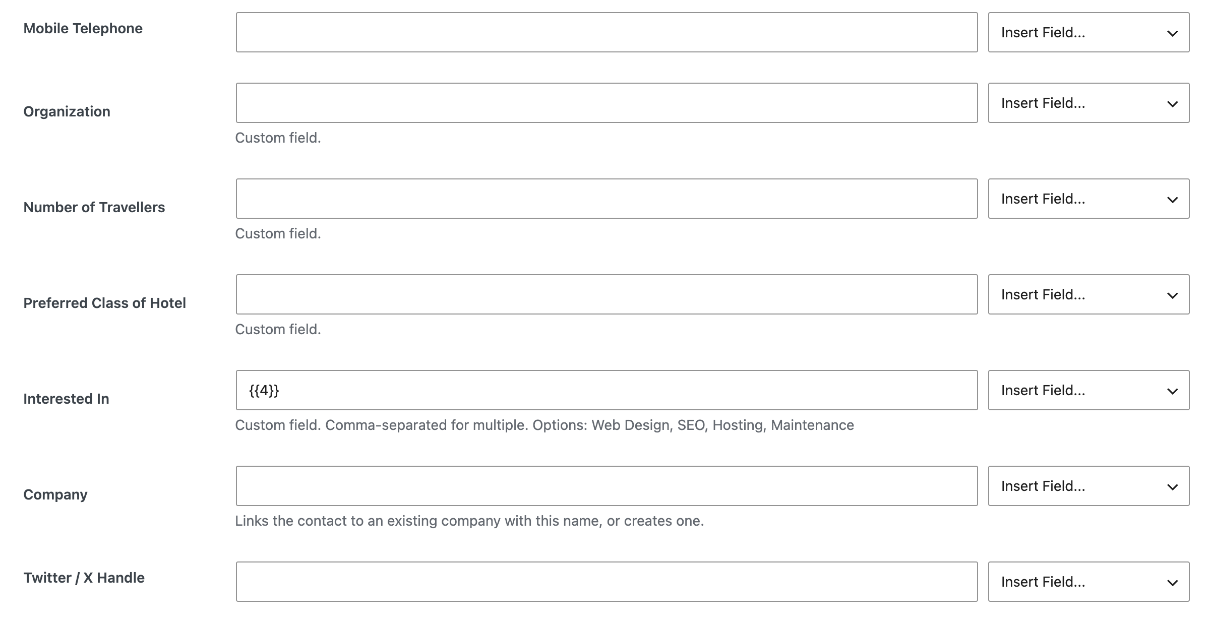
- Checkbox fields: map a checkbox or multi-select form field directly. AFI matches each answer to the field’s options, ignoring case, accents and punctuation differences, so ticked boxes show as ticked in Jetpack CRM. Options that contain commas are matched as a whole.
- Select and radio fields: the value must match one of the options shown under the field.
- Date fields: any common date format is converted to the
YYYY-MM-DDformat Jetpack CRM stores. - Number fields: send plain numbers without currency symbols or thousands separators.
How Updates Work
AFI looks the contact up by email. When it exists, only the fields that have a value in this submission are changed; empty answers never blank out what is already stored. The tag is appended to existing tags, and company links are added, never removed.
Jetpack CRM as a Trigger
Jetpack CRM can also start an integration when a contact is added or updated, or a company is added, and send that data to any other platform. See Jetpack CRM (trigger).
Troubleshooting
Jetpack CRM isn’t in the Platform list
Turn it on in AFI > Settings > General, and make sure the Jetpack CRM plugin is active.
The contact isn’t created
Open AFI > Log. The most common reason is a missing or invalid email (“A valid email address is required”). Make sure Email is mapped to the form’s email field.
Checkbox or select values don’t show in Jetpack CRM
The submitted answers must match the field’s options in Jetpack CRM. Compare your form’s choices with the options listed under the field in AFI and make the wording match.
“Company not linked: B2B mode is disabled”
Companies are only available in Jetpack CRM’s B2B mode. Turn it on in Jetpack CRM, then reload the integration so the Company field appears.
A new custom field or tag doesn’t appear
Reload the integration editor after adding custom fields or tags in Jetpack CRM; AFI reads them when the editor loads.