 AFI
AFI
Ontraport
Ontraport is a business-automation platform combining CRM, email marketing, landing pages, and ecommerce. Advanced Form Integration sends form submissions to Ontraport as new contacts.
What you’ll need
- An active Ontraport account.
- Your Ontraport App ID and API Key (Administration → Ontraport API Instructions and Key Manager → Create new API key).
- The Advanced Form Integration plugin installed and activated.
Connect Ontraport to AFI
- In WordPress, go to AFI → Settings → Ontraport.
- Enter the App ID and API Key.
- Click Save Changes.
Create the integration
- Go to AFI → Add New.
- Configure the trigger.
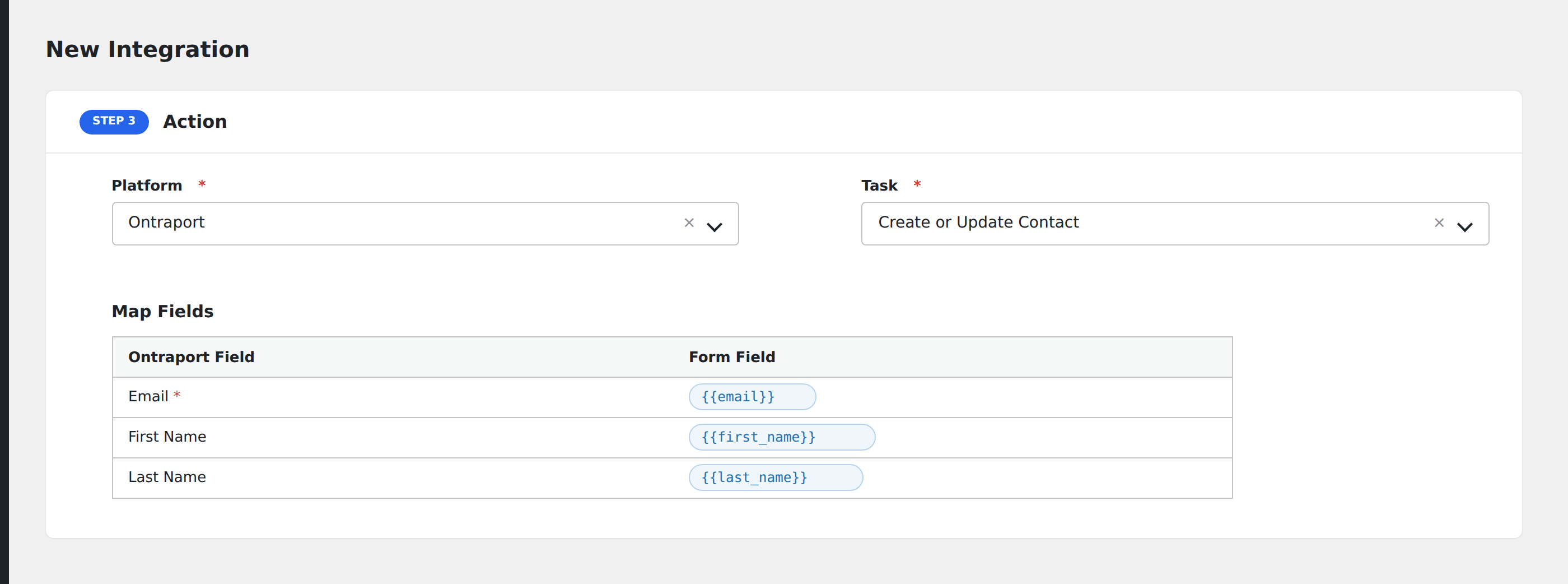
- In Action → Platform, select Ontraport.
- In Task, choose Create or Update Contact.
- Map the form fields:
- Email (required), First Name, Last Name.
- Phone, Cell Phone, Address, City, State, Zip, Country.
- Date of Birth, Gender.
- Office Title, Company, Website.
- Tags (comma-separated, by name).
- Custom fields by API name (e.g.,
f1234).
- Optional: configure Conditional Logic.
- Click Save Integration.
Pro features
The Pro Ontraport integration adds support for adding contacts to sequences (drip campaigns) directly from the form submission, plus the full custom-field map by friendly name instead of cryptic f1234 API IDs.
Conditional logic example
Tag the new Ontraport contact with webinar-rsvp only when the form’s attending field equals “Yes”. Other respondents stay in the contact database without the tag.
Troubleshooting
“Authentication failed”
Ontraport requires both App ID and API Key in every request. Both are scoped to the user who created them. If that user is removed, the credentials stop working.
Custom field IDs
Ontraport’s REST API expects custom fields as f prefixed IDs (e.g., f1234), not friendly names. Find the ID for each custom field in Ontraport under Settings → Field Editor → API name column.