 AFI
AFI
VS Contact Form
VS Contact Form (Very Simple Contact Form) is a minimal contact form plugin that adds a single form to your site with a shortcode. Connect it to Advanced Form Integration (AFI) and every message can start an automation. You can log submissions in Google Sheets, subscribe senders to a Mailchimp list, or open a new contact in your CRM automatically.
What You’ll Need
- The Very Simple Contact Form plugin installed and active
- Advanced Form Integration. The free version sends the Name and Email fields. AFI Pro unlocks the remaining fields like Subject and Message.
- An account on the receiving platform, such as Google Sheets or Mailchimp
How to Create the Integration
- Go to Advanced Form Integration > Add New.
- A default Integration Title is auto-filled. Rename it to something recognizable, like “VS Contact Form to Google Sheets”.
- In the Trigger section, open the Form Provider dropdown and select VS Contact Form. The plugin must be active, otherwise it will not appear here.
- In the Form/Task Name dropdown, select VS Contact Form. The plugin provides one site-wide form, so there is a single entry.
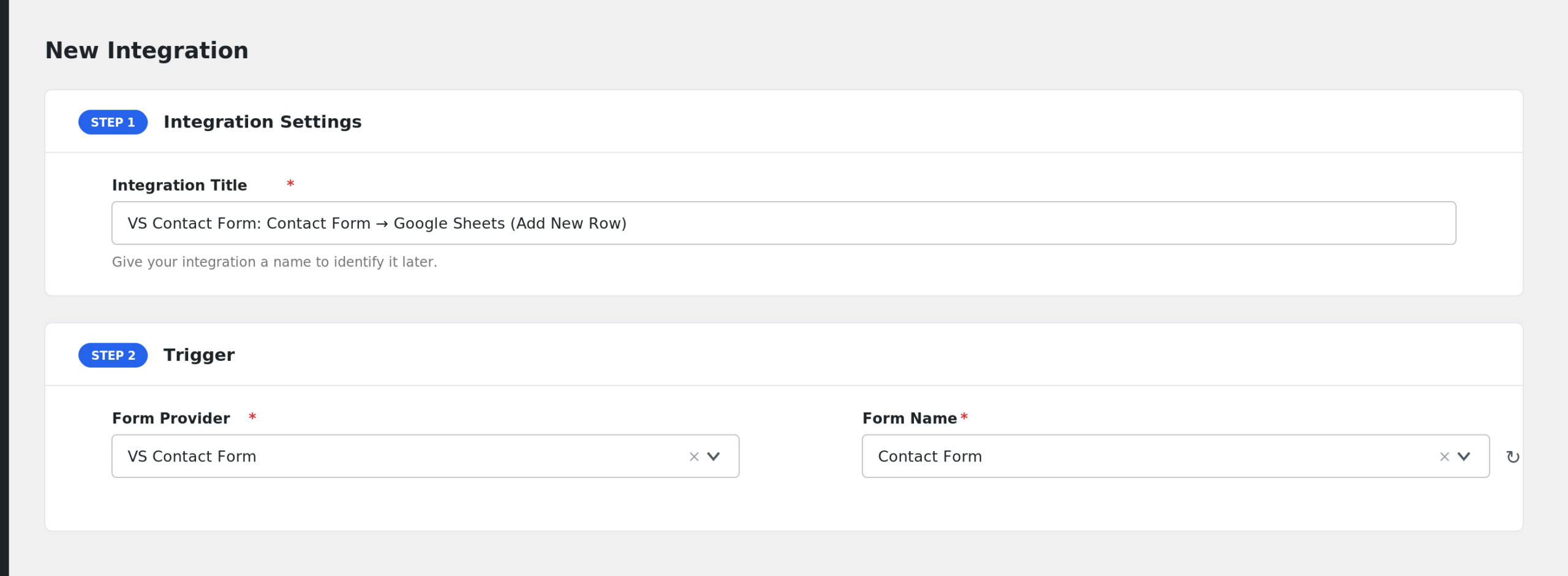
- On the free AFI plan you will see a note under the trigger: “The basic AFI plugin supports name and email fields only.”
- Under Action, choose the receiver platform and connect your account.
- Map the form fields to the receiver’s fields, for example Name and Email to spreadsheet columns.
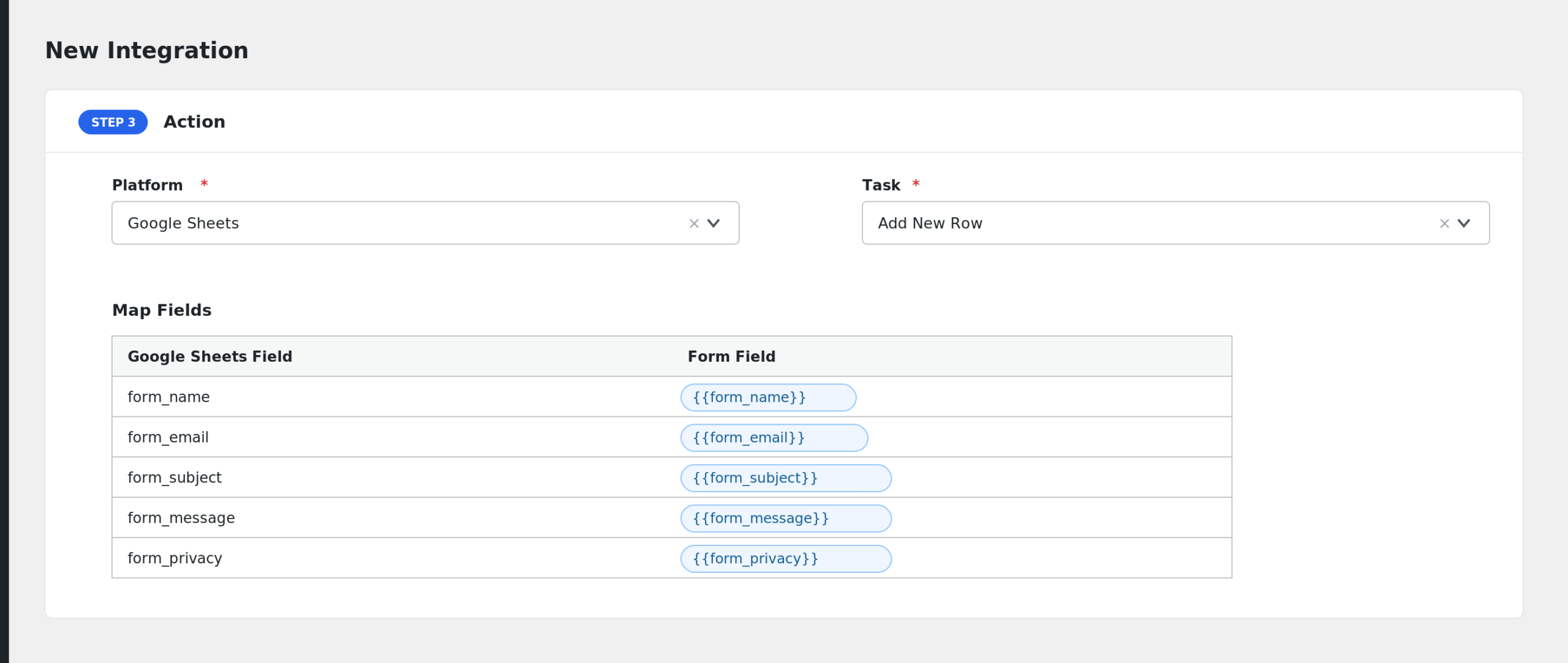
- Click Save Integration and send a test message through the form.
Fields You Can Send
| Field | Description |
|---|---|
| form_name | The sender’s name |
| form_email | The sender’s email address |
| form_subject | The message subject (AFI Pro) |
| form_message | The message text (AFI Pro) |
| form_privacy | The privacy consent checkbox value (AFI Pro) |
| form_sum | The math captcha answer (AFI Pro) |
| form_first_random | The first honeypot value (AFI Pro) |
| form_second_random | The second honeypot value (AFI Pro) |
| form_page_url | The URL of the page containing the form (AFI Pro) |
| form_id | Always “default” for this provider |
| form_title | Always “VS Contact Form” |
| submission_date | The date and time of the submission |
| user_ip | The visitor’s IP address |
AFI also adds its standard special tags, such as user and post details, to the field list.
Note: on the free AFI plan, only form_name and form_email are captured from the form itself. Upgrade to AFI Pro to send the subject, message, consent, and page URL fields.
Only Send Messages with Privacy Consent
Conditional logic is an AFI Pro feature. Since the privacy consent field (form_privacy) is available on Pro, you can subscribe a sender to Mailchimp only when the consent box was ticked. Messages without consent can still be archived to a private Google Sheet.
Troubleshooting
VS Contact Form is not in the Form Provider dropdown
AFI checks that the plugin is active before listing it. Confirm Very Simple Contact Form is installed and activated, then reload the AFI page.
The integration is not firing
AFI captures the submission just before the plugin sends its notification email. Send a test message, then check AFI > Log. If nothing appears, verify the form is submitting successfully and your integration is saved and enabled.
Subject and message arrive blank
On the free AFI plan only Name and Email are sent. The Subject, Message, and other fields require AFI Pro. If you are on Pro and a field is still empty, re-check the mapping row for that field.