 AFI
AFI
Mailchimp
Mailchimp is the most-used email marketing platform on the web, with millions of users running newsletters, automations, and audiences. Advanced Form Integration sends every form submission straight into Mailchimp as a new subscriber, mapping form fields to your audience’s standard and custom merge fields, with optional tag assignment. Pro adds custom merge fields and bulk tag mapping.
What you’ll need
- An active Mailchimp account.
- A Mailchimp API key.
- At least one audience (list) configured in Mailchimp.
- The Advanced Form Integration plugin installed and activated.
Get your Mailchimp API key
- Log in to your Mailchimp account.
- Click your profile icon (bottom left), then Profile.
- Open the Extras → API keys menu.
- Under Your API keys, click Create A Key.
- Give it a name (e.g. Advanced Form Integration) and copy the generated key.
The key looks like abc123def456-us1: the suffix after the dash (e.g. us1) is your data center, and AFI uses it to route requests to the right Mailchimp region. Treat the key like a password.
Connect Mailchimp to AFI
- In WordPress, go to AFI → Settings.
- Open the Mailchimp tab and turn it on.
- Paste the API key into the API Key field and click Save Changes.
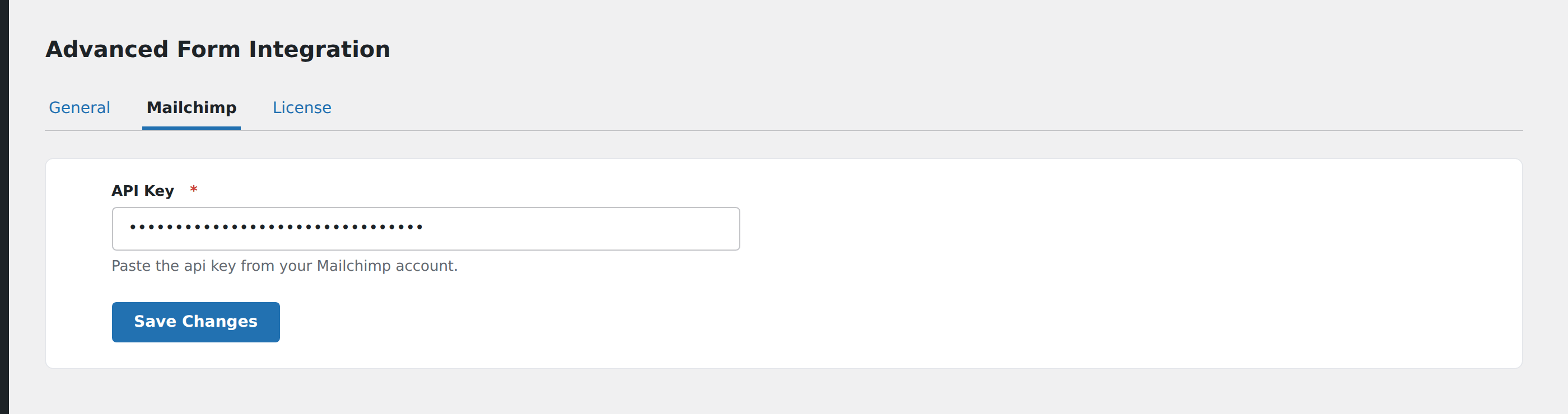
AFI stores the key under the adfoin_mailchimp_api_key option in wp_options.
Create the integration
- Go to AFI → Add New.
- Configure the trigger (see your form plugin’s doc for specifics).
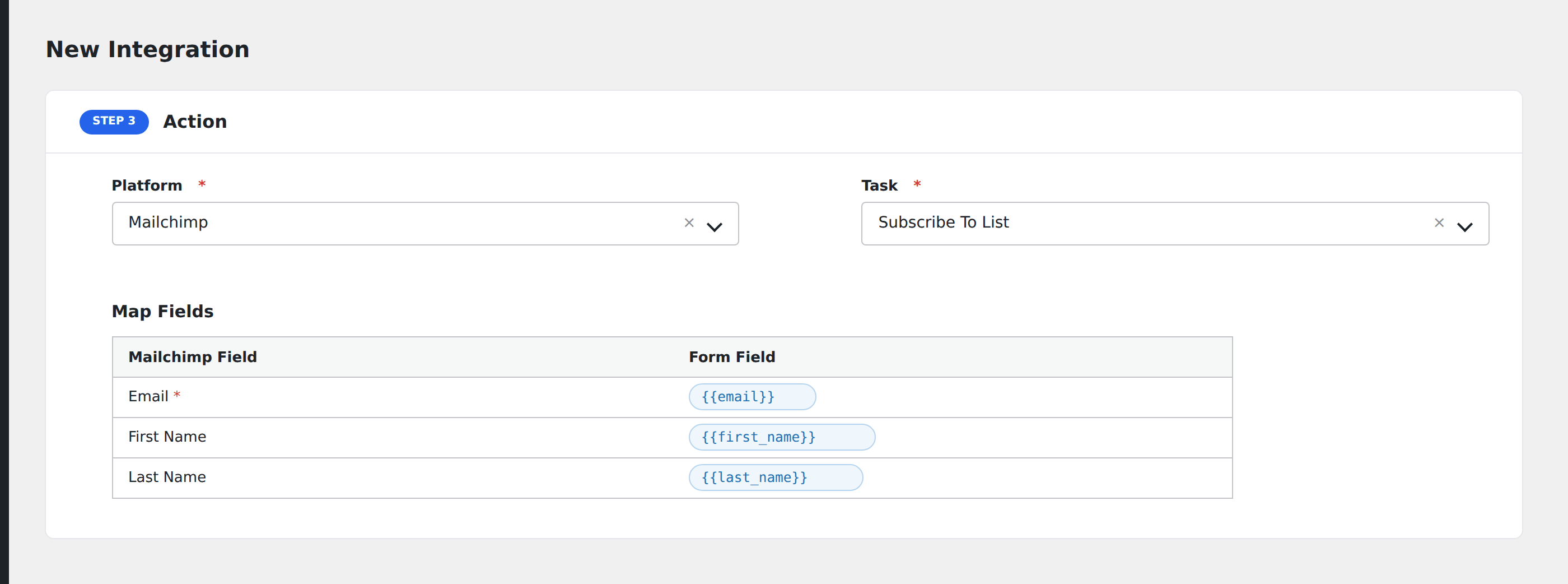
- In Action → Platform, select Mailchimp.
- In Task, choose Subscribe To List (or Unsubscribe From List).
- The List dropdown auto-populates from your Mailchimp account. Pick the audience.
- Map the form fields to Mailchimp merge tags. Email is required: Mailchimp rejects subscribers without it.
- Optional: configure Conditional Logic.
- Click Save Integration.
Tasks supported
Subscribe To List
Adds the form submitter to the selected Mailchimp audience. If the email already exists in the audience, Mailchimp updates the existing subscriber instead of creating a duplicate.
Required field mapping:
- Email: must be a valid email address.
Common optional mappings:
- FNAME (first name), LNAME (last name), PHONE.
- Any custom merge field. They appear in the dropdown using their merge tag (e.g.
|COMPANY|). - Tags (Pro): comma-separated tag names to apply to the subscriber.
Unsubscribe From List
Removes the form submitter from the selected audience. Useful for unsubscribe forms or one-click opt-out flows.
Pro features
The Pro version of the Mailchimp integration adds:
- Bulk custom merge field mapping (map dozens without scrolling).
- Tag assignment (apply or remove tags per submission).
- Group / interest assignment.
- Double-opt-in toggle per integration (instead of using the audience-wide setting).
Conditional logic example
Goal: add new signups to the Newsletter audience always, but only add signups marked as Premium to the Customer audience too.
Create two integrations on the same form. The Newsletter integration is unconditional. On the Customer integration, open the Conditional Logic panel, add a condition with the plan field, Equal To, value Premium.
Troubleshooting
Subscriber not added
Open AFI → Log and find the most recent log entry. Mailchimp’s API returns clear error messages, common ones:
Email Address is invalid: the value mapped to email isn’t a valid format. Double-check the field mapping.Member Exists: the email is already in the audience. By default this is handled silently; AFI doesn’t treat it as an error.API Key Invalid: the API key was deleted, expired, or copied incorrectly. Re-copy from Mailchimp and re-save in AFI Settings.compliance_state: pending: Mailchimp is waiting for the subscriber to confirm via double opt-in. The subscriber exists but won’t receive campaigns until they confirm.
Custom merge field doesn’t appear in mapping
Custom merge fields are loaded from your audience on first use. Click into the List dropdown, re-pick the audience, and the merge fields refresh.
Wrong audience receives the data
Multiple integrations on the same form can each target different audiences. Confirm each integration’s List dropdown shows the audience you intended.