 AFI
AFI
DocuSign
DocuSign is an e-signature platform. With Advanced Form Integration (AFI), every WordPress form submission can send a DocuSign envelope built from one of your templates. For example, a client intake form can send the new client your service agreement to sign, addressed to the name and email they typed into the form, with no manual work in DocuSign.
Supported Features
- Send Envelope From Template: pick a DocuSign template and a recipient role from dropdowns, map the signer’s email and name from the form, and AFI sends the envelope immediately.
- Choose the template per submission: instead of a fixed template, the template ID (and role) can come from a form field, for example a dropdown where the visitor picks which agreement they need.
- Prefill template text fields (AFI Pro): fill the template’s text fields (DocuSign “text tabs”) with form answers, such as company name, address or project details, so the signer sees them already completed.
What You’ll Need
- A DocuSign account. A free developer (Demo) account works for testing; a paid account with API access is needed to send real envelopes in Production.
- At least one template in DocuSign with a recipient role (for example Signer or Client).
- A DocuSign integration (app) created in the DocuSign Developer Console. The steps are below.
- AFI free for sending envelopes. AFI Pro to prefill template text fields.
Connecting DocuSign to AFI
DocuSign uses OAuth 2.0 (Authorization Code Grant). You create a private integration in DocuSign, give AFI its Client ID and Client secret, then sign in to DocuSign once to approve access. AFI stores the token and refreshes it automatically.
Step 1: Copy the Redirect URI from AFI
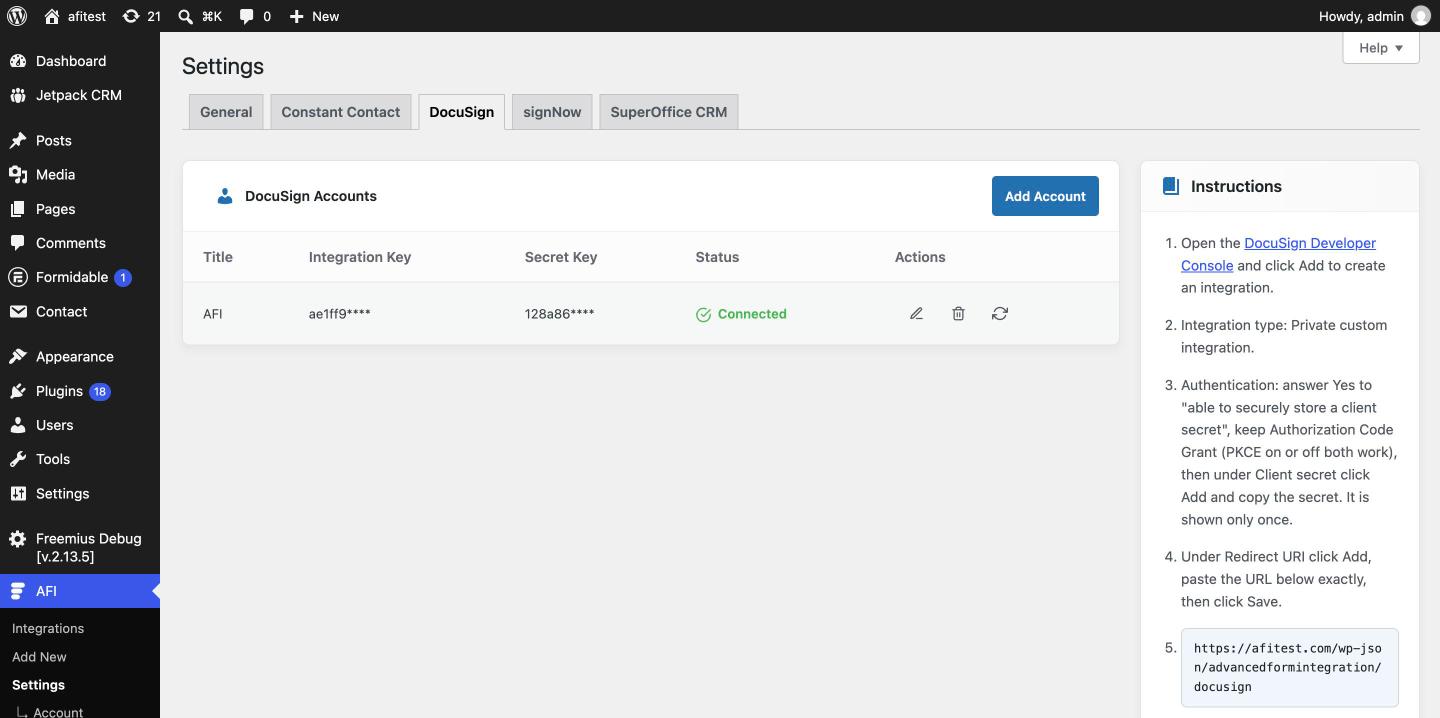
- In WordPress, go to AFI > Settings and open the DocuSign tab.
- The instructions on this tab show your site’s Redirect URI. It looks like
https://your-site.com/wp-json/advancedformintegration/docusign. Copy it exactly.
Step 2: Create the integration in the DocuSign Developer Console
DocuSign moved app setup from the old Apps and Keys page (admindemo.docusign.com/api-integrator-key) to the new Developer Console. Use the new console.
- Open the DocuSign Developer Console and sign in with the DocuSign account you want to send from.
- Click Add to create an integration and give it a name, for example Advanced Form Integration.
- For Integration type, choose Private custom integration.
- Under Authentication, answer Yes to “Is your application able to securely store a client secret?” and keep Authorization Code Grant. PKCE can be on or off; AFI supports both.
- Under Client secret, click Add and copy the secret right away. DocuSign shows it only once.
- Under Redirect URI, click Add and paste the Redirect URI you copied from AFI. It must match exactly, including
httpsand with no trailing slash. - Click Save. Copy the Client ID (DocuSign also calls it the Integration Key) from the integration’s page.
Step 3: Add the account in AFI and authorize
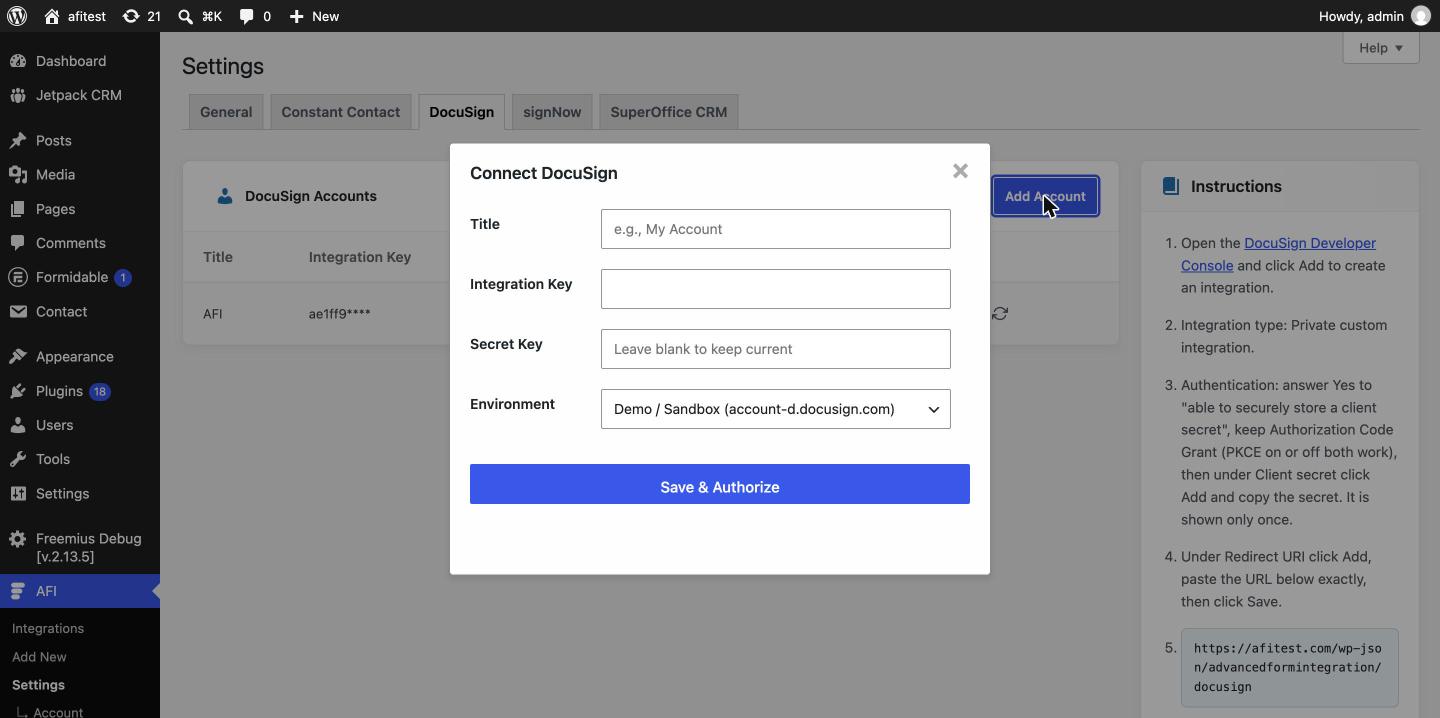
- Back on AFI > Settings > DocuSign, click Add Account.
- Paste the Integration Key (Client ID) and the Secret Key (Client secret).
- Choose the Environment: Demo for a developer account (
account-d.docusign.com) or Production for a live account. It must match where you created the integration. - Click Save & Authorize. A DocuSign window opens; sign in and click Allow Access.
- The window closes and the account shows as connected in the list.
| Setting | Where to find it |
|---|---|
| Integration Key | Developer Console > your integration > Client ID |
| Secret Key | Developer Console > your integration > Client secret > Add (shown once) |
| Environment | Demo for developer sandboxes, Production for live accounts |
| Redirect URI | Shown on AFI > Settings > DocuSign; paste into the integration |
Going live: integrations created in a Demo account must pass DocuSign’s Go-Live review before they work in Production. Once approved, add a new account in AFI with the same keys and choose Production.
How to Create the Integration
- Go to AFI > Add New.
- Rename the auto-filled Integration Title, for example Intake form to DocuSign.
- Under Trigger, select your form plugin and the specific form.
- Under Action, select DocuSign in the Platform dropdown. Pro users can select DocuSign [PRO] to prefill template fields.
- Choose the Task: Send Envelope From Template.
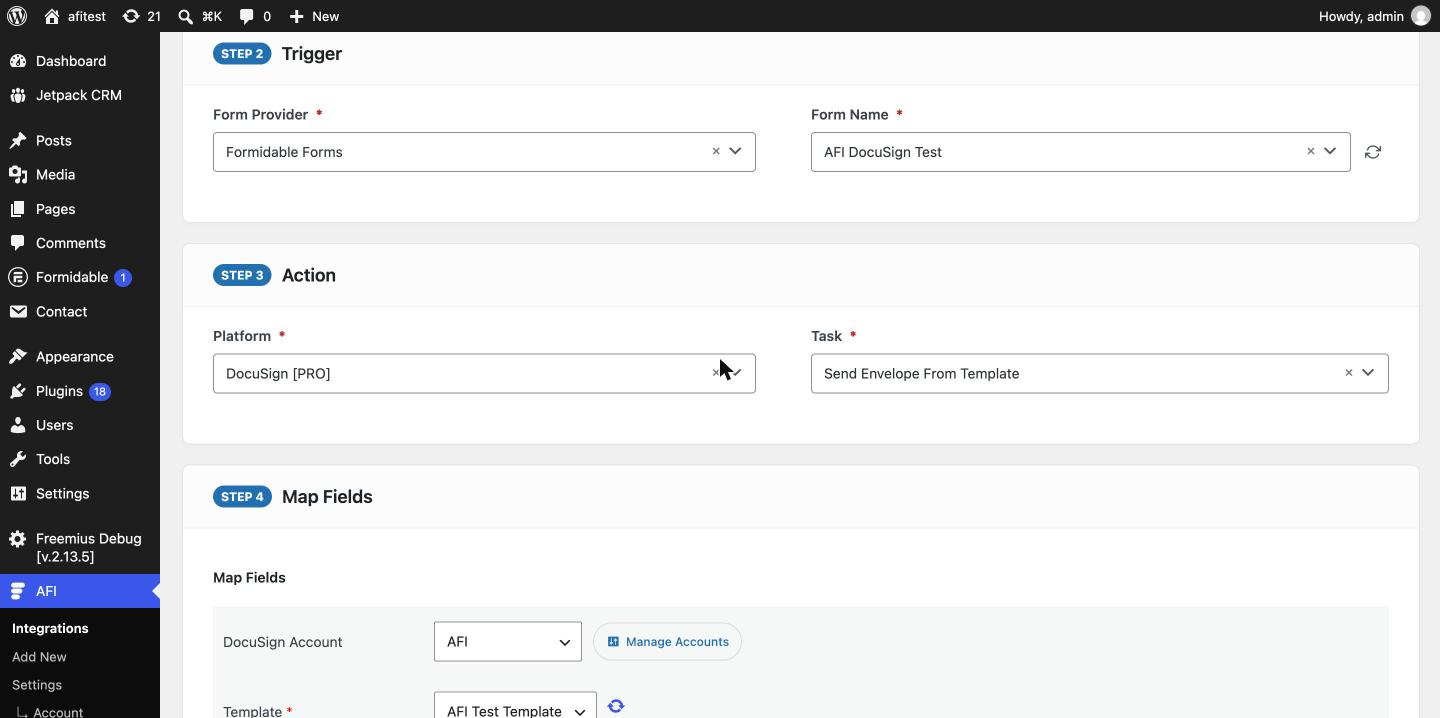
- Select your DocuSign Account. AFI loads the account’s templates.
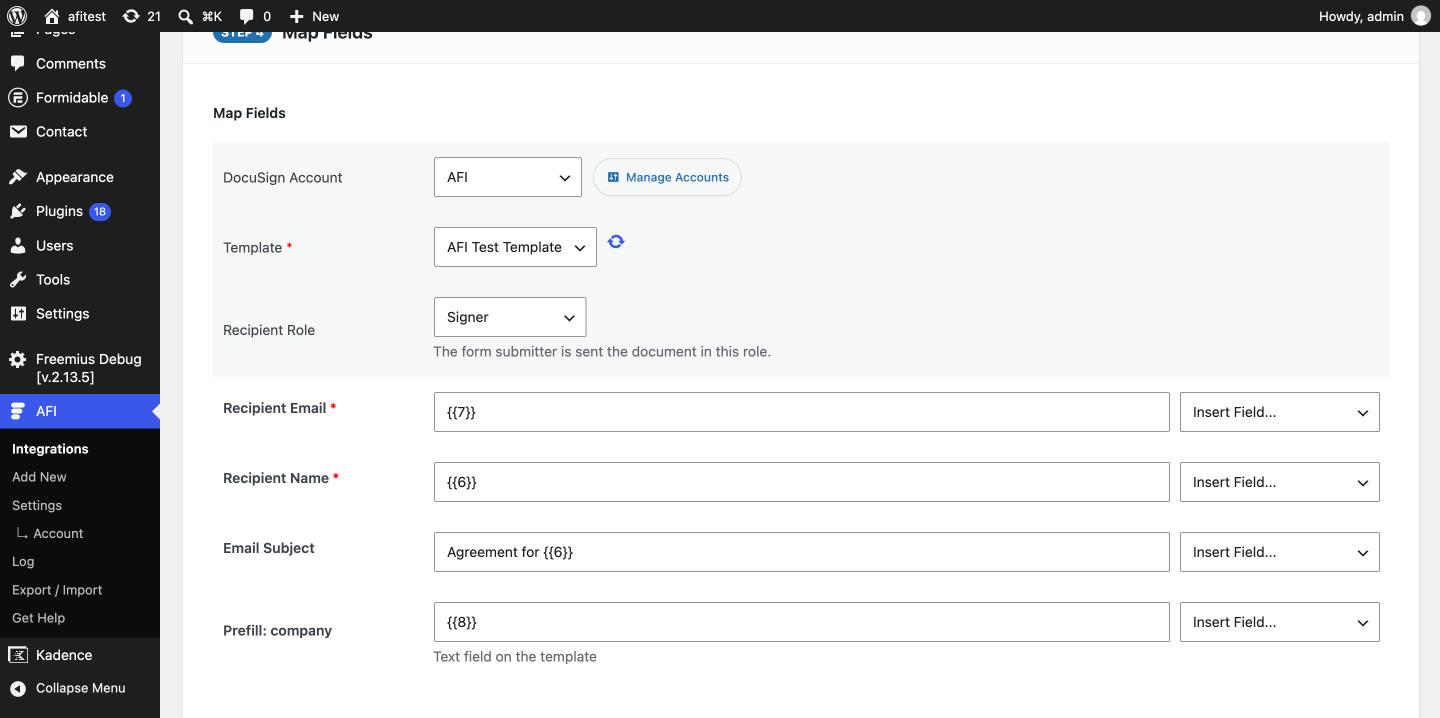
- Pick the Template from the dropdown. Click the refresh icon next to it if you just created a template in DocuSign.
- Pick the Recipient Role. AFI reads the roles from the template and selects the first signer automatically. The person who submits the form receives the envelope in this role.
- Map Recipient Email and Recipient Name to your form’s email and name fields. Optionally set an Email Subject.
- Click Save Integration, then submit a test entry from the front end.
Field Mapping
| Field | Required | Description |
|---|---|---|
| Template | Yes | Dropdown of the account’s templates. The template ID is saved behind it. Choose Use a form field… to map the template ID from the form instead. |
| Recipient Role | Yes | Role on the template the form submitter fills. Must match a role name on the template exactly. |
| Recipient Email | Yes | Where DocuSign sends the signing email. Usually your form’s email field. |
| Recipient Name | Yes | Signer’s full name as shown on the envelope. |
| Email Subject | No | Subject of the signing email. Leave empty to use the template’s subject. |
| Prefill: <label> (AFI Pro) | No | One row per text field on the selected role, named by its DocuSign data label. |
Choosing the template from a form field
If visitors should pick which document they receive, add a dropdown to your form whose option values are DocuSign template IDs. In AFI, open the Template dropdown, choose Use a form field… and map that form field to Template ID. Because AFI cannot read the roles of a template it doesn’t know yet, type the Recipient Role name, which must exist on every template you offer.
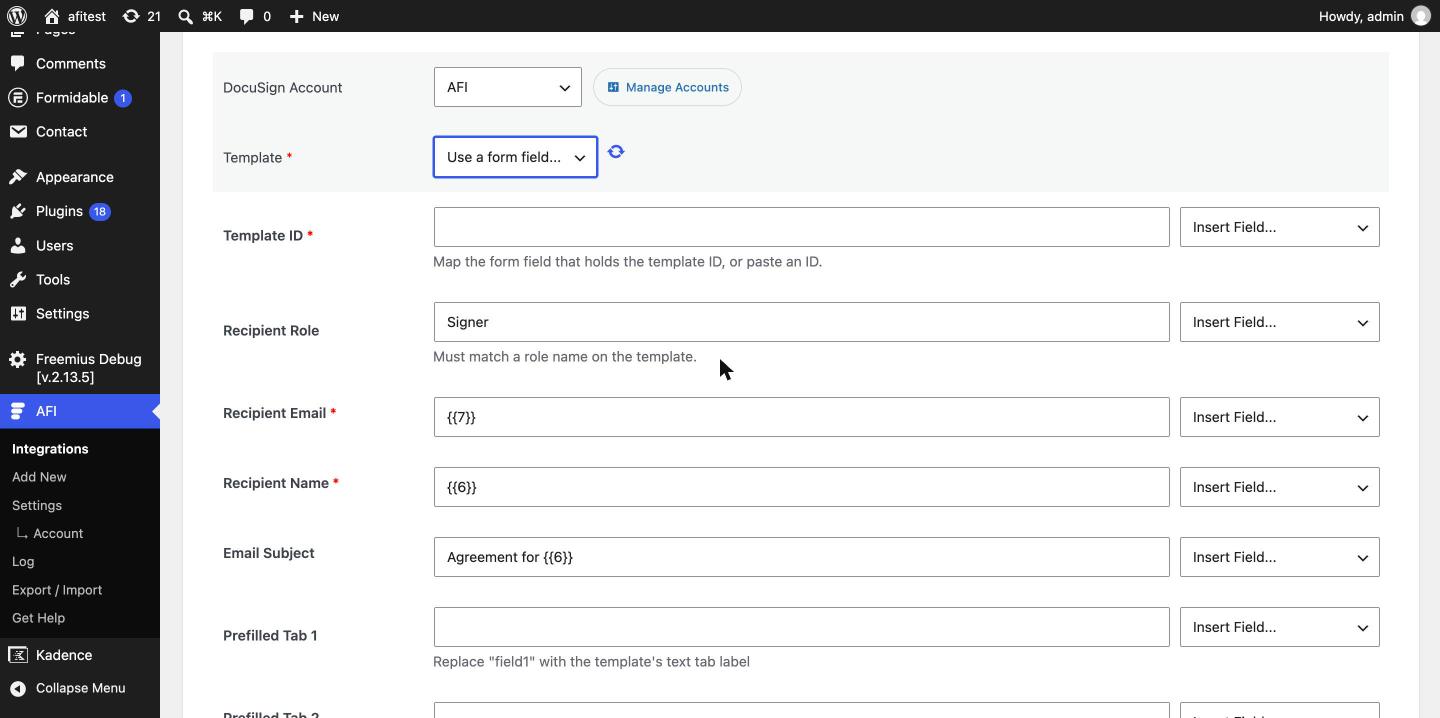
You can find a template’s ID in DocuSign under Templates, open the template, and look at the URL or the template details panel.
Pro: Prefill Template Fields
With DocuSign [PRO], AFI reads the text fields placed for the selected role on your template and adds a Prefill: <label> row for each one. Map form fields to those rows and the values appear filled in when the signer opens the envelope.
- In the DocuSign template editor, add Text fields for the role and give each a clear Data Label (for example
company,address). - In AFI, select the template from the dropdown. The Prefill rows appear automatically. Click the refresh icon if you changed the template.
- Map each Prefill row to a form field and save.
Prefill rows need a template picked from the dropdown. In Use a form field… mode AFI shows generic rows instead; the data label is used as the field key, so the template’s labels must match.
Troubleshooting
“invalid_client” or “unauthorized_client” when authorizing
The Client ID or Client secret is wrong, or the Environment doesn’t match where the integration lives. A Demo integration only works with Demo. Create a new secret if you didn’t save the first one, update the account in AFI and click Save & Authorize again.
“The redirect URI is not registered” in the DocuSign window
The Redirect URI in the Developer Console doesn’t match AFI’s exactly. Copy it again from AFI > Settings > DocuSign, check for http vs https, www and trailing slashes, and save the integration.
“invalid_grant” or the account shows as disconnected
The sign-in expired, was already used, or access was revoked in DocuSign. Open AFI > Settings > DocuSign and authorize the account again. Existing integrations keep working once it reconnects.
“access_denied”
Access was not granted on the DocuSign consent screen. Authorize again and click Allow Access.
“Signed in, but DocuSign did not return an account”
The DocuSign user you signed in with has no account in the selected environment. Sign in with the user that owns the templates, or switch Demo / Production.
The template list is empty
Create a template in DocuSign (Templates > New > Create Template), add at least one recipient role, then click the refresh icon next to the Template dropdown.
Envelopes are not sent
Open AFI > Log and find the entry for your submission. DocuSign returns a clear message for most errors, such as a role name that doesn’t exist on the template or a missing recipient email. No log entry at all means the trigger didn’t fire, or the Template or Recipient Email was empty, so AFI skipped the request.