 AFI
AFI
ClickUp
ClickUp is a fast-growing productivity and project-management platform. Advanced Form Integration creates a new ClickUp task for every form submission, useful for routing leads, support tickets, or client requests into your team’s workspace.
What you’ll need
- An active ClickUp account.
- A ClickUp API token.
- The Advanced Form Integration plugin installed and activated.
Get your ClickUp API token
- Log in to ClickUp.
- Click your avatar (top right) → Settings.
- Open the Apps tab.
- Under API Token, click Generate.
- Copy the token (starts with
pk_).
Connect ClickUp to AFI
- In WordPress, go to AFI → Settings → ClickUp.
- Paste the API Token and click Save Changes.
Create the integration
- Go to AFI → Add New.
- Configure the trigger.
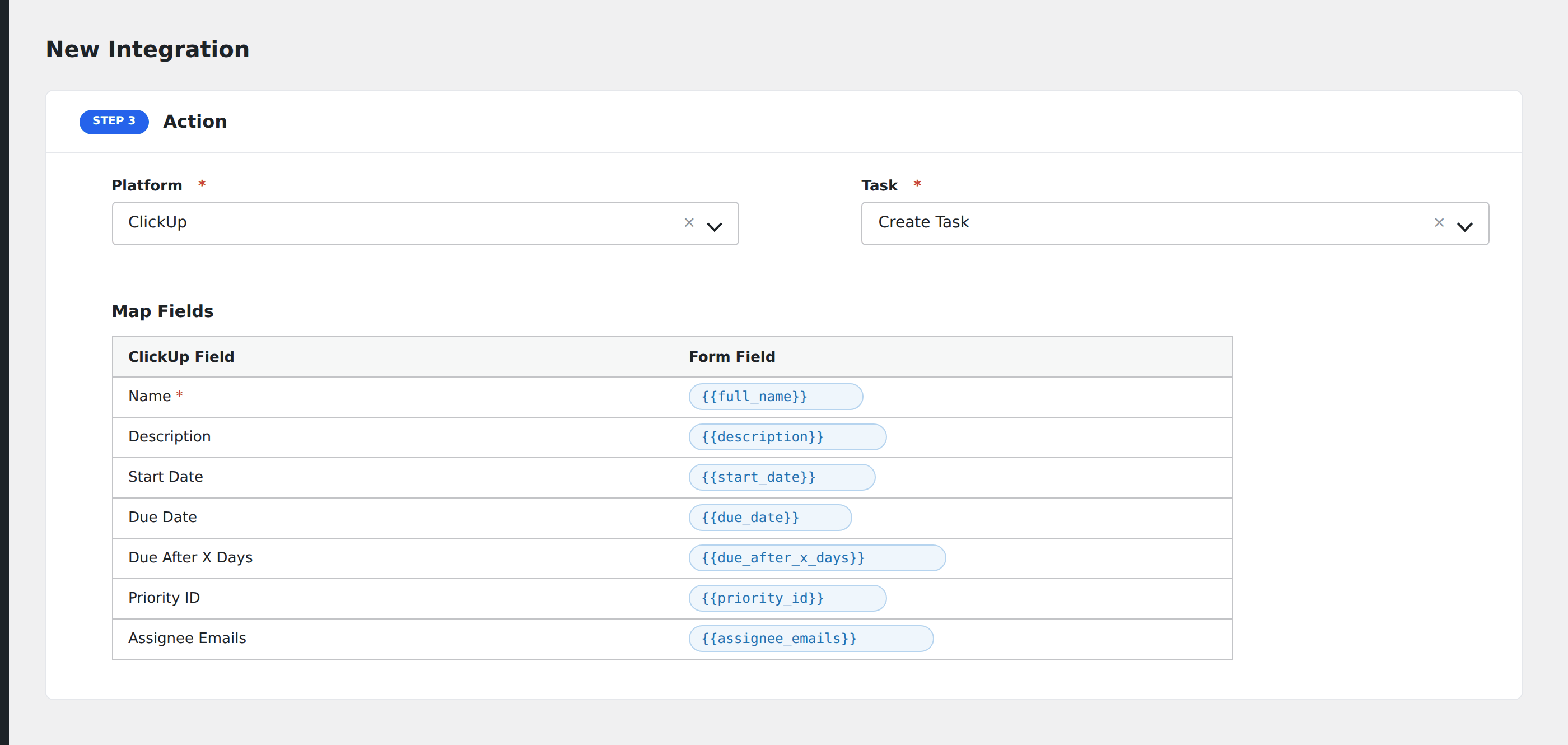
- In Action → Platform, select ClickUp.
- In Task, choose Create Task.
- Pick the Workspace, Space, Folder/List from the dropdowns.
- Map the form fields to ClickUp task properties:
- Name (required): the task title.
- Description: task body.
- Assignees: comma-separated ClickUp user IDs.
- Due date:
YYYY-MM-DD(ClickUp converts to Unix timestamp). - Priority:
1Urgent,2High,3Normal,4Low.
- Optional: configure Conditional Logic.
- Click Save Integration.
Tasks supported
Create Task
Adds a new task to the chosen list. Custom fields defined on the list also appear in the mapping dropdown.
Conditional logic example
Goal: when a support form’s Severity is Critical, create the ClickUp task with priority Urgent in the on-call list. Lower severities go to the standard backlog.
Create two integrations on the same form, each pointing at a different list and priority. Add the matching Equal To condition on each.
Troubleshooting
Task not created
Common ClickUp API errors:
Authorization header missingorOAUTH_001: token is wrong or revoked. Re-generate.List not found: wrong list ID, or the token’s user doesn’t have access.Field not found: custom field was renamed. Re-pick the list to refresh.
Custom field mapping issue
ClickUp custom fields use IDs internally. AFI shows them by name, but rapid renames in ClickUp may take a few seconds to propagate. Re-pick the list if a freshly renamed custom field doesn’t appear.