 AFI
AFI
Forminator
Forminator is a popular free form-builder plugin from WPMU DEV with over 400,000 active installs. Advanced Form Integration captures every Forminator form submission and routes the data to any of 200+ destinations: CRMs, spreadsheets, email tools, chat apps.
What you’ll need
- The Forminator plugin installed and activated.
- The Advanced Form Integration plugin installed and activated.
- A form already built in Forminator (Forminator → Forms → Create).
Supported form fields
| Field type | Supported | Output format / notes |
|---|---|---|
| Single line text | Yes | Same as input |
| Yes | Same as input | |
| Number | Yes | Same as input |
| Phone | Yes | Same as input, formatted as the user typed it |
| URL | Yes | Same as input |
| Paragraph | Yes | Same as input, line breaks preserved |
| Date | Yes | YYYY-MM-DD |
| Time | Yes | HH:MM 24-hour |
| Select | Yes | The selected option’s value |
| Radio | Yes | The selected option’s value |
| Checkbox | Yes | Comma-separated selected values |
| Multi-select | Yes | Comma-separated selected values |
| Address | Yes | Each sub-field (street, city, state, zip, country) maps separately |
| Name | Yes | First, last, prefix, middle each map separately |
| Hidden | Yes | Same as the hidden value |
| Consent (GDPR) | Yes | 1 when ticked, empty when not |
| File upload | Yes | Comma-separated public URL(s) of uploaded files |
| Rating | Yes | The numeric rating value |
| Slider | Yes | The numeric value |
| Captcha | Not sent | Captcha values are validated by Forminator and aren’t routed |
| Section / page | Not sent | Layout-only fields; nothing to route |
Create the integration
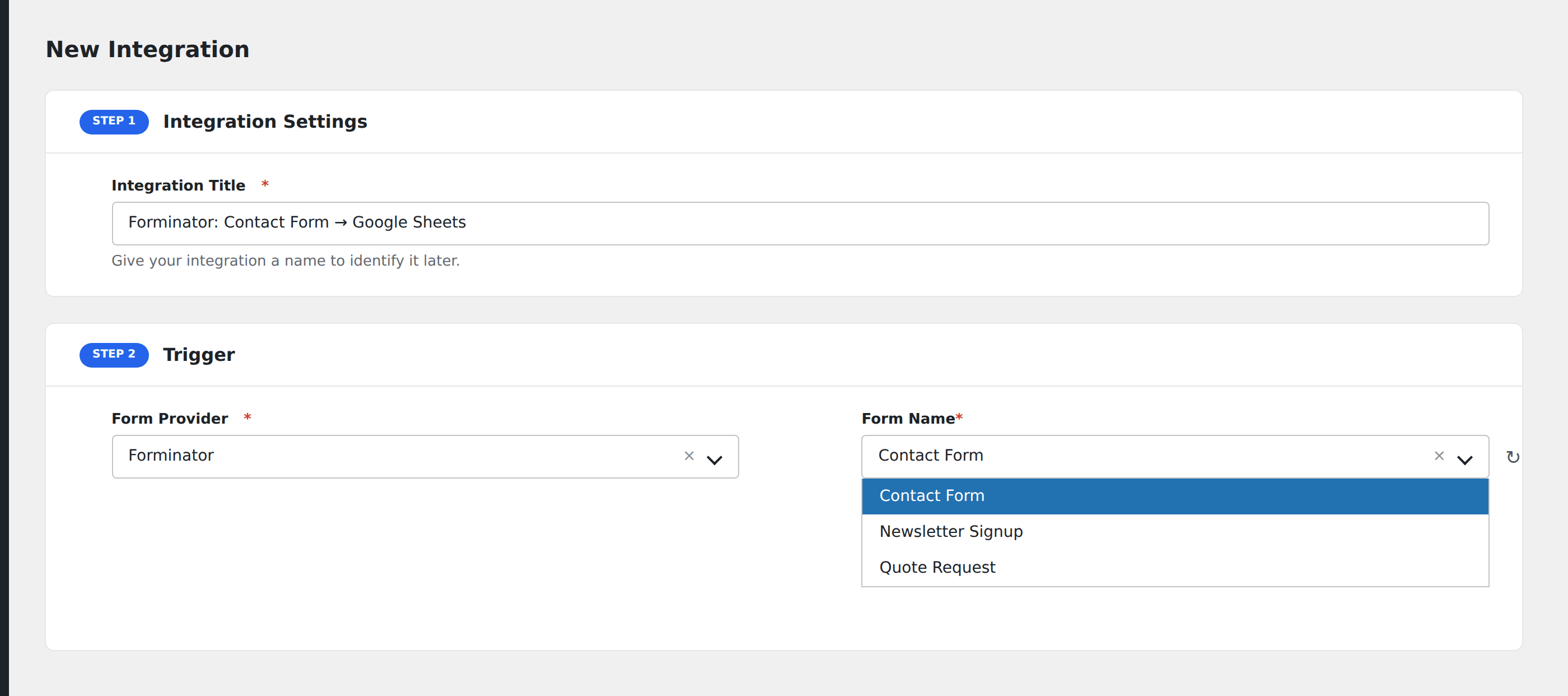
- Go to WP Admin → AFI → Add New.
- Enter an Integration Title that names both the form and the destination, e.g.
Newsletter form → Mailchimp. - In Trigger → Form/Data Provider, select Forminator.
- In Form/Task Name, choose the form you want to connect.
- In Action → Platform, pick where the data should go and complete the field mapping.
- Optional: configure Conditional Logic to route only matching submissions.
- Click Save Integration.
How AFI listens for submissions
AFI hooks into forminator_custom_form_submit_before_set_fields, which fires when a Forminator form is submitted and validated. The integration runs after Forminator finishes its own processing (email notifications, conditional logic, payment), so a submission that’s blocked or rejected by Forminator never reaches AFI. There’s no extra configuration in Forminator itself. Install AFI, save the integration, and submissions start flowing.
File uploads
Forminator’s file-upload field stores files in the WordPress media library and exposes a public URL per file. AFI sends that URL to the destination as a comma-separated string when the upload is multi-file. The destination platform can fetch the file directly from the URL, useful for piping resumes to Google Drive, signed contracts to a CRM, or images to a Slack channel.
Conditional logic example
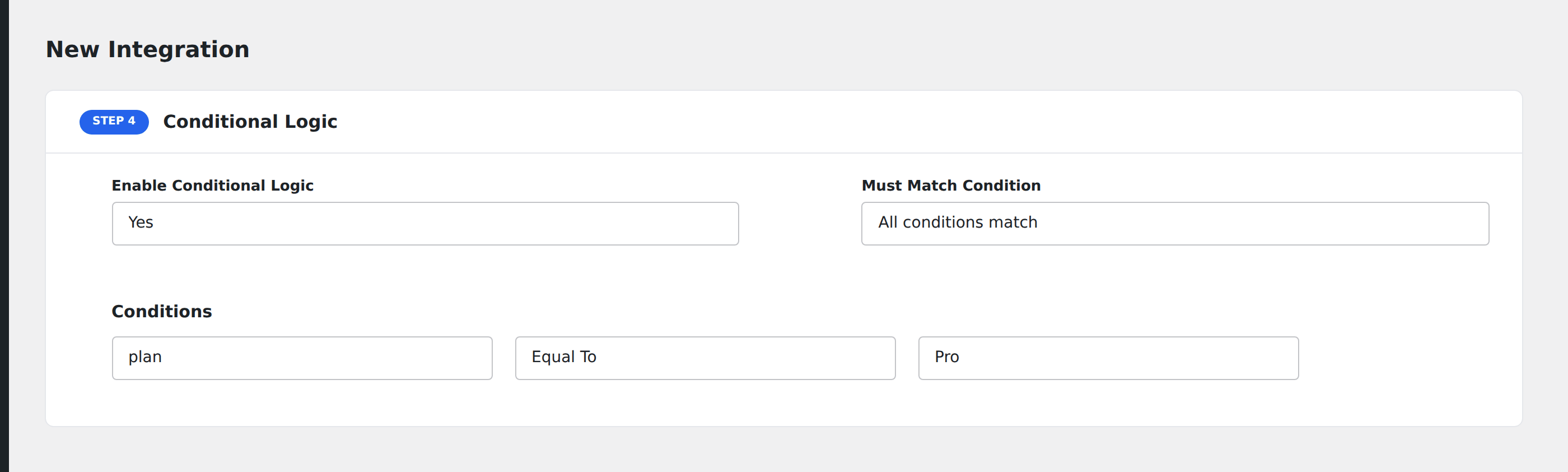
Goal: only push Pro Plan signups to the Salesforce CRM, while every signup still goes to Mailchimp.
Create two integrations on the same form. On the Salesforce integration, open the Conditional Logic panel, add a condition on the plan field with the Equal To operator and the value Pro. The Mailchimp integration stays unconditional.
Troubleshooting
Submissions not reaching the destination
Open AFI → Log. Each submission produces a log entry showing the exact payload AFI sent and the response from the destination. That nearly always points straight at the cause (missing required field, expired API key, validation error from the destination). Re-run failed entries with the Replay button.
Form not appearing in the Form/Task Name dropdown
Forminator caches its form list. Save and re-save the form in Forminator → Forms to refresh the cache, then reload the AFI integration screen.
File-upload field is empty in the destination
By default, Forminator stores uploaded files in the media library only after the submission completes. If your destination receives an empty value where the file URL should be, confirm the file field is set to Save to media library (not “Send via email only”) in the field settings.