 AFI
AFI
Intercom
Intercom is a customer messaging platform that combines live chat, email, bots, and a help desk. Advanced Form Integration creates contacts (leads and users) in Intercom from your WordPress form submissions, with support for location data, social profiles, and company associations.
What you’ll need
- An active Intercom account.
- An Intercom Access Token (see below).
- The Advanced Form Integration plugin installed and activated.
Get your Intercom access token
- Go to the Intercom Developer Hub.
- Create a new app.
- Add the “Read and write all contact data” and “Read and write all ticket data” permissions.
- Copy the Access Token.
- In WordPress, go to AFI → Settings → Intercom.
- Click Add Account, paste the access token, and give the account a name.
- Click Save.
Intercom uses Bearer token authentication with the Intercom-Version: 2.15 header on all requests.
Create the integration
- Go to AFI → Add New.
- Give the integration a name, for example
Lead form to Intercom. - Under Trigger, pick the form plugin and the specific form.
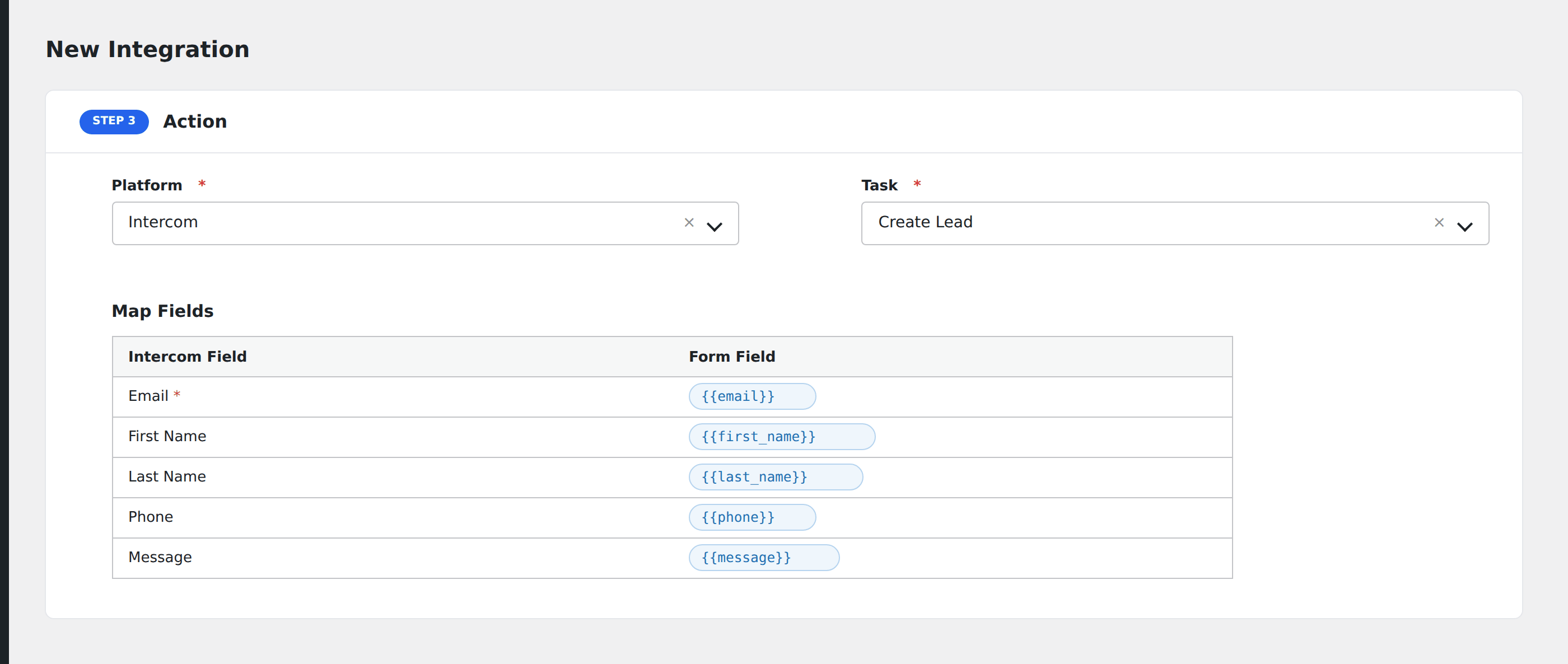
- Under Action → Platform, select Intercom.
- In Task, choose Create Contact.
- Pick the saved account in the Intercom Account dropdown.
- Map your form fields onto the Intercom fields listed below.
- Optional: open Conditional Logic to limit which submissions are sent.
- Click Save Integration.
Tasks supported
Create Contact
Creates a contact in Intercom via POST /contacts. The role defaults to lead if not specified. Any field prefixed with custom_ is automatically routed to Intercom’s custom_attributes object. Location fields are grouped under location_data, and social profile fields under social_profiles.
| Field | Field key | Required | Notes |
|---|---|---|---|
email |
Yes | Primary identifier | |
| External ID | external_id |
No | External identifier from your system |
| Name | name |
No | Full name |
| Phone | phone |
No | |
| Role | role |
No | user or lead. Defaults to lead. |
| Owner ID | owner_id |
No | Team member ID |
| Avatar Image URL | avatar_image_url |
No | |
| Location fields | location_city_name, location_country_name, location_country_code, location_region_name, location_timezone |
No | |
| Social Profile | social_profile_name, social_profile_url, social_profile_username |
No | Platform name (e.g. twitter), URL, username |
| Company ID | company_id |
No | Associates contact with an existing company |
| Custom attributes | custom_source, custom_industry, custom_company_size |
No | Example custom attributes; any custom_* key is supported |
Pro features
The Pro integration adds contact upsert (create or update), auto-loaded custom data attributes, and three additional tasks. Pro uses the same Intercom access token connection.
Create or Update Contact (upsert)
Pro searches for an existing contact by email via POST /contacts/search. If found, the contact is updated via PUT /contacts/{id}. If not, a new contact is created via POST /contacts.
Custom data attributes (auto-loaded)
Pro fetches writable custom data attributes from GET /data_attributes?model=contact. Only api_writable attributes appear. Each one shows as “[Custom]” in the mapper with its label.
Additional Pro tasks
- Add Note to Contact: finds a contact by email, then attaches a note via
POST /contacts/{id}/notes. - Tag a Contact: finds a contact by email, matches the tag name against workspace tags, then applies it via
POST /contacts/{id}/tags. - Track Event: records an event via
POST /eventswith optional JSON metadata. Accepts email or user ID for identification.
Feature comparison
| Feature | Free | Pro |
|---|---|---|
| Create contact (lead or user) | ✅ | ✅ |
| Standard fields (name, email, phone, location, social) | ✅ | ✅ |
| Company association | ✅ | ✅ |
| Basic custom attributes (hardcoded examples) | ✅ | ✅ |
| Contact upsert (search by email, create or update) | No | ✅ |
| Custom data attributes (auto-loaded from workspace) | No | ✅ |
| Add Note to Contact | No | ✅ |
| Tag a Contact | No | ✅ |
| Track Event | No | ✅ |
Conditional logic example
Only create Intercom contacts for B2B leads. Add a condition on company_name being not empty. Consumer enquiries without a company go to a different integration.
Troubleshooting
Nothing arrives in Intercom
Open AFI → Log and find the most recent entry. AFI stores the request URL, JSON body, headers, and raw response.
401 Unauthorized
The access token is invalid or expired. Regenerate it in the Intercom Developer Hub and update it in AFI → Settings → Intercom.
Rate limited (HTTP 429)
Intercom enforces rate limits per workspace. AFI automatically retries once after a short back-off, honoring the Retry-After header.