 AFI
AFI
Ninja Forms
Ninja Forms is a popular free drag-and-drop WordPress form builder by Saturday Drive with 1M+ active installs. Advanced Form Integration captures every Ninja Forms submission and routes the data to any of 200+ destinations.
What you’ll need
- The Ninja Forms plugin (free or any of its paid add-ons) installed and activated.
- The Advanced Form Integration plugin installed and activated.
- A form already built in Ninja Forms → Add New.
Supported form fields
| Field type | Supported | Output format / notes |
|---|---|---|
| Single line text | Yes | Same as input |
| Yes | Same as input | |
| Phone | Yes | Same as input |
| Number | Yes | Same as input |
| Textarea | Yes | Same as input |
| Date / Time | Yes | YYYY-MM-DD and HH:MM |
| Select | Yes | The selected option value |
| Radio list | Yes | The selected option value |
| Checkbox | Yes | 1 or empty |
| Checkbox list | Yes | Comma-separated selected values |
| Hidden | Yes | Same as the hidden value |
| File upload | Yes | Comma-separated public URL(s) (Pro add-on) |
| HTML | Not sent | Display-only field |
| Submit / Section | Not sent | Layout-only |
| Star rating | Yes | Numeric value (Pro add-on) |
| Anti-spam (honeypot) | Not sent | Anti-spam field, never routed |
Create the integration
- Go to WP Admin → AFI → Add New.
- Enter an Integration Title.
- In Trigger → Form/Data Provider, select Ninja Forms.
- In Form/Task Name, choose the form to listen on.
- In Action → Platform, pick the destination and complete the field mapping.
- Optional: configure Conditional Logic.
- Click Save Integration.
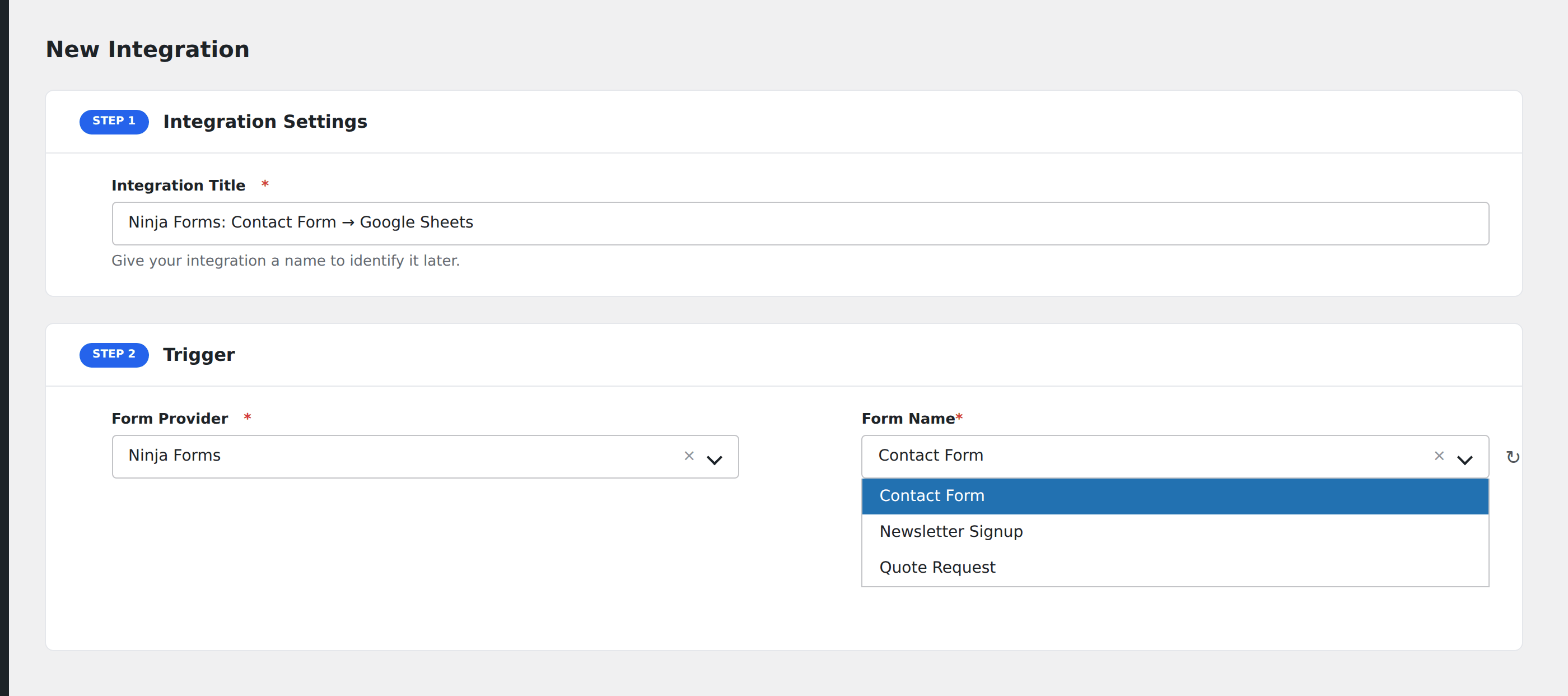
How AFI listens for submissions
AFI hooks into ninja_forms_after_submission, which fires after Ninja Forms validates and processes a submission. AFI runs after Ninja Forms’s own actions (email notifications, redirect, save), so a submission rejected by Ninja Forms validation never reaches AFI.
Field naming
Ninja Forms uses field “keys” rather than IDs in its data model. Each field has a key set in the field’s settings (Advanced → Administration → Field Key). AFI maps based on these keys. Keep them descriptive (first_name, email, company) so they’re easy to recognize in mappings.
Conditional logic example
Goal: when a Ninja Forms registration form has the Plan dropdown set to Pro, also create a deal in the sales CRM. Free signups only flow to the standard email tool.
Create two integrations on the same form. On the CRM integration, add a condition with the plan field, Equal To, value Pro. The email tool integration stays unconditional.
Troubleshooting
Submissions not reaching the destination
Open AFI → Log and find the most recent entry. The log shows the exact request payload and the response, pointing straight at the cause.
Form not appearing in the Form/Task Name dropdown
Ninja Forms caches its form list. Save the form in Ninja Forms → All Forms to refresh, then reload the AFI integration screen.
Multi-step forms
Ninja Forms’s Multi-Step Forms add-on fires AFI once after the final step submits. Earlier step transitions don’t fire individual events.