 AFI
AFI
Conditional Logic
Conditional logic decides whether an integration runs for a given submission. Without it, every submission reaches the destination platform. With it, you send only the records that matter, and you route different submissions to different places.
A rule compares one field against a value using an operator. You can stack several rules on a single integration and choose whether all of them or any of them must pass.
Where to find it
Open AFI → Integrations, then edit an integration. Scroll to the Conditional Logic panel below the field mapping and switch it on. Each row you add is one rule.
A rule has three parts: the field to test, the operator, and the value to compare against. Two operators, Is empty and Is not empty, hide the value box because they need nothing to compare against.
Match all or match any
The Match dropdown controls how multiple rules combine.
Choose all and every configured rule must pass before the integration runs. Choose any and a single passing rule is enough. See Must match condition: all or any for worked examples.
Rows with an empty field are treated as unconfigured. They count toward neither side, so a stray blank row cannot make all unsatisfiable. A ruleset with no configured rows behaves the same as switching conditional logic off: the integration runs.
The operators
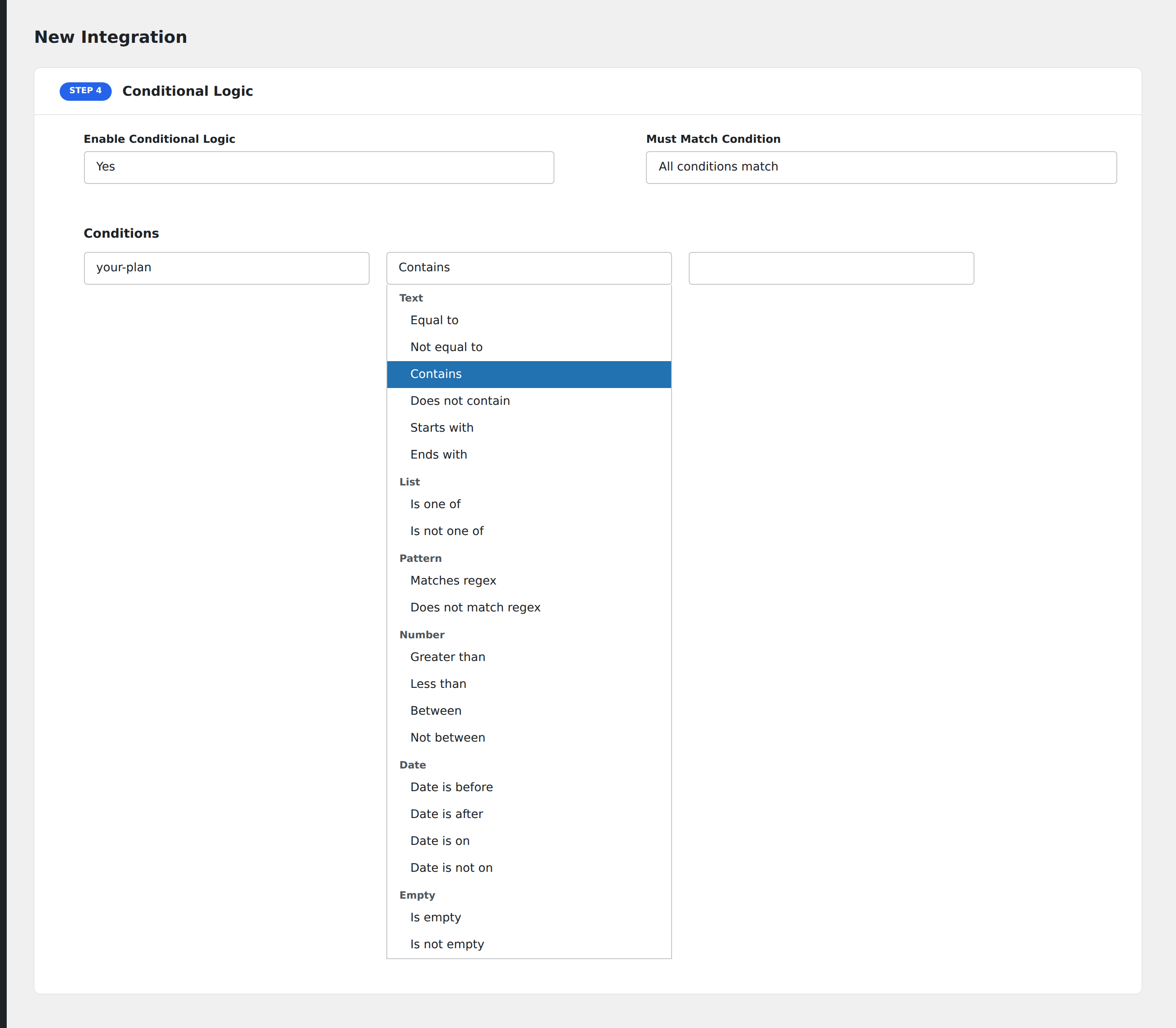
Operators are grouped in the dropdown by the kind of comparison they make.
Text
| Operator | Passes when |
|---|---|
| Equal to | The field matches the value |
| Not equal to | The field differs from the value |
| Contains | The value appears anywhere in the field |
| Does not contain | The value appears nowhere in the field |
| Starts with | The field begins with the value |
| Ends with | The field finishes with the value |
Text operators trim leading and trailing whitespace from both sides before comparing. Concatenated mappings such as {{first_name}} {{last_name}} therefore behave predictably.
List
| Operator | Passes when |
|---|---|
| Is one of | The field matches an entry in your comma-separated list |
| Is not one of | The field matches no entry in the list |
Pattern
| Operator | Passes when |
|---|---|
| Matches regex | The field matches your regular expression |
| Does not match regex | The field fails your regular expression |
Number
| Operator | Passes when |
|---|---|
| Greater than | The field is numerically larger than the value |
| Less than | The field is numerically smaller than the value |
| Between | The field falls inside an inclusive range |
| Not between | The field falls outside the range |
Number operators return no match when either side is non-numeric. A text answer never slips past a numeric threshold.
Date
| Operator | Passes when |
|---|---|
| Date is before | The field parses to an earlier moment than the value |
| Date is after | The field parses to a later moment |
| Date is on | Both sides fall on the same calendar day |
| Date is not on | The two sides fall on different calendar days |
Both sides accept absolute dates such as 2026-04-29, and relative phrases such as today, now -7 days, or first day of last month.
Empty
| Operator | Passes when |
|---|---|
| Is empty | The field is missing, blank, or an empty list |
| Is not empty | The field holds a value |
Rules fail safely
Every operator returns no match when it cannot evaluate cleanly. An unparseable date, an invalid regular expression, a malformed range, or an unrecognised operator all produce a non-match rather than an accidental pass.
That design protects the destination platform. A misconfigured rule holds data back instead of pushing junk into your CRM.
Testing a rule
Submit the form once with data you expect to pass and once with data you expect to fail. Open AFI → Log and compare. A held submission produces no log entry for that integration, because conditional logic runs before the API call.
Troubleshooting
The integration never runs
Check the Match dropdown. On all, one failing rule blocks the whole integration. Switch to any to confirm the other rules pass, then narrow down which rule is at fault.
A numeric comparison never passes
The field is arriving as text. A currency symbol, a thousands separator, or a trailing unit makes the value non-numeric, and numeric operators reject it. Map a clean numeric field, or switch to a text operator.
A date comparison never passes
The field format is not parseable. Confirm the raw value in AFI → Log, then use an unambiguous format such as 2026-04-29.

Run an integration only when a numeric field falls inside a range
Use the Contains operator in Advanced Form Integration to send a submission
Run an integration only when a date field falls later than a
Run an integration only when a date field falls earlier than a
Exclude one specific calendar day from an integration. The time of day
Match a date field against one specific calendar day. The time of
Use the Does Not Contain operator in Advanced Form Integration to send
Block submissions whose field matches a regular expression. Built for spam patterns
Use the Ends With operator in Advanced Form Integration to send a
Use the Equal To operator in Advanced Form Integration to send a
Use the Greater Than operator in Advanced Form Integration to send a
Run an integration only when a field was left blank. Takes no
Run an integration only when a field has some value in it.
Exclude a set of values from an integration. Useful for blocklists of
Match a form field against a comma-separated list of accepted values. Case-insensitive,
Test a form field against a regular expression. Handles patterns that Contains
Combine multiple conditional-logic rules in Advanced Form Integration with AND or OR
Run an integration only when a numeric field falls outside a range.
Use the Not Equal To operator in Advanced Form Integration to send
Use the Starts With operator in Advanced Form Integration to send a