 AFI
AFI
Smartsheet
Smartsheet is a project- and work-management platform with a familiar spreadsheet-style interface. Advanced Form Integration appends every WordPress form submission as a new row to a Smartsheet sheet of your choice, mapping form fields to columns. The integration is included in the free version of AFI.
What you’ll need
- An active Smartsheet account.
- A Smartsheet API access token (we’ll generate one in the next step).
- A sheet already created in Smartsheet, with column headers in place.
- The Advanced Form Integration plugin installed and activated.
Get your Smartsheet API access token
- Log in to Smartsheet.
- Click your account icon (bottom left) and go to Personal Settings.
- Open the API Access tab.
- Click Generate new access token.
- Give the token a name like Advanced Form Integration and click OK.
- Copy the token Smartsheet shows. You won’t be able to view it again.
Smartsheet API tokens grant access to all sheets the token’s owner can see. Treat the token like a password.
Connect Smartsheet to AFI
- In WordPress, go to AFI → Settings.
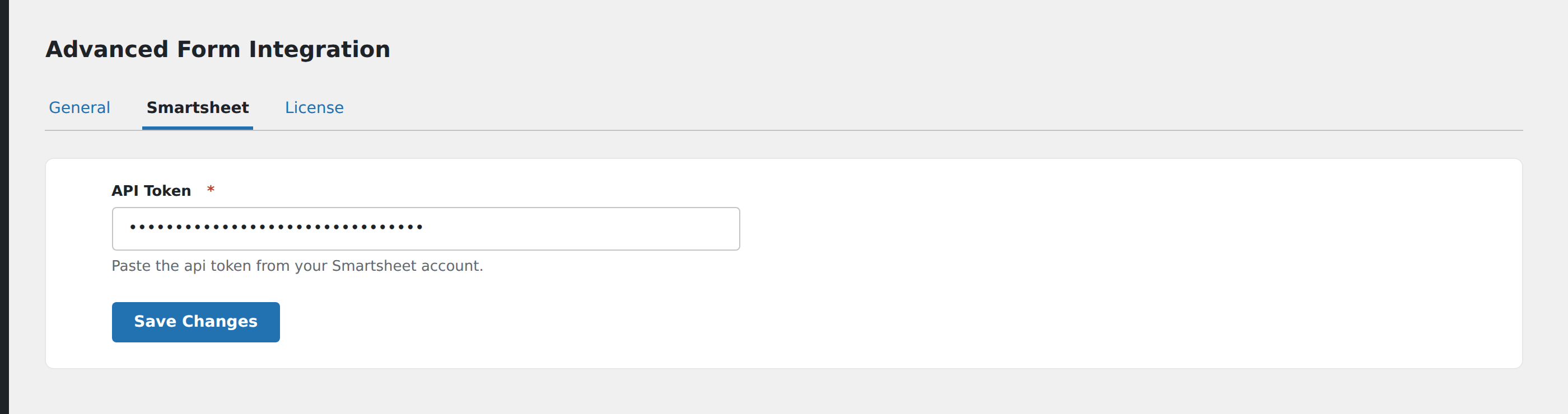
- Open the Smartsheet tab and turn it on.
- Click Add Account, paste the access token, and click Save.
Create the integration
- Go to AFI → Add New.
- Configure the trigger (see your form plugin’s doc for specifics).
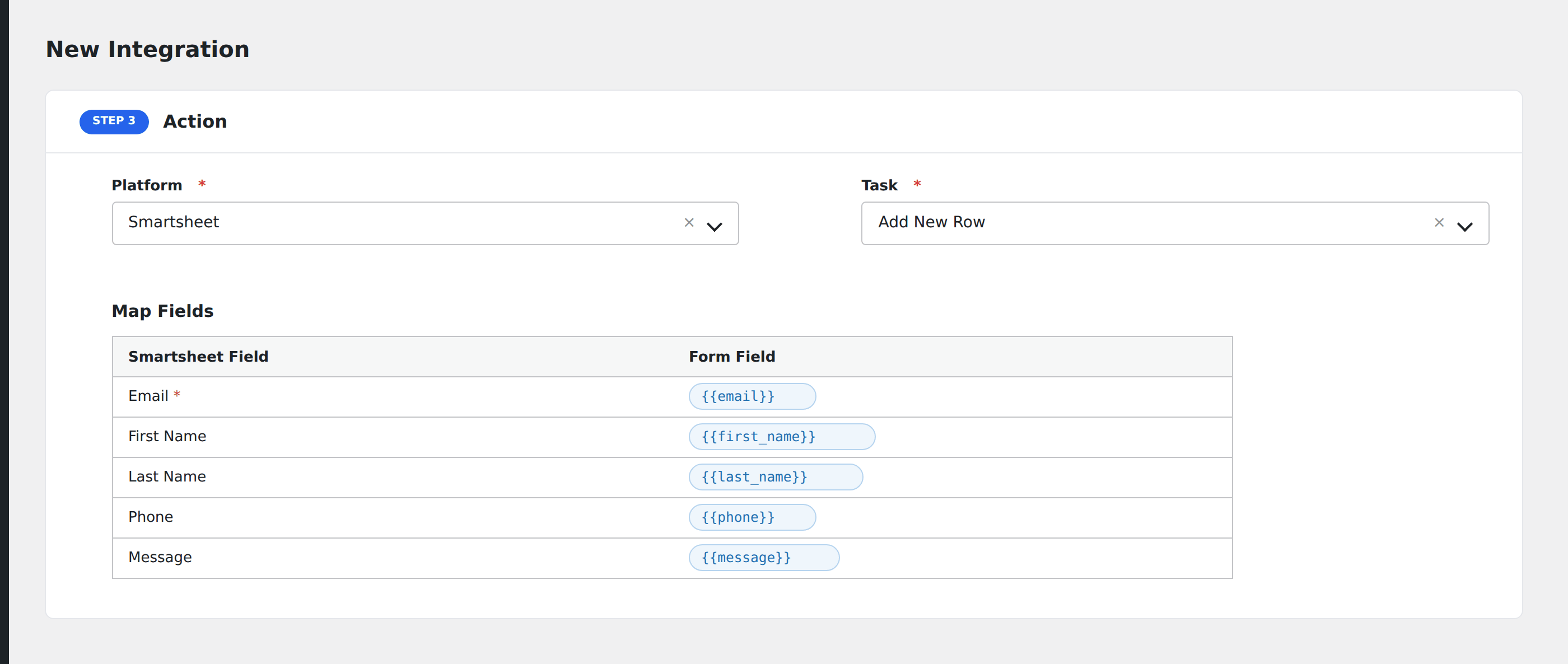
- In Action → Platform, select Smartsheet.
- In Task, choose Add New Row.
- The Sheet dropdown auto-populates with all sheets your token can access. Pick the target sheet.
- AFI then loads the sheet’s column names. Map each column to a form field (or leave it blank to skip).
- Optional: configure Conditional Logic.
- Click Save Integration.
Tasks supported
Add New Row
Appends a new row to the bottom of the selected sheet. Columns not mapped in the integration are left blank in the new row.
Required: at least one mapped column.
Notes:
- Smartsheet column types are respected. Date columns expect
YYYY-MM-DD; checkbox columns expecttrue/falseor1/0. - Multi-pick list columns accept comma-separated values.
- Attachment columns aren’t supported via this task. To attach files, use the file URL approach: map the form’s file-upload field to a text column, then build a Smartsheet automation that pulls the file from the URL.
Conditional logic example
Goal: only push form submissions tagged Priority: High to the Smartsheet sheet your project manager watches.
Open the integration’s Conditional Logic panel, add a condition with the priority field, Equal To operator, value High. Other submissions are skipped for this Smartsheet integration but still flow to other destinations.
Troubleshooting
Sheet dropdown is empty
The API token doesn’t have access to any sheets, or the token is invalid. Confirm the token is still active in Smartsheet → Personal Settings → API Access, and that the user who generated the token has been shared on the sheet you want.
“Smartsheet API error: invalid column ID”
Someone renamed or deleted a column in Smartsheet after the integration was saved. Open the integration, scroll to the column-mapping section: AFI re-fetches the column list. Re-map and save.
Date column shows as text
The form’s date field is in a format Smartsheet doesn’t recognize. Map the field through a Mixed Field with {date_field|date:Y-m-d} formatting (Pro feature) or change the form to output ISO dates.