Insightly CRM
Overview
Insightly is a CRM with Contacts, Organisations, Opportunities (Deals), Projects, and Tasks; it covers both sales pipeline and post-sale project management. AFI’s integration creates an Organisation, Contact, and Opportunity (or Deal on Pro) in one call from each matching form submission. Connection is via an Insightly API Key from your Insightly account.
Supported actions
- Create New Organisation, Contact, Opportunity (Free): combined task that creates an Organisation, links a Contact to it, and adds an Opportunity in one call.
- Create New Organization, Contact, Deal (Pro): the Pro version uses Insightly’s newer object naming and writes to Deal records rather than the legacy Opportunity entity.
AFI Pro adds richer field mapping for Insightly. More sender-plugin field types (phone, date, dropdown, hidden, custom fields) are exposed in the mapping panel, and your Insightly custom fields surface alongside the standard ones.
Quick reference
| Need to… | Do this |
|---|---|
| Create just a Contact | Fill Contact fields only; leave Organisation and Opportunity/Deal blank. |
| Create the full Org + Contact + Opportunity triple | Fill in fields under each entity; the records are linked on save. |
| Track sales pipeline stages | Map the Pipeline + Stage fields on the Opportunity/Deal; values must match Insightly’s configured pipeline stages. |
| Map custom fields | On Pro, Insightly custom fields appear in the dropdown automatically; refresh the dropdown after adding new fields in Insightly. |
| Switch from legacy Opportunity to new Deal | Use the Pro variant of the integration (Insightly [PRO]) which writes to Deal records. |
Heads up: Insightly’s API key is in User Settings > API; paste it in AFI > Settings > Insightly alongside the regional API URL (Insightly shows the right URL for your account on the same API page, e.g. https://api.insightly.com or https://api.na1.insightly.com). The full setup walkthrough (with screenshots) is below.
Authentication
Before start, you are required to authorize your Insightly account on the plugin settings page.
Go to AFI > Settings > General and you will find all the supported platforms listed there. Mark Insightly CRM and hit the Save Changes button at the bottom.

Now find the Insightly tab at the top of the settings page click on that, You will be taken to the Insightly settings page, where you are to provide API Key and API URL then click on Save Changes button. (How to find api keys is instructed in Insightly CRM settings page)

Create New Integration
After the authentication part completed you can start creating new integration. Click on Add New under the AFI menu, New Integration page will appear.
Title
A default title will be auto-generated with an auto incremental number. You can rename it to something related to the task. It will help you to quickly recognize the correct one if multiple integrations are created.
Trigger
Select the sender form in the Form Provider dropdown. For example, Contact Form 7 or Gravity Form, or the Elementor Pro Form which you want to connect. After selecting the form provider, all forms built under that will be fetched and auto-populated in the Form/Task Name dropdown. Select the form that you want to integrate.
Action
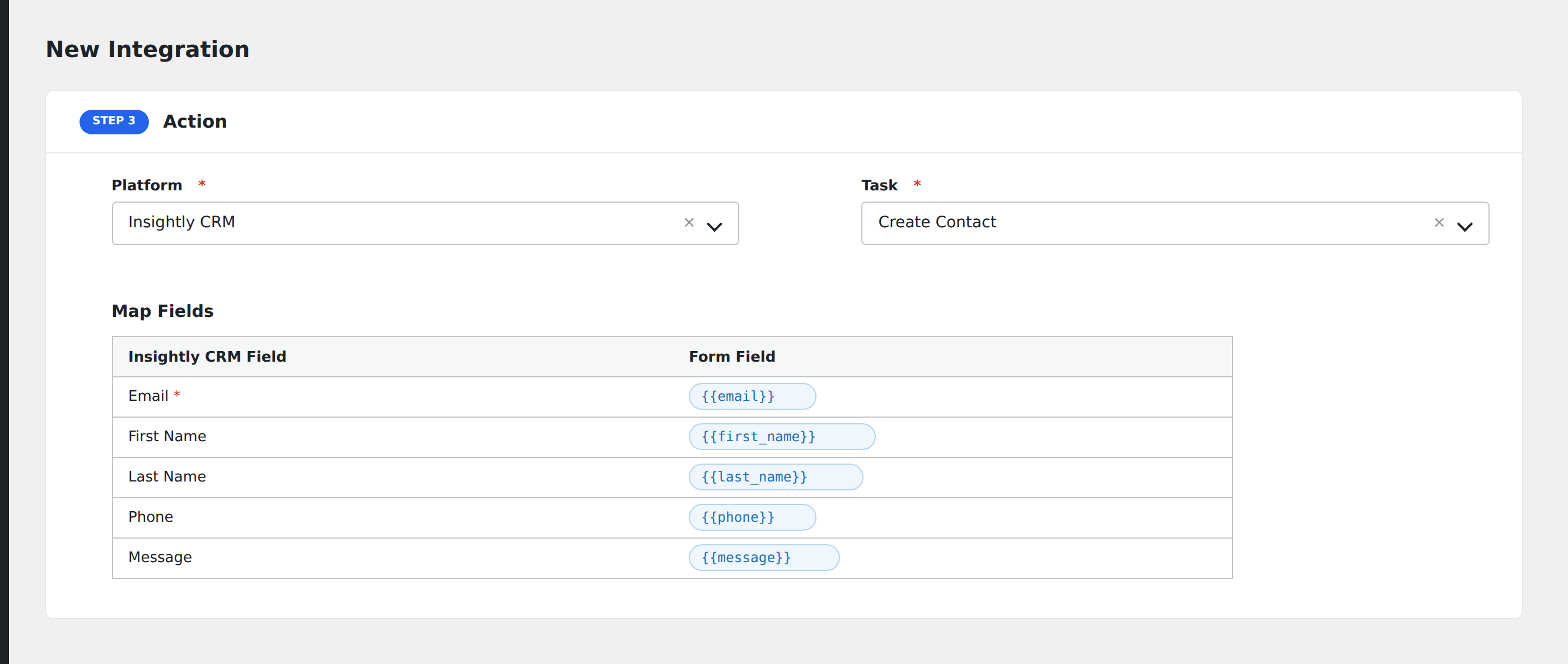
Select Insightly in Platform dropdown. Then select Create New Organization, Contact, Deal in the Task dropdown. If you are using pro version you will get another option Insightly [PRO] select it. Then Select Create New Organization, Contact, Deal in the Task dropdown.

Map Fields
Available Owner List will be auto-populated in the list drop-down. Select the desired one. You will find Insightly’s Organization, Contact and Opportunity fields on the left side and form fields dropdown on the right. This form field dropdown will contain the field titles of the form you selected in the trigger area. Map Organization, Contact and Opportunity fields that you want. Skip the fields that are not needed. If you are using pro version you will have some extra field custom and tags. Use comma without space to add multiple tag, you can map them as you want.

Save Integration
Finally, click the Save Integration button and you are done. Now you can start testing.
Troubleshooting
After the integration is made, when users fill up the form and submit it, the plugin initiates the process of sending data to the configured platform. It also saves a log that includes what data it tried to send, and what it got in response from that platform. So if you find an integration is not working, your first task is to check the logs. Go to AFI > Log menu and check the recent logs.

Common issues & fixes
Insightly issues are almost always credential- or required-field-related. Work through these in order:
- Re-copy the API key and API URL. In Insightly; User Settings; API; copy both the API key and the regional API URL shown on that page into AFI > Settings > Insightly. Whitespace or newlines on paste break auth.
- Match the integration variant to your Insightly edition. Use the free Create New Organisation, Contact, Opportunity task on classic Insightly orgs; use Pro’s Create New Organization, Contact, Deal task on the newer object model.
- Map Last Name on Contact. Insightly requires Last Name on Contact records; map a form value or a constant.
- Refresh dropdowns after adding pipelines / stages / custom fields in Insightly. Click the refresh icon next to each dropdown in AFI to re-pull.
Specific symptoms
- 401 Unauthorized. API key invalid; regenerate in Insightly and paste again.
- Validation error on save. A required field is blank; AFI Log entry names it.
- Pipeline / Stage mismatch. Pipeline and Stage values are validated against your Insightly configuration; copy them verbatim or use Conditional Logic to coerce.
- Custom fields not appearing. Pro is required for full custom-field mapping; click refresh after adding new fields in Insightly.
Notes & caveats
- Two object models in Insightly. Classic uses Organisation + Opportunity (free task); the newer model uses Organization + Deal (Pro task). Pick the variant that matches your Insightly edition.
- One combined task. The integration creates the Organisation/Organization + Contact + Opportunity/Deal in one call.
- API rate limits. Insightly caps API calls per minute per account; enable AFI’s Job Queue (Settings > General) on high-volume forms.